> ## Documentation Index
> Fetch the complete documentation index at: https://docs.mayar.id/llms.txt
> Use this file to discover all available pages before exploring further.
# Whatsapp (Unofficial)
> Activate the WhatsApp (Unofficial) feature in MAYAR now to ensure your customers receive transaction notifications quickly and efficiently—boosting their satisfaction and trust in your service.
### Overview
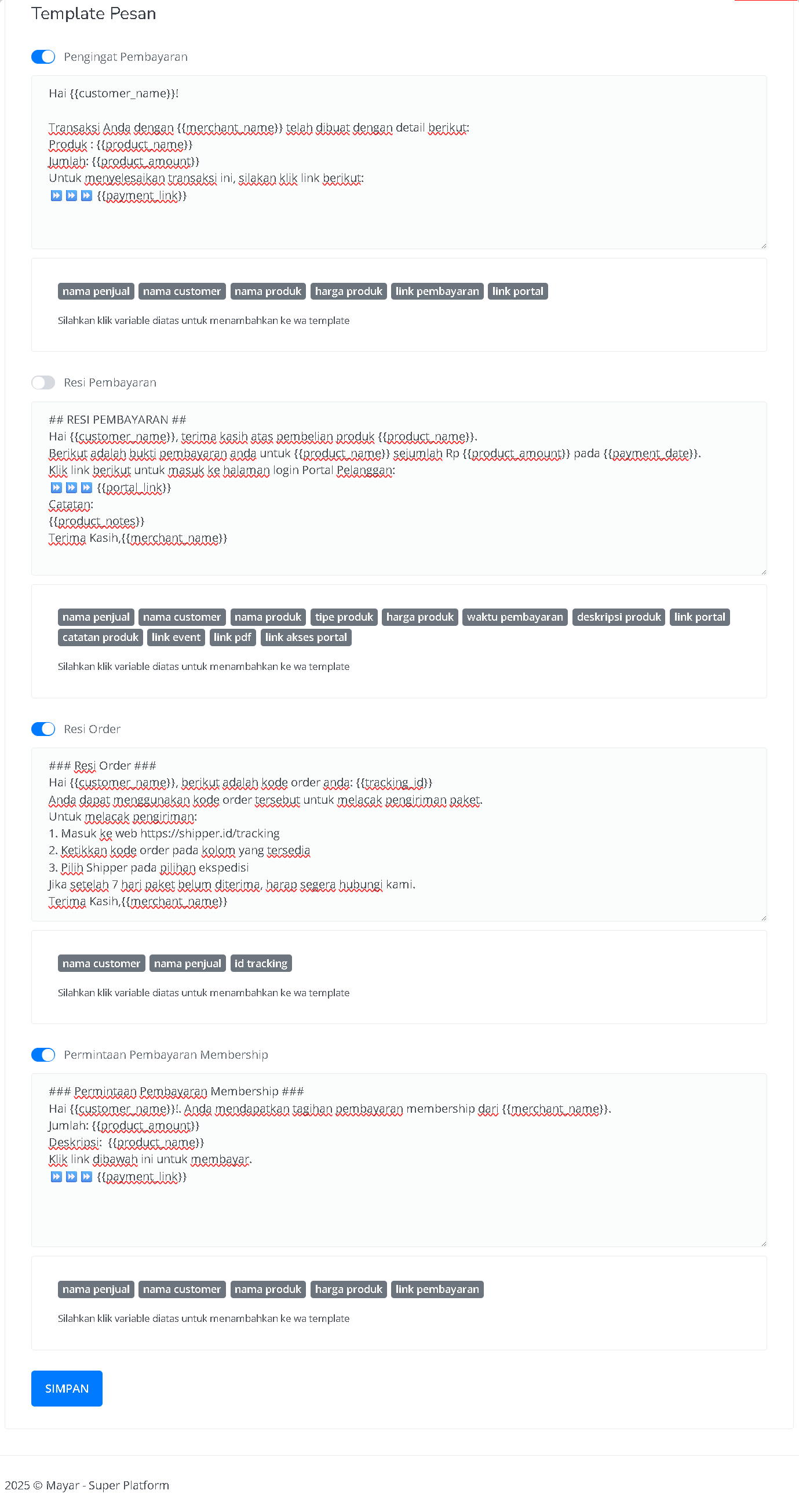
The WhatsApp (Unofficial) in MAYAR enables businesses to send and receive transaction notifications effectively. With this feature, users can send various important updates to customers, such as payment receipts, order confirmations, membership payment requests, and payment reminders. By using WhatsApp, this information is delivered instantly and directly to the customer, ensuring they are always informed about the status of their transactions. This not only improves transparency and customer trust but also helps businesses manage transaction-related communication more efficiently.
This is a beta feature. Please contact the admin via live chat or email at [cs@mayar.id](mailto:cs@mayar.id) to activate this feature. Currently, it is only available for merchants with active transactions for the past 3 months.
### How to Integrate WhatsApp with MAYAR
Follow these simple steps to integrate WhatsApp with MAYAR smoothly:
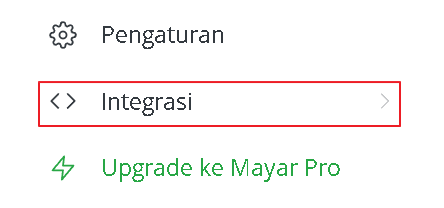
Open the Integration menu on the MAYAR dashboard sidebar.
 Select and open the WhatsApp Unofficial page.
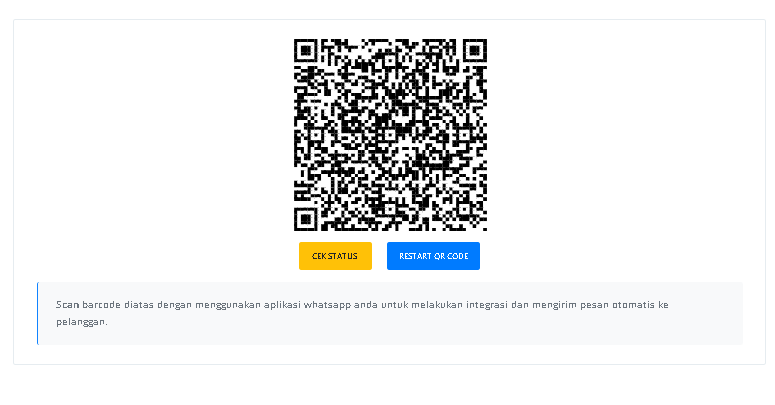
 Once the page opens, scan the QR code using your WhatsApp application.
 After successfully connecting, you can start configuring automated messages by selecting one of the available message templates.
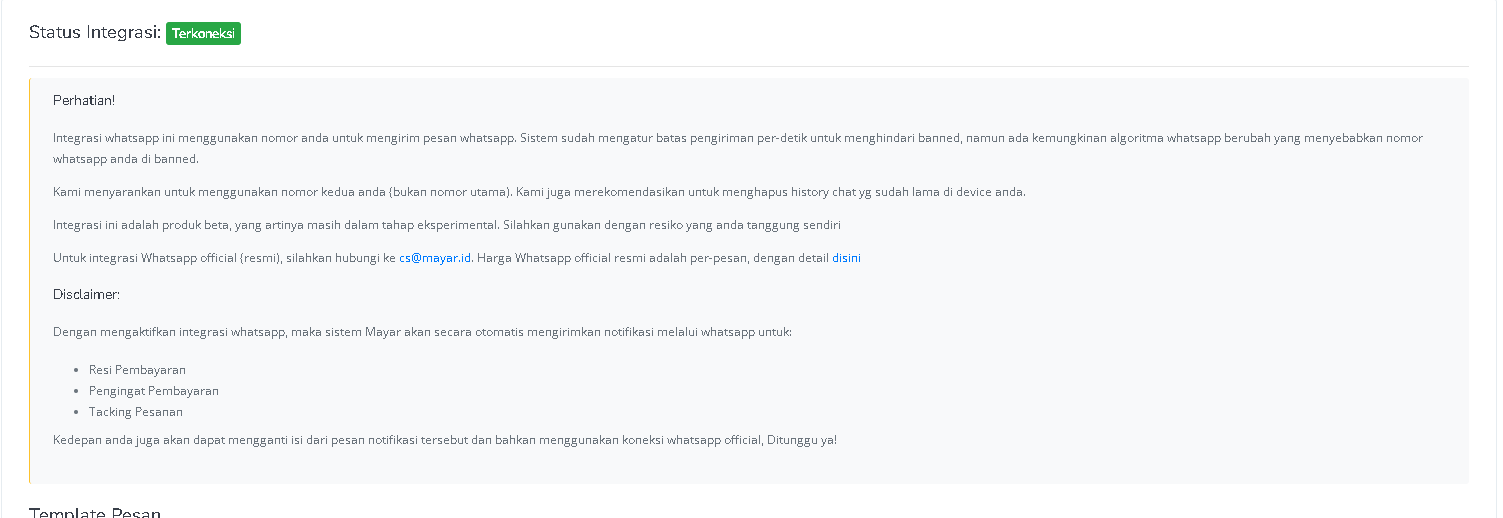 Done! Congratulations, you’ve successfully integrated MAYAR with WhatsApp.