> ## Documentation Index
> Fetch the complete documentation index at: https://docs.mayar.id/llms.txt
> Use this file to discover all available pages before exploring further.
# Writing
> Experience the uniqueness and quality of *Writing* by trying our product today!
### Overview
Writing on Mayar is an innovative product designed to make it easier for users to write and edit documents digitally. This product offers advanced features such as voice recognition, allowing users to dictate text directly to their device, as well as collaboration tools that enable real-time teamwork. In addition, Writing on Mayar is equipped with automatic grammar and spell check tools, ensuring that the quality of writing remains high. Its intuitive and user-friendly interface makes it suitable for everyone, from students to professionals, who need an efficient and effective writing solution.
### How to Create a Writing Product
Make sure you are logged into your Mayar account and on the main Dashboard page.
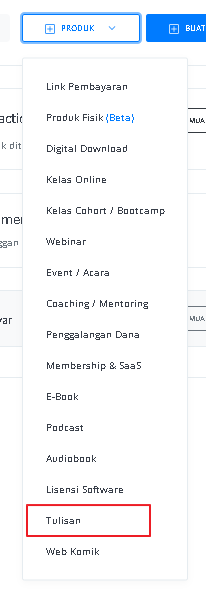
Click the “Product” button at the top right near the “Create” button. This will take you to the product menu.
Select the “Writing” option to start creating your Writing product. The “Create Writing” window will open.
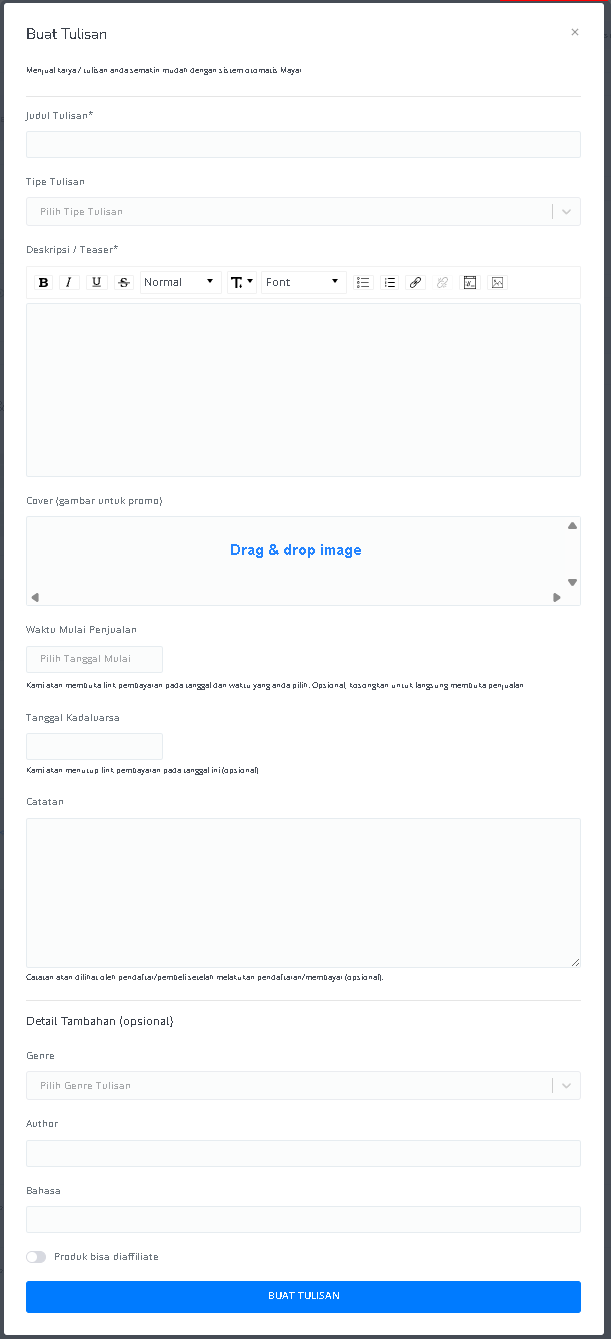
 Enter the following information:
| **Input Form** | **Description** |
| --------------------------- | ---------------------------------------------------------------------------------------------------- |
| **Title** | Field to enter the title of the writing. |
| **Writing Type** | A dropdown to choose the type of writing. |
| **Description / Teaser** | Text area to add a description or teaser with text formatting tools (bold, italic, underline, etc.). |
| **Cover (promo image)** | Area to upload a promotional image (drag & drop). |
| **Sales Start Time** | Field to select the start date and time for sales. Optional, leave empty to start immediately. |
| **Expiration Date** | Field to set the end date of sales (optional). |
| **Notes** | Text area to add notes that buyers will see after payment. |
| **Genre** | Dropdown to choose the genre. |
| **Author** | Field to enter the author’s name. |
| **Language** | Field to enter the language of the writing. |
| **Affiliate Option** | Toggle to allow the product to be part of the affiliate program. |
| **"CREATE WRITING" Button** | Button to submit the form and create the writing product. |
Enter the following information:
| **Input Form** | **Description** |
| --------------------------- | ---------------------------------------------------------------------------------------------------- |
| **Title** | Field to enter the title of the writing. |
| **Writing Type** | A dropdown to choose the type of writing. |
| **Description / Teaser** | Text area to add a description or teaser with text formatting tools (bold, italic, underline, etc.). |
| **Cover (promo image)** | Area to upload a promotional image (drag & drop). |
| **Sales Start Time** | Field to select the start date and time for sales. Optional, leave empty to start immediately. |
| **Expiration Date** | Field to set the end date of sales (optional). |
| **Notes** | Text area to add notes that buyers will see after payment. |
| **Genre** | Dropdown to choose the genre. |
| **Author** | Field to enter the author’s name. |
| **Language** | Field to enter the language of the writing. |
| **Affiliate Option** | Toggle to allow the product to be part of the affiliate program. |
| **"CREATE WRITING" Button** | Button to submit the form and create the writing product. |
 For *One-Shot* writings, you can directly create your content. For *Chapter-based* writings, enter details such as Chapter Title, Cover, and Release Time before creating content for each chapter. Make sure the setup aligns with your chosen payment mechanism so that all information matches your payment type and desired sales strategy.
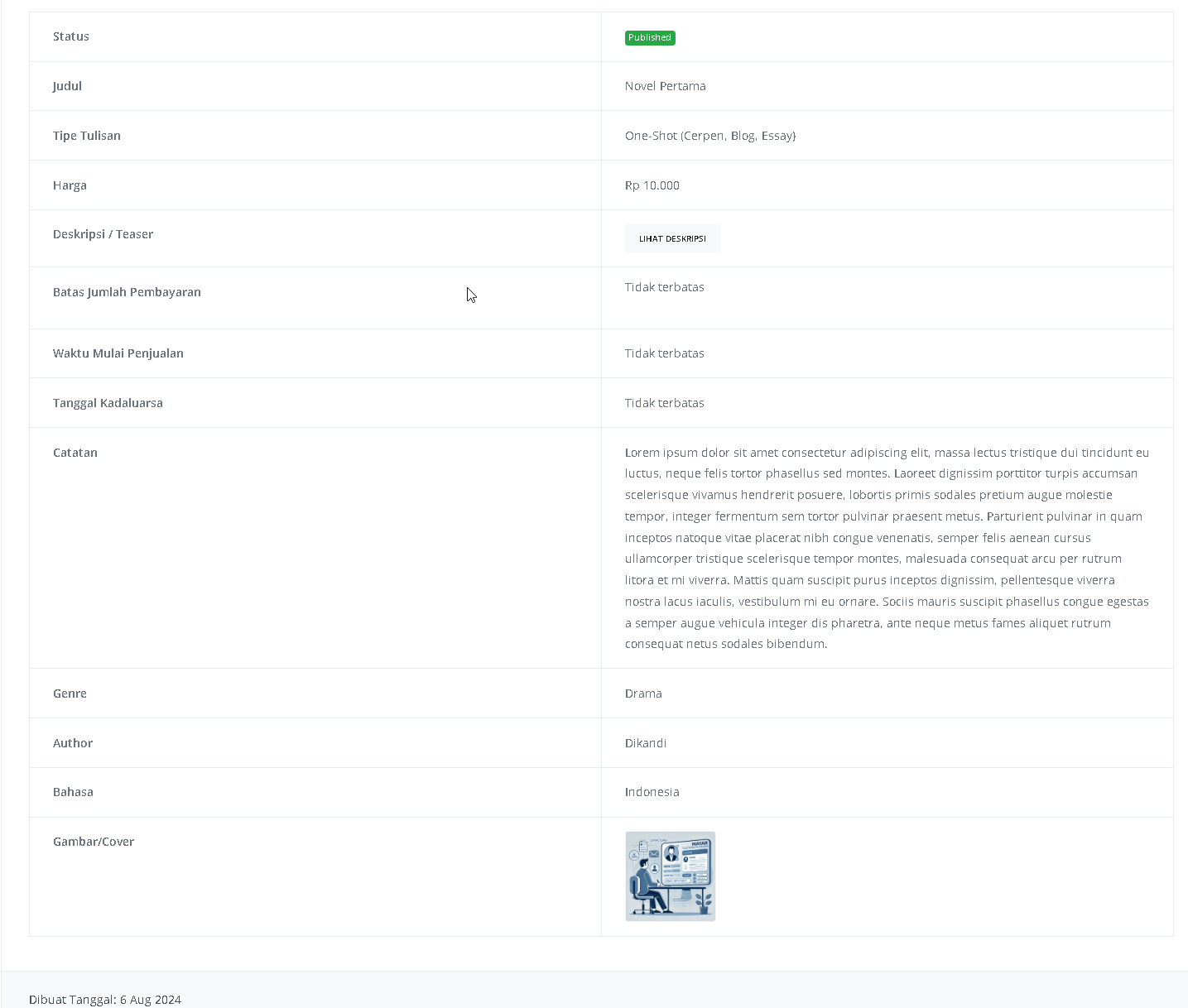
After filling in all the information, review the product details to ensure everything is correct. On the product detail page, you will see the following:
| **Information** | **Description** |
| ----------------------- | ----------------------------------------------------------------------------------------------------------- |
| **Status** | Shows whether the product is published or not. "Published" means the product is available to the public. |
| **Title** | The title of the writing, e.g., *“Novel Pertama”*. |
| **Writing Type** | Shows the type of work, e.g., *“One-Shot (Short Story, Blog, Essay)”* meaning it’s complete in one release. |
| **Price** | The cost to purchase, e.g., Rp 10,000. |
| **Description / Tease** | Contains a summary or more info. The "VIEW DESCRIPTION" button lets users read more. |
| **Payment Limit** | Indicates whether there’s a limit on the number of payments. *“Unlimited”* means no limit. |
| **Sales Start Time** | Shows when sales begin. *“Unlimited”* means no restriction. |
| **Expiration Date** | Shows until when the product is available. *“Unlimited”* means no expiration date. |
| **Notes** | Additional information, such as content details or important notes. |
| **Genre** | The category/theme of the writing, e.g., *“Drama”*. |
| **Author** | The main writer, e.g., *“Dikandi”*. |
| **Language** | The language used, e.g., *“Indonesian”*. |
| **Cover Image** | Visual or promotional cover to give buyers a preview. |
For *One-Shot* writings, you can directly create your content. For *Chapter-based* writings, enter details such as Chapter Title, Cover, and Release Time before creating content for each chapter. Make sure the setup aligns with your chosen payment mechanism so that all information matches your payment type and desired sales strategy.
After filling in all the information, review the product details to ensure everything is correct. On the product detail page, you will see the following:
| **Information** | **Description** |
| ----------------------- | ----------------------------------------------------------------------------------------------------------- |
| **Status** | Shows whether the product is published or not. "Published" means the product is available to the public. |
| **Title** | The title of the writing, e.g., *“Novel Pertama”*. |
| **Writing Type** | Shows the type of work, e.g., *“One-Shot (Short Story, Blog, Essay)”* meaning it’s complete in one release. |
| **Price** | The cost to purchase, e.g., Rp 10,000. |
| **Description / Tease** | Contains a summary or more info. The "VIEW DESCRIPTION" button lets users read more. |
| **Payment Limit** | Indicates whether there’s a limit on the number of payments. *“Unlimited”* means no limit. |
| **Sales Start Time** | Shows when sales begin. *“Unlimited”* means no restriction. |
| **Expiration Date** | Shows until when the product is available. *“Unlimited”* means no expiration date. |
| **Notes** | Additional information, such as content details or important notes. |
| **Genre** | The category/theme of the writing, e.g., *“Drama”*. |
| **Author** | The main writer, e.g., *“Dikandi”*. |
| **Language** | The language used, e.g., *“Indonesian”*. |
| **Cover Image** | Visual or promotional cover to give buyers a preview. |
 If all looks good, you have successfully created a Writing Product on Mayar.
### How to Access the Product Page and Checkout
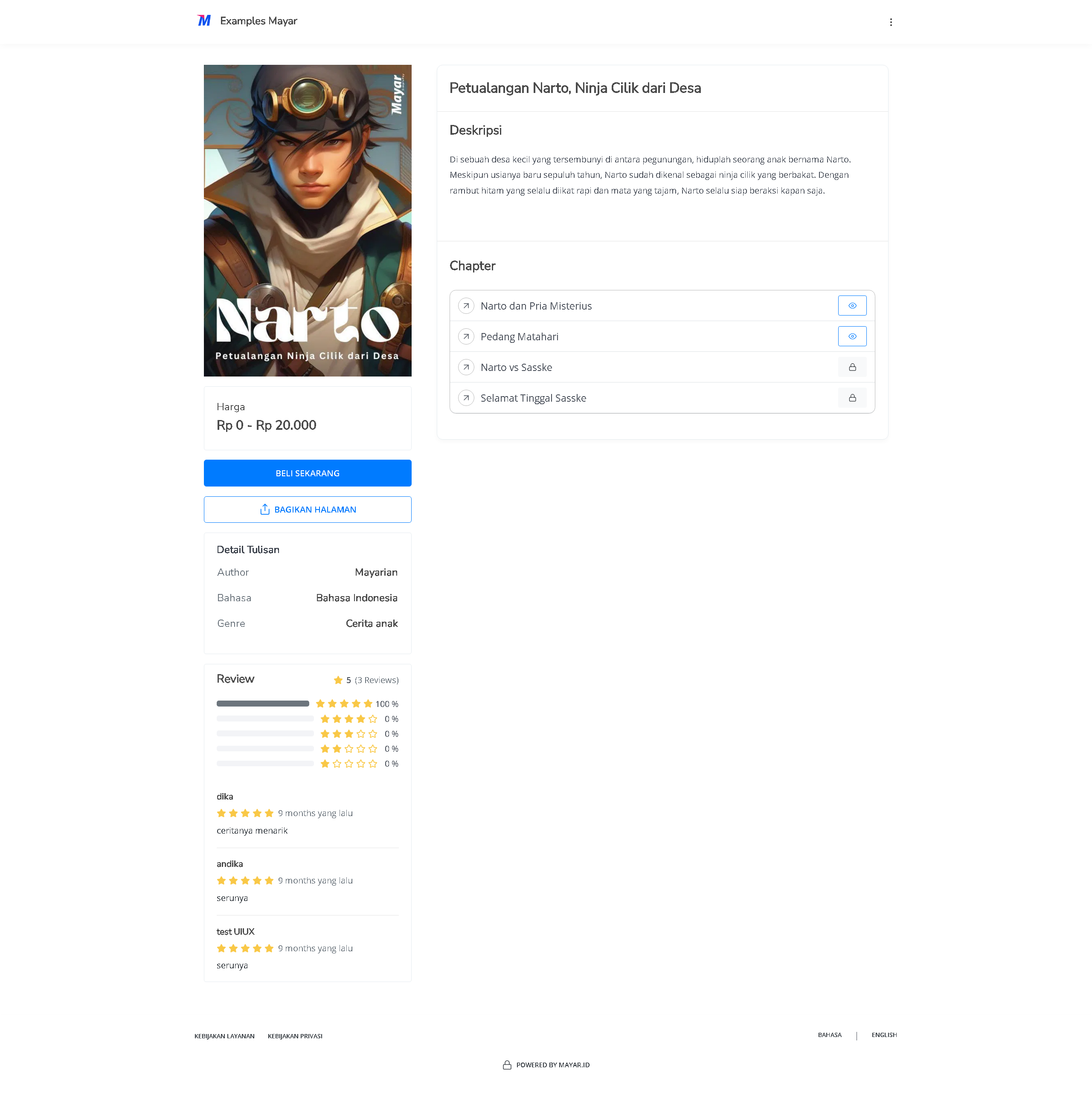
You can access the product page through the link provided in the product details.
If all looks good, you have successfully created a Writing Product on Mayar.
### How to Access the Product Page and Checkout
You can access the product page through the link provided in the product details.
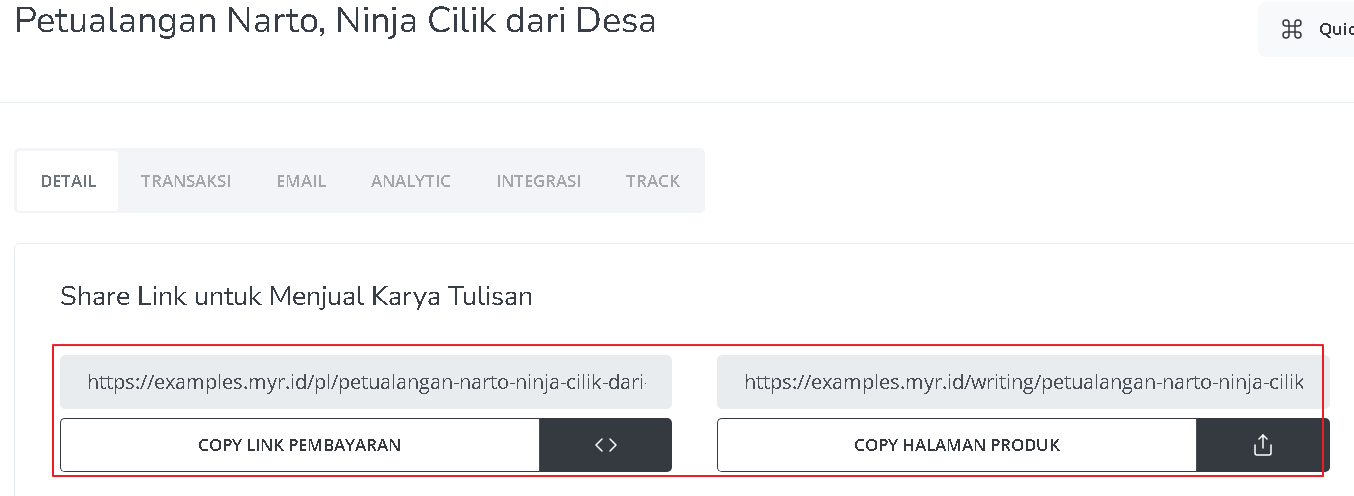 You can also access the product page by copying the product page link.
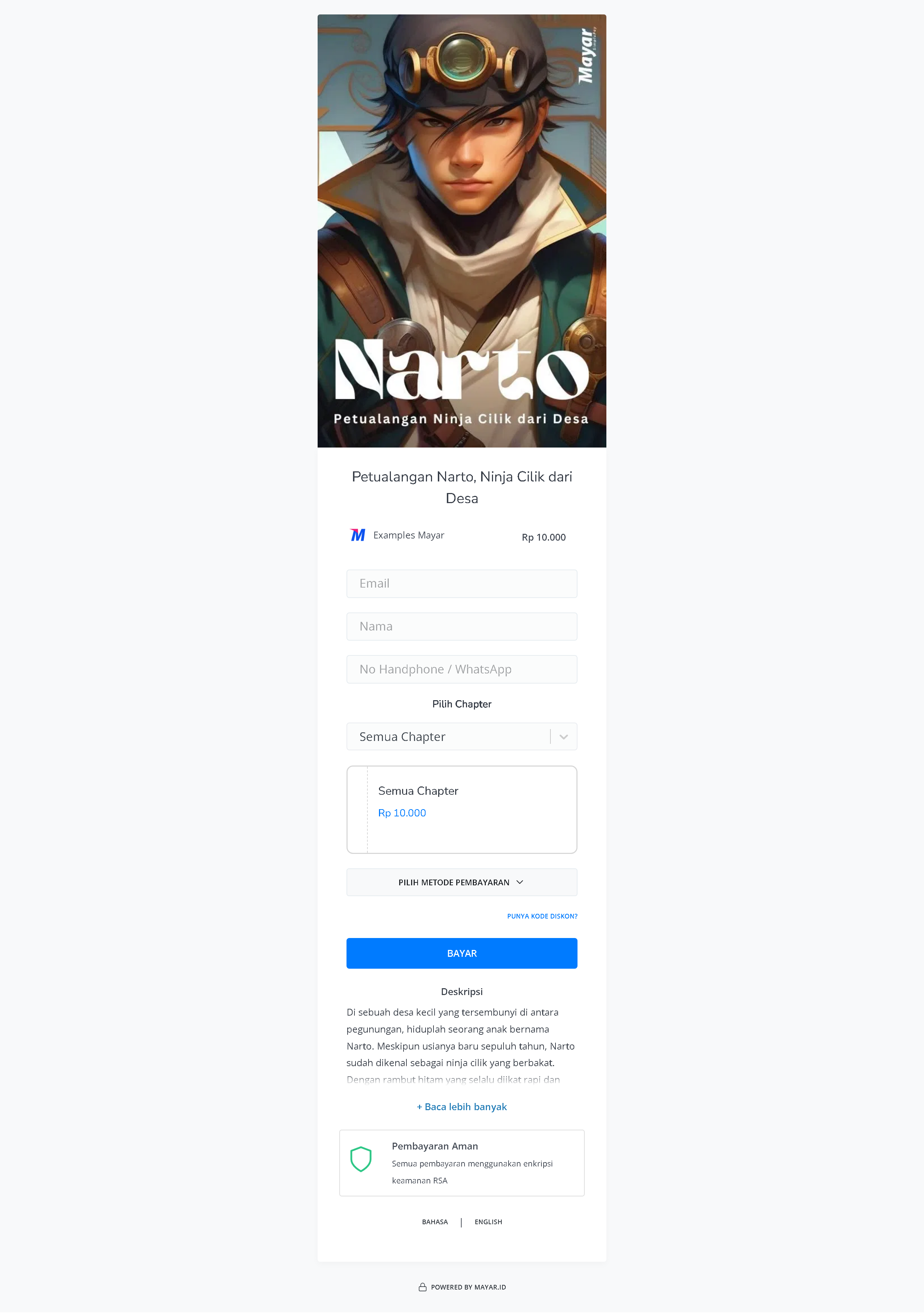
 To access the checkout page, you can copy the payment link.
 ### Accessing Writing Products
After purchasing a Writing product, you can access it in three ways. First, you can open it directly from the “Thank You” page that appears after purchase. Second, you will receive a confirmation email with a link to access the product. Finally, you can access the product through the customer portal using the link provided in the confirmation email. Be sure to save the confirmation email so you can easily access your product anytime.
### Accessing Writing Products
After purchasing a Writing product, you can access it in three ways. First, you can open it directly from the “Thank You” page that appears after purchase. Second, you will receive a confirmation email with a link to access the product. Finally, you can access the product through the customer portal using the link provided in the confirmation email. Be sure to save the confirmation email so you can easily access your product anytime.