> ## Documentation Index
> Fetch the complete documentation index at: https://docs.mayar.id/llms.txt
> Use this file to discover all available pages before exploring further.
# Webinar
> Find your best Webinar to gain your knowledge!
## Overview
The Mayar Webinar platform offers an online course experience designed to facilitate the creation and management of various topics and speakers, making them more accessible and user-friendly. With the Mayar Web Apps, users can easily set up webinars tailored to their specific needs. This comprehensive documentation provides detailed guidance on how to create and customize payment links through the Mayar Dashboard, ensuring a seamless transaction process for both organizers and participants.
### Navigate to Webinar
Make sure you are logged into your account and on the main **Dashboard** Page. This is where you will start with the **Webinar**.
On the Dashboard page, find and click **Webinar** Menu. This will show all of the **Webinar** lists that you have created before.
### Create Webinar
Make sure you are logged into your Mayar account and on the main **Dashboard** page.
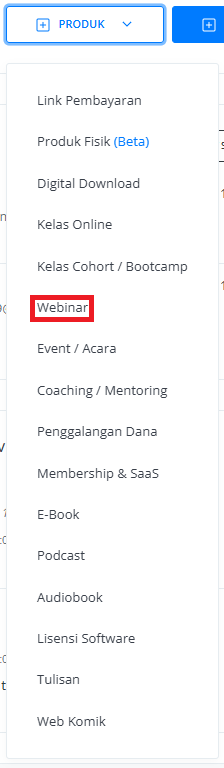
Click the “**Product**” button at the top right near the “**Create**” button. This will take you to the product menu.
Select the “**Webinar**” option to start creating your Writing product. The “**Create Webinar**” window will open.
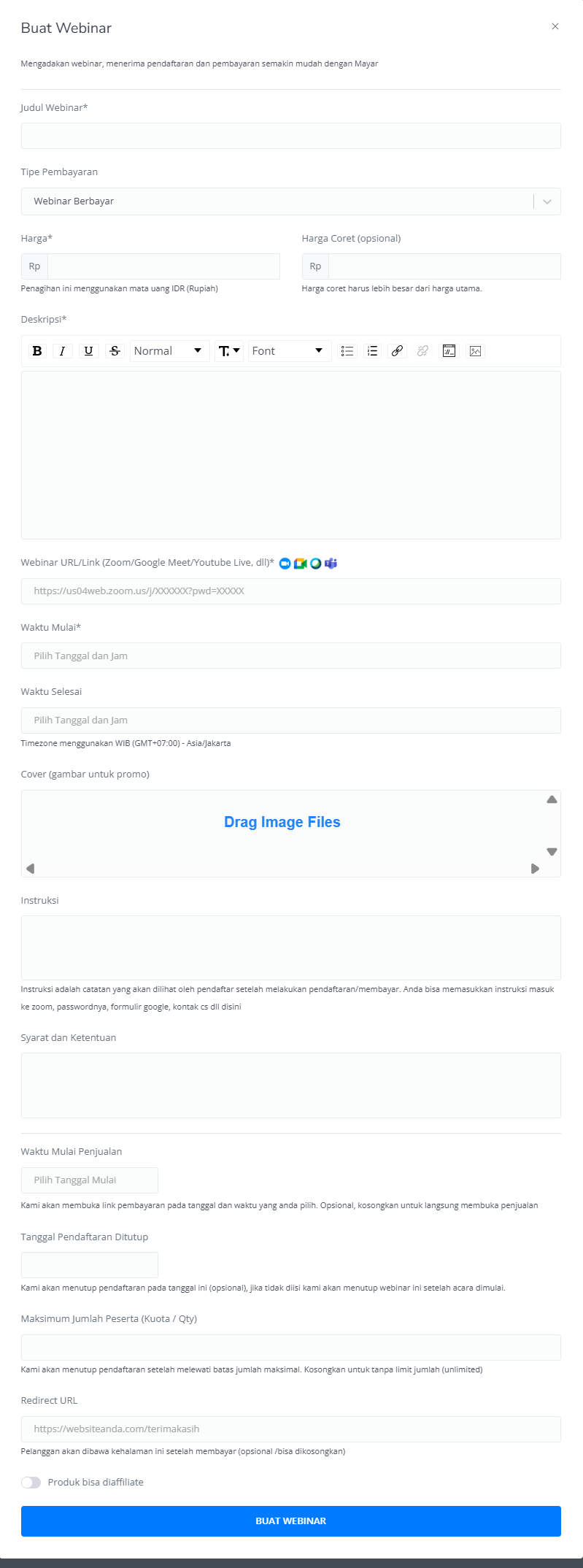
 Enter the following information:
| **Input Form** | **Description** |
| :--------------------------------- | :--------------------------------------------------------------------------------------------------------------------- |
| Webinar Tittle | Title of Webinar. |
| Payment Type | Set up your Payment type. |
| Price | Price of the Webinar event. |
| Strikethrough price | Price of the Webinar event before the Discount (Optional). |
| Description | Description field for the Webinar event. |
| Webinar URL/Link | Link for the Webinar event. |
| Start Time | Start time for Webinar Event. |
| End Time | End time for Webinar Event. |
| Cover (Image for promotion) | Cover image of the Product for promotion. |
| Instruction | Guide for Webinar Event. |
| Terms & Condition | Terms & Conditions for Bootcamp event. |
| Sales Start Time | Start time for the open Link Payment page. |
| Expired Date | Start time for the close Link Payment page (Optional). |
| Maximum payment amount (Quota/qty) | Set up the maximum quantity of product that can be sold (Optional). If empty, the qty will be unlimited. |
| Redirect URL | Directing the customer through the page (Optional), if empty, the customer will be directed to the Mayar checkout page |
| The product can be affiliated | Product can be affiliated by others (Optional) |
| Button Create Webinar event | Button create Webinar Link Payment |
Enter the following information:
| **Input Form** | **Description** |
| :--------------------------------- | :--------------------------------------------------------------------------------------------------------------------- |
| Webinar Tittle | Title of Webinar. |
| Payment Type | Set up your Payment type. |
| Price | Price of the Webinar event. |
| Strikethrough price | Price of the Webinar event before the Discount (Optional). |
| Description | Description field for the Webinar event. |
| Webinar URL/Link | Link for the Webinar event. |
| Start Time | Start time for Webinar Event. |
| End Time | End time for Webinar Event. |
| Cover (Image for promotion) | Cover image of the Product for promotion. |
| Instruction | Guide for Webinar Event. |
| Terms & Condition | Terms & Conditions for Bootcamp event. |
| Sales Start Time | Start time for the open Link Payment page. |
| Expired Date | Start time for the close Link Payment page (Optional). |
| Maximum payment amount (Quota/qty) | Set up the maximum quantity of product that can be sold (Optional). If empty, the qty will be unlimited. |
| Redirect URL | Directing the customer through the page (Optional), if empty, the customer will be directed to the Mayar checkout page |
| The product can be affiliated | Product can be affiliated by others (Optional) |
| Button Create Webinar event | Button create Webinar Link Payment |
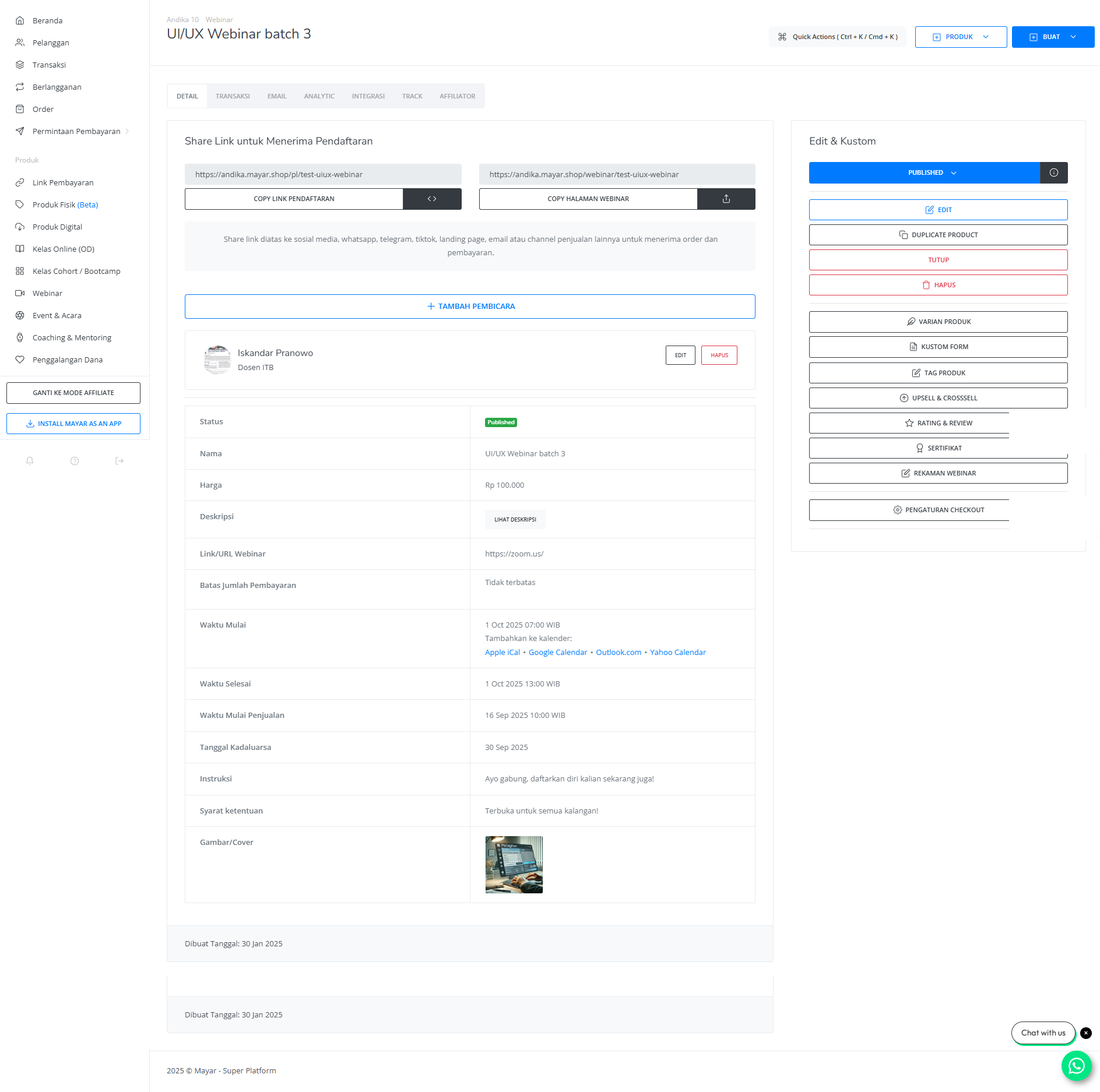
 After filling in all the information, review the product details to ensure everything is correct. On the product detail page, you will see the following:
| **Information** | **Description** |
| :------------------- | :------------------------------------------------- |
| Status | Status of Webinar: check if active or deactivated. |
| Name | Name of Webinar. |
| Price | Price of the Webinar class. |
| Description | Description field for Webinar. |
| Link/Url Webinar | Link for the Webinar class. |
| Payment Amount Limit | Maximum payment for the Webinar. |
| Start Time | Start time for Webinar Event. |
| End Time | End time for Webinar Event. |
| Sales Start Time | Start time for the open Link Payment page. |
| Expired Date | Start time for the close Link Payment page. |
| Instructions | Guide for Webinar Event. |
| Terms & Condition | Terms & Conditions for Webinar Event |
| Cover Image | Cover image of the Webinar for promotion. |
After filling in all the information, review the product details to ensure everything is correct. On the product detail page, you will see the following:
| **Information** | **Description** |
| :------------------- | :------------------------------------------------- |
| Status | Status of Webinar: check if active or deactivated. |
| Name | Name of Webinar. |
| Price | Price of the Webinar class. |
| Description | Description field for Webinar. |
| Link/Url Webinar | Link for the Webinar class. |
| Payment Amount Limit | Maximum payment for the Webinar. |
| Start Time | Start time for Webinar Event. |
| End Time | End time for Webinar Event. |
| Sales Start Time | Start time for the open Link Payment page. |
| Expired Date | Start time for the close Link Payment page. |
| Instructions | Guide for Webinar Event. |
| Terms & Condition | Terms & Conditions for Webinar Event |
| Cover Image | Cover image of the Webinar for promotion. |
 If everything looks good, congratulations — you have successfully created a **Webinar** on Mayar!
### How to Access the Product Page and Checkout
You can access the product page through the link provided in the **product details**.
If everything looks good, congratulations — you have successfully created a **Webinar** on Mayar!
### How to Access the Product Page and Checkout
You can access the product page through the link provided in the **product details**.
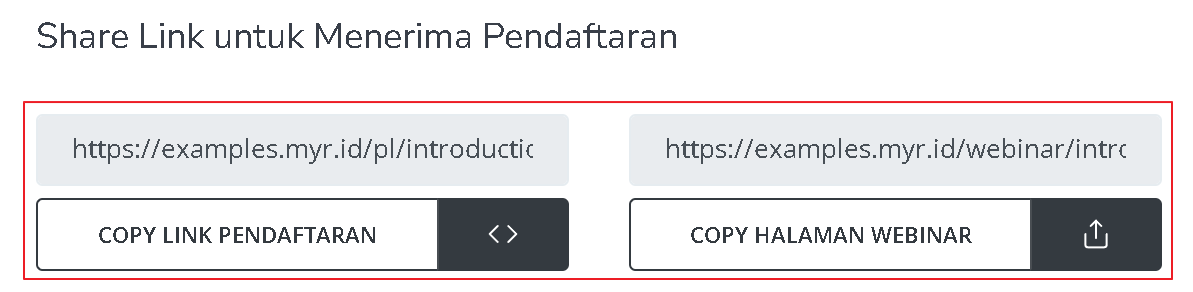 You can also access the product page by copying the **product page link**.
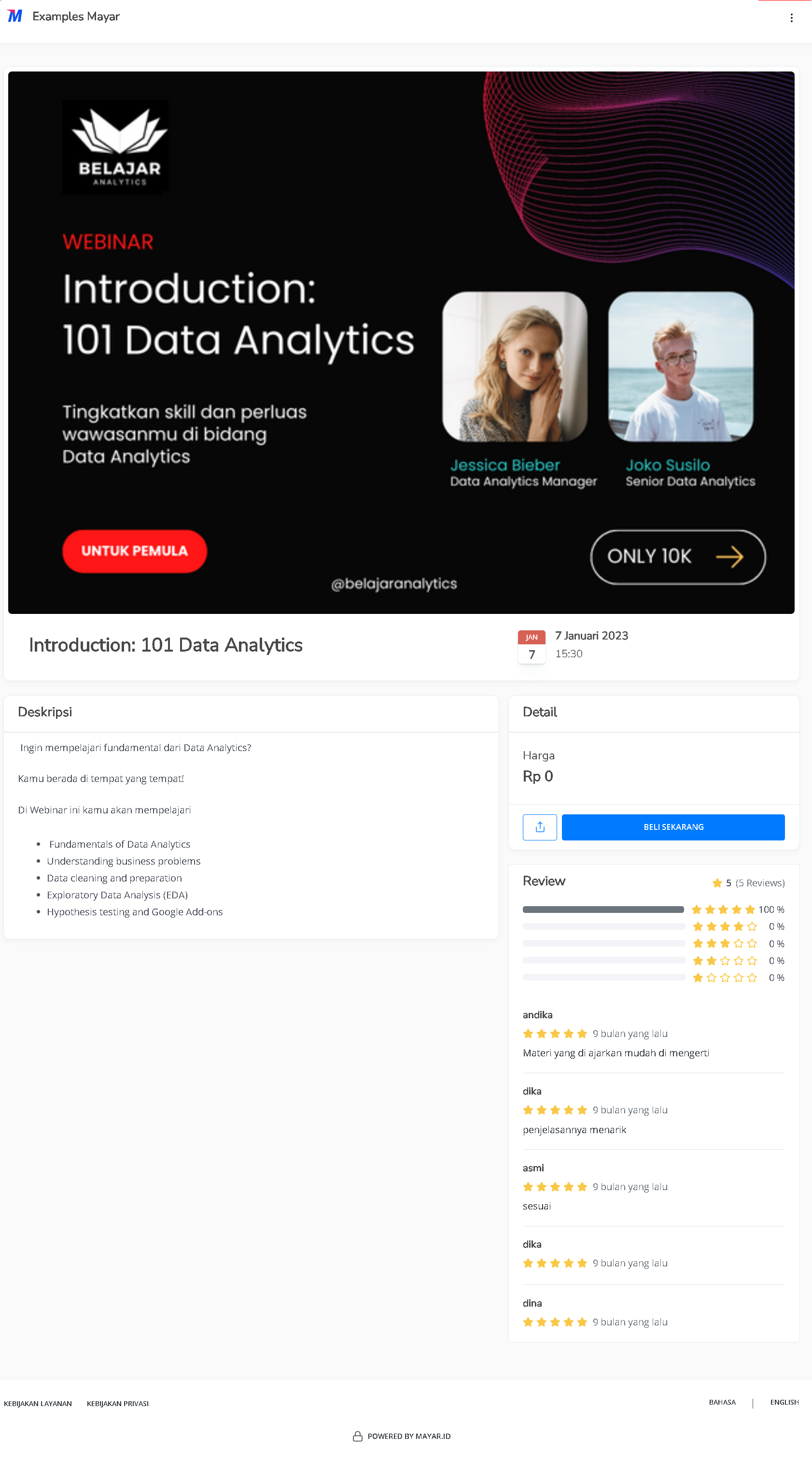 To access the checkout page, you can copy the **payment link**.