> ## Documentation Index
> Fetch the complete documentation index at: https://docs.mayar.id/llms.txt
> Use this file to discover all available pages before exploring further.
# Online Course
> Find your best Online Course to improve and gain more ability of your skill set!
## Overview
Mayar Online Course is an advanced online learning platform designed to facilitate the creation and management of structured classes and courses across a diverse range of study programs. This innovative platform empowers educators, trainers, and professionals to develop and deliver educational content that is easily accessible to a global audience. With Mayar Online Course, you can design comprehensive curricula that cater to various academic disciplines and professional fields, ensuring an enriching and engaging learning experience for all participants.
The process of creating online courses is made seamless through the use of the Mayar Web Apps. These applications provide a robust and user-friendly interface that streamlines course development, enabling you to concentrate on creating high-quality content. Whether you are setting up a single class or an entire educational program, Mayar Online Course provides the flexibility and tools necessary to achieve your teaching objectives.
By following this guide, you will gain a thorough understanding of how to effectively utilize the payment link functionalities, ultimately enhancing your course management capabilities and providing a streamlined experience for your students.
### Navigate to Online Course
Make sure you are logged into your account and on the main **Dashboard** Page. This is where you will start with the **Online Course**.
On the Dashboard page, find and click **Online Course** Menu. This will display all the **Online courses** you have created previously.
### Create Online Course
Make sure you are logged into your Mayar account and on the main **Dashboard** page.
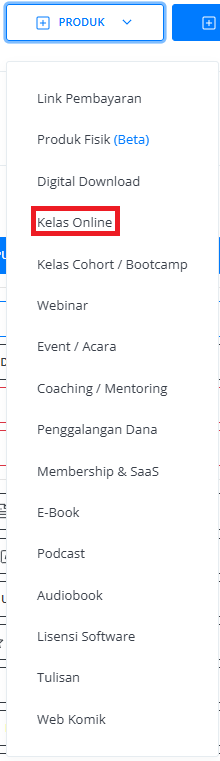
Click the “**Product**” button at the top right near the “**Create**” button. This will take you to the product menu.
Select the “**Online Course**” option to start creating your Writing product. The “**Create Online Course**” window will open.
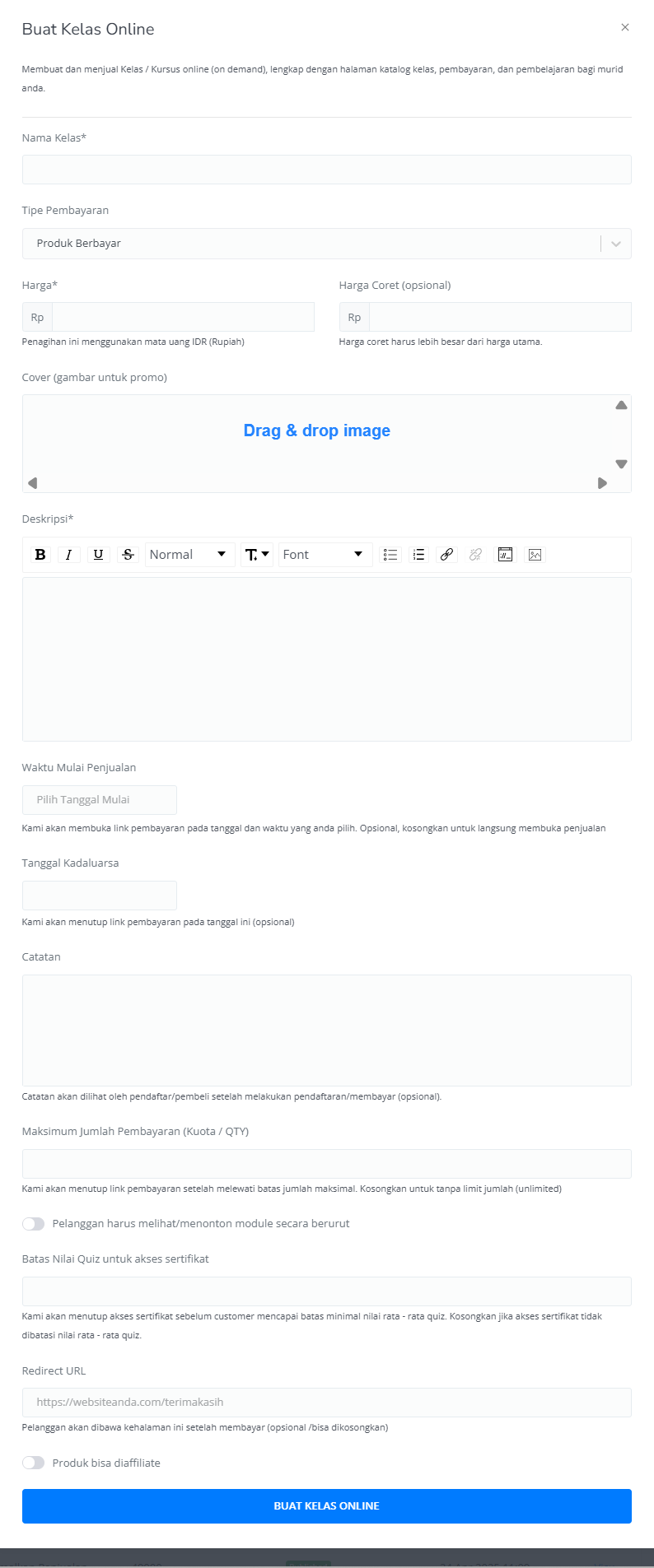
 Enter the following information:
| **Input Form** | **Description** |
| :-------------------------------------- | :--------------------------------------------------------------------------------------------------------------------- |
| Class Name | Name of class |
| Payment Type | Set up your Payment type. |
| Price | Price of Online Course. |
| Strikethrough price | Price of Online Course before Discount (Optional). |
| Cover (Image for promotion) | Cover image for the product's promotion. |
| Description | Description field for product. |
| Sales Start Time | Start time for the open Link Payment page. |
| Expired Date | Start time for the close Link Payment page (Optional). |
| Notes after Payment | Additional notes after checkout product (Optional). |
| Maximum payment amount (Quota/qty) | Set up the maximum quantity of product that can be sold (Optional). If empty, the quantity will be unlimited. |
| Quiz score limit for certificate access | Limitation for access certificate (optional) |
| Redirect URL | Directing the customer through the page (Optional), if empty, the customer will be directed to the Mayar checkout page |
| The product can be affiliated | Product can be affiliated by others (Optional) |
| Button Create Online Course | Button create Link Payment of Online Course |
Enter the following information:
| **Input Form** | **Description** |
| :-------------------------------------- | :--------------------------------------------------------------------------------------------------------------------- |
| Class Name | Name of class |
| Payment Type | Set up your Payment type. |
| Price | Price of Online Course. |
| Strikethrough price | Price of Online Course before Discount (Optional). |
| Cover (Image for promotion) | Cover image for the product's promotion. |
| Description | Description field for product. |
| Sales Start Time | Start time for the open Link Payment page. |
| Expired Date | Start time for the close Link Payment page (Optional). |
| Notes after Payment | Additional notes after checkout product (Optional). |
| Maximum payment amount (Quota/qty) | Set up the maximum quantity of product that can be sold (Optional). If empty, the quantity will be unlimited. |
| Quiz score limit for certificate access | Limitation for access certificate (optional) |
| Redirect URL | Directing the customer through the page (Optional), if empty, the customer will be directed to the Mayar checkout page |
| The product can be affiliated | Product can be affiliated by others (Optional) |
| Button Create Online Course | Button create Link Payment of Online Course |
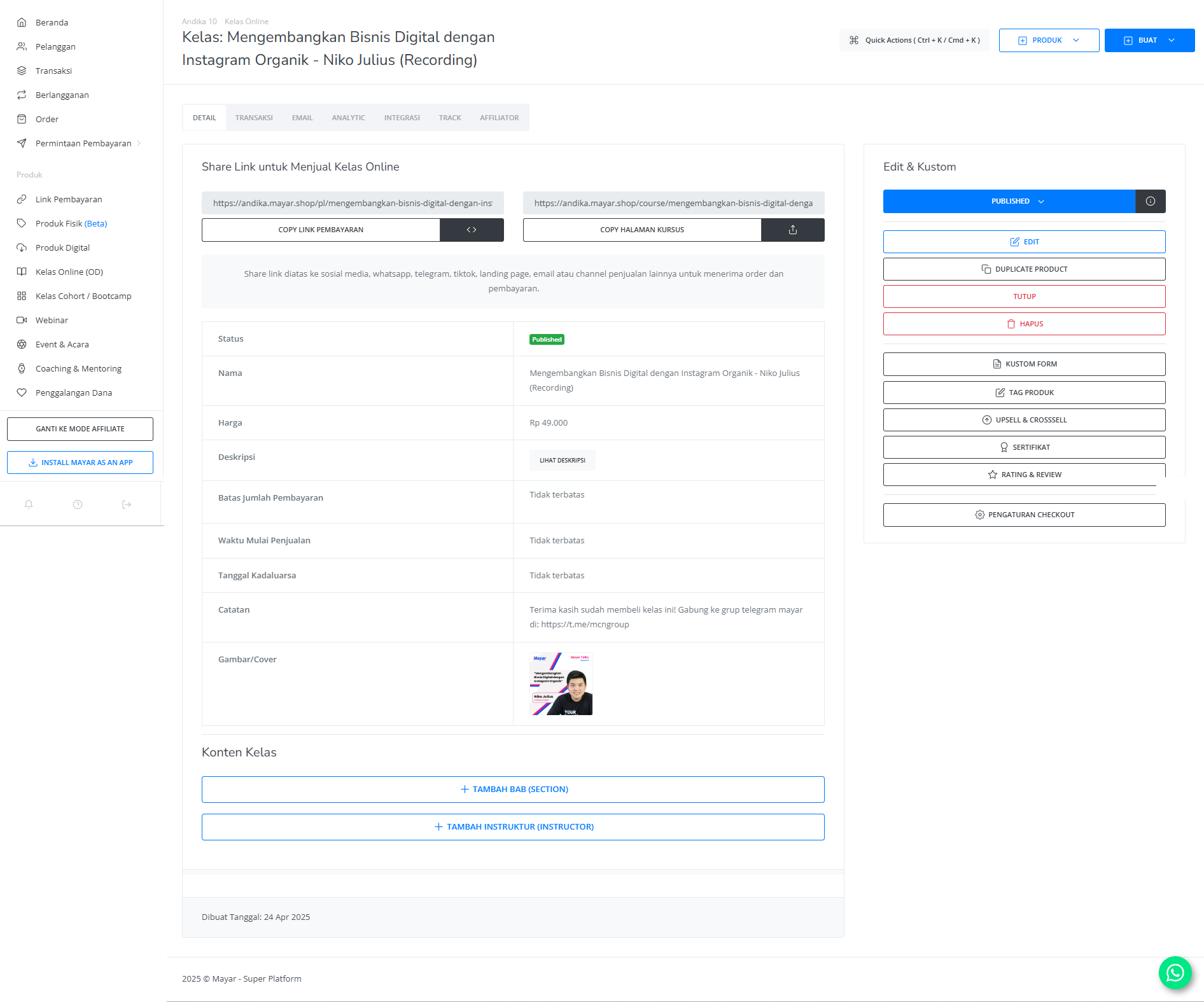
 After filling in all the information, review the product details to ensure everything is correct. On the product detail page, you will see the following:
| **Information** | **Description** |
| :------------------ | :------------------------------------------------------------- |
| Status | Status of Online Class (Published, Unpublished, and Unlisted). |
| Name | Name of Online Class. |
| Price | Price for Online Class. |
| Description | Description field for Online Class. |
| Sales Start Time | Start time for the open Link Payment page. |
| Expired Date | Start time for the close Link Payment page. |
| Notes | Additional notes after checkout for the Online Class. |
| Cover Image | Cover image of the Online Class for promotion. |
| Add chapter section | Add a chapter for class. |
| Add instructor | Add an instructor for the class. |
After filling in all the information, review the product details to ensure everything is correct. On the product detail page, you will see the following:
| **Information** | **Description** |
| :------------------ | :------------------------------------------------------------- |
| Status | Status of Online Class (Published, Unpublished, and Unlisted). |
| Name | Name of Online Class. |
| Price | Price for Online Class. |
| Description | Description field for Online Class. |
| Sales Start Time | Start time for the open Link Payment page. |
| Expired Date | Start time for the close Link Payment page. |
| Notes | Additional notes after checkout for the Online Class. |
| Cover Image | Cover image of the Online Class for promotion. |
| Add chapter section | Add a chapter for class. |
| Add instructor | Add an instructor for the class. |
 If everything looks good, congratulations — you have successfully created a **Online Course** on Mayar!
### How to Access the Product Page and Checkout
You can access the product page through the link provided in the **product details**.
If everything looks good, congratulations — you have successfully created a **Online Course** on Mayar!
### How to Access the Product Page and Checkout
You can access the product page through the link provided in the **product details**.
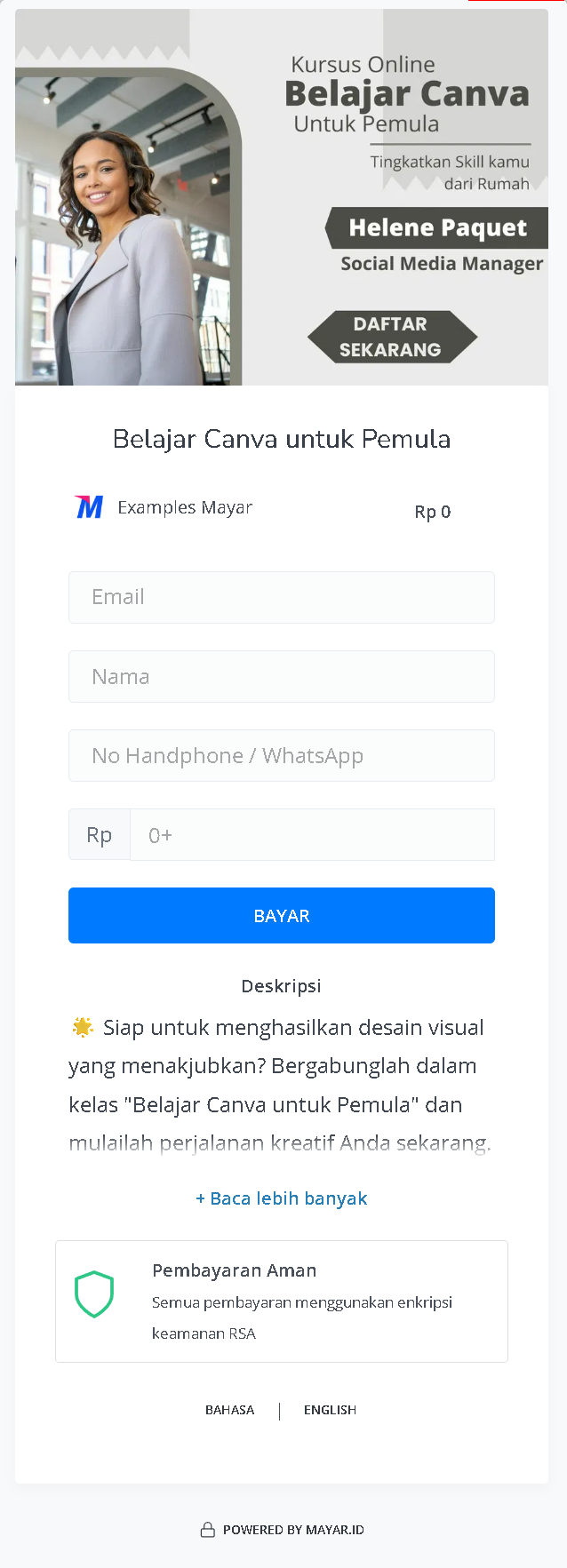
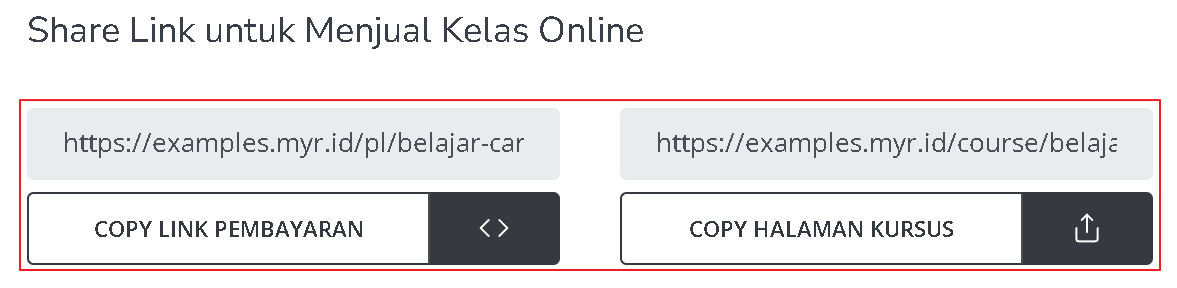 You can also access the product page by copying the **product page link**.
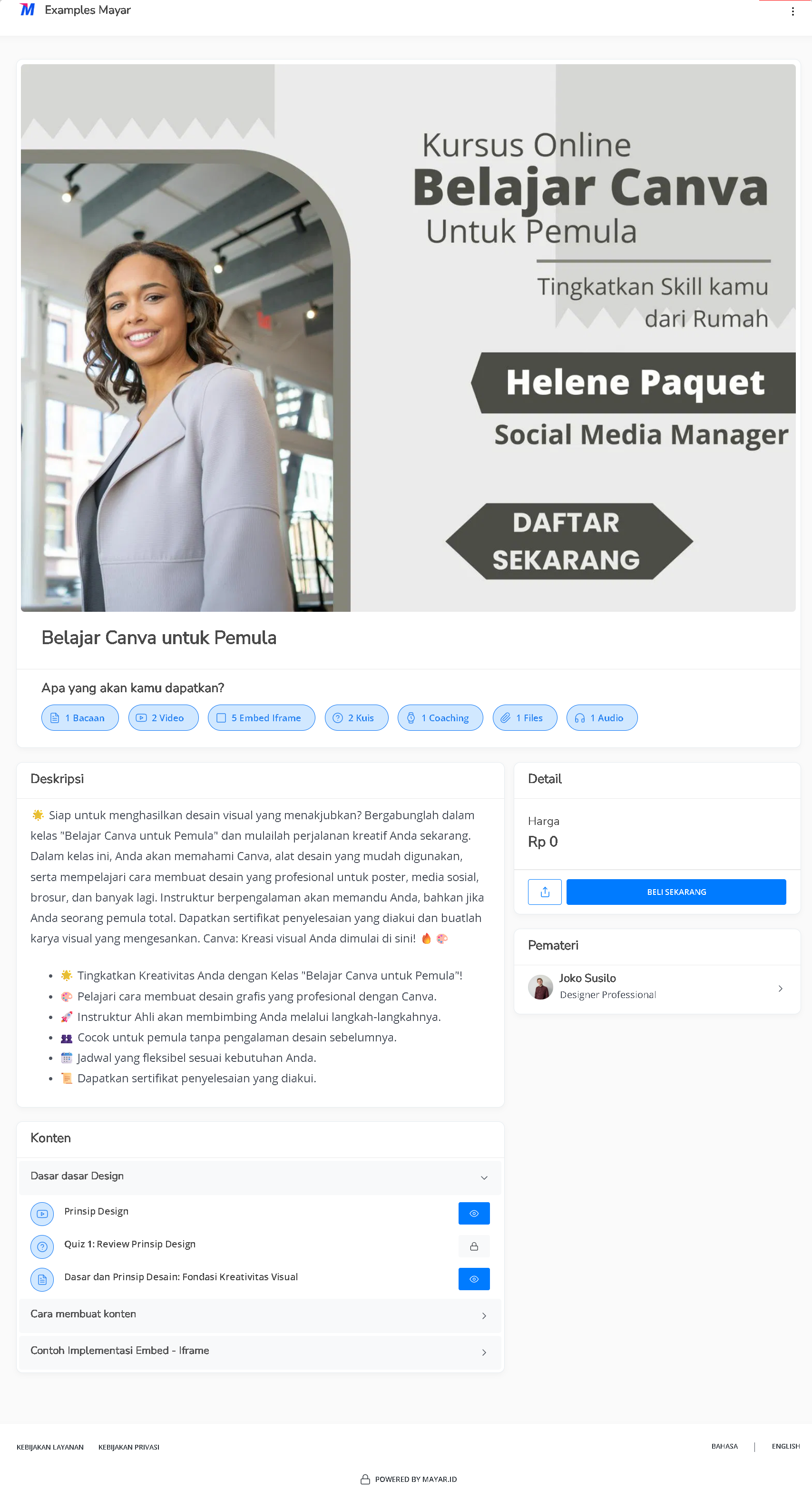 To access the checkout page, you can copy the **payment link**.