> ## Documentation Index
> Fetch the complete documentation index at: https://docs.mayar.id/llms.txt
> Use this file to discover all available pages before exploring further.
# Event
> Create your Event base on your own creativity with Mayar!
## Overview
Mayar Event is an innovative online course platform designed to facilitate the creation and management of diverse events to a wide range of interests. This platform provides users with an intuitive and user-friendly interface, making it easier than ever to access and organize events. Whether you are an educator, a professional, or an enthusiast looking to share your knowledge, Mayar Event offers the tools you need to reach your audience effectively.
Events can be effortlessly created and customized using the Mayar Web Apps, which are designed to streamline the process from start to finish. The platform supports a variety of event types, allowing you to engage with participants in a way that best suits your content and goals.
This documentation specifically focuses on the steps involved in creating and customizing payment links through the Mayar Dashboard. By leveraging these features, you can efficiently manage transactions, track payments, and provide a seamless experience for your attendees. The Mayar Dashboard offers comprehensive tools and settings to ensure that your payment processes are secure, reliable, and tailored to meet your specific requirements.
### Navigate to Event
Make sure you are logged into your account and on the main **Dashboard** Page. This is where you will start with the **Event**.
On the Dashboard page, find and click **Event** Menu. This will show all of your **Event** list that you have created before.
### Create Event
Make sure you are logged into your Mayar account and on the main **Dashboard** page.
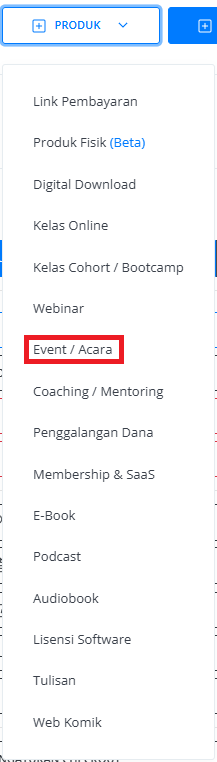
Click the “**Product**” button at the top right near the “**Create**” button. This will take you to the product menu.
Select the “**Event**” option to start creating your Writing product. The “**Create Event**” window will open.
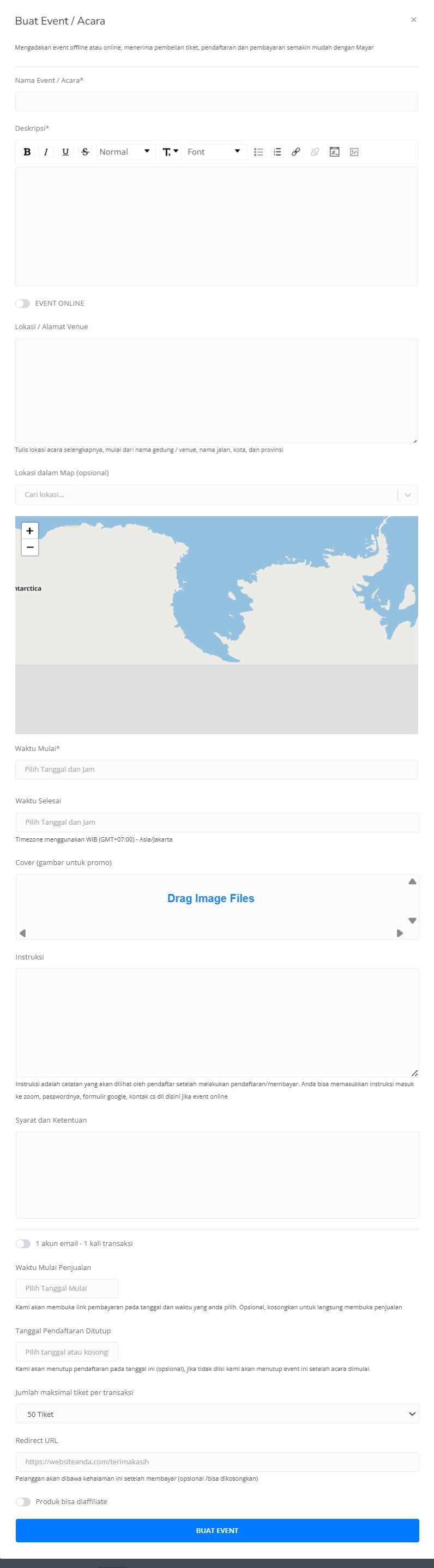
 Enter the following information:
| **Input Form** | **Description** |
| :----------------------------------- | :--------------------------------------------------------------------------------------------------------------------- |
| Event Name | Name of Event. |
| Description | Description field for Event. |
| Online event button | Set your online event. |
| Location / Venue | Venue for an offline event. |
| Map Location | Set your Location from maps (Optional). |
| Start Time | Start time for the Event. |
| End Time | End time for Event. |
| Cover (Image for promotion) | Cover image of the Event for promotion. |
| Instruction | Guide for Event. |
| Terms & Condition | Terms & Conditions for the Event. |
| Sales Start Time | Start time for the open Link Payment page. |
| Expired Date | Start time for the close Link Payment page (Optional). |
| Total maximum Ticket per Transaction | Set your total Maximum Ticket per Transaction - Checkout. |
| Redirect URL | Directing the customer through the page (Optional), if empty, the customer will be directed to the Mayar checkout page |
| The product can be affiliated | Product can be affiliated by others (Optional) |
| Button Create Event | Button creates an Event. |
Enter the following information:
| **Input Form** | **Description** |
| :----------------------------------- | :--------------------------------------------------------------------------------------------------------------------- |
| Event Name | Name of Event. |
| Description | Description field for Event. |
| Online event button | Set your online event. |
| Location / Venue | Venue for an offline event. |
| Map Location | Set your Location from maps (Optional). |
| Start Time | Start time for the Event. |
| End Time | End time for Event. |
| Cover (Image for promotion) | Cover image of the Event for promotion. |
| Instruction | Guide for Event. |
| Terms & Condition | Terms & Conditions for the Event. |
| Sales Start Time | Start time for the open Link Payment page. |
| Expired Date | Start time for the close Link Payment page (Optional). |
| Total maximum Ticket per Transaction | Set your total Maximum Ticket per Transaction - Checkout. |
| Redirect URL | Directing the customer through the page (Optional), if empty, the customer will be directed to the Mayar checkout page |
| The product can be affiliated | Product can be affiliated by others (Optional) |
| Button Create Event | Button creates an Event. |
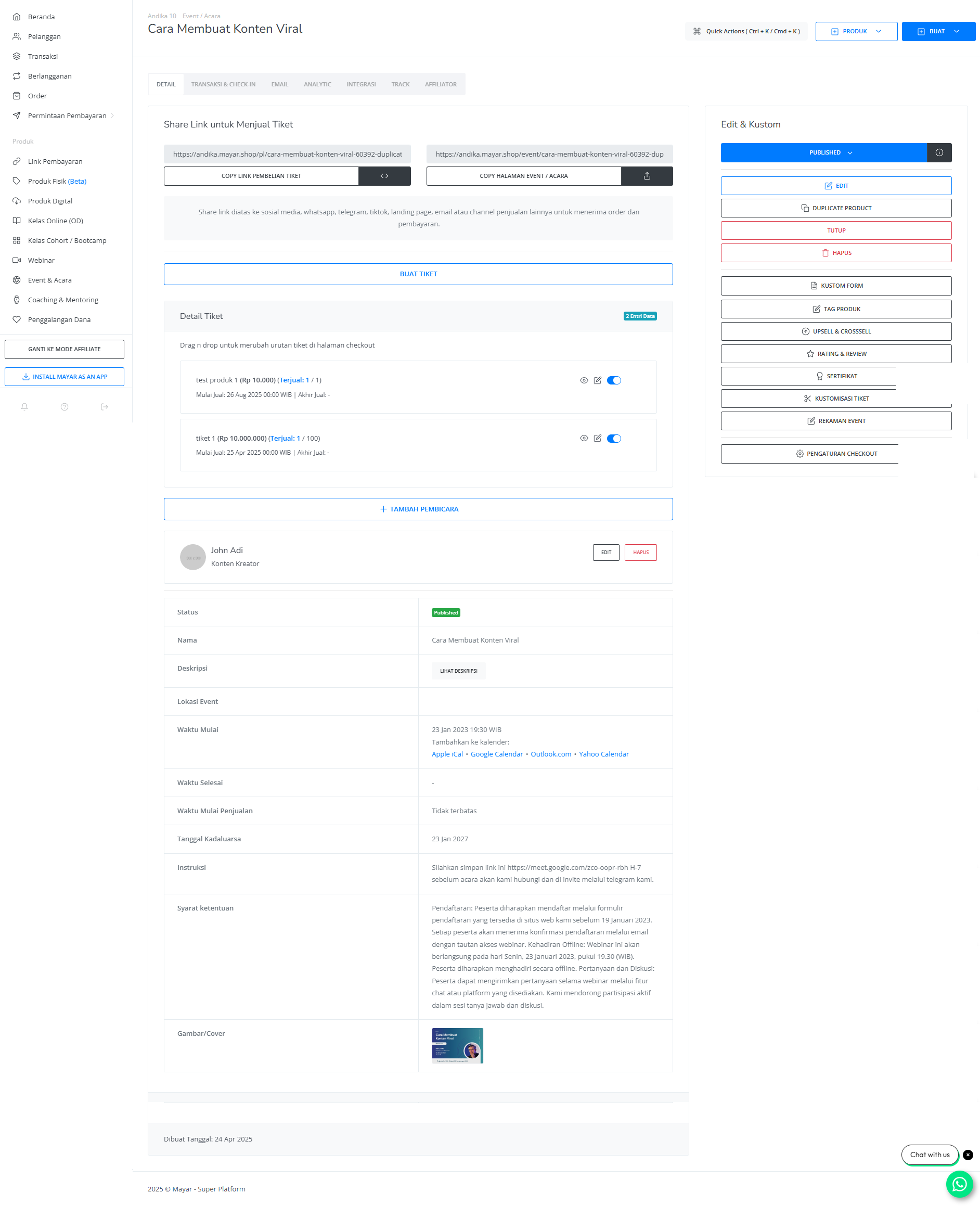
 After filling in all the information, review the product details to ensure everything is correct. On the product detail page, you will see the following:
| **Information** | **Description** |
| :---------------- | :----------------------------------------------- |
| Status | Status of Event: checkout active or deactivated. |
| Name | Name of Event. |
| Description | Description field for Event. |
| Event Location | Venue location Event. |
| Start Time | Start time for the Event. |
| End Time | End time for Event. |
| Sales Start Time | Start time for the open Link Payment page. |
| Expired Date | Start time for the close Link Payment page. |
| Instructions | Guide for Event. |
| Terms & Condition | Terms & Conditions for Event |
| Cover Image | Cover image for promotion. |
After filling in all the information, review the product details to ensure everything is correct. On the product detail page, you will see the following:
| **Information** | **Description** |
| :---------------- | :----------------------------------------------- |
| Status | Status of Event: checkout active or deactivated. |
| Name | Name of Event. |
| Description | Description field for Event. |
| Event Location | Venue location Event. |
| Start Time | Start time for the Event. |
| End Time | End time for Event. |
| Sales Start Time | Start time for the open Link Payment page. |
| Expired Date | Start time for the close Link Payment page. |
| Instructions | Guide for Event. |
| Terms & Condition | Terms & Conditions for Event |
| Cover Image | Cover image for promotion. |
 If everything looks good, congratulations — you have successfully created a **Event** on Mayar!
### How to Access the Product Page and Checkout
You can access the product page through the link provided in the **product details**.
If everything looks good, congratulations — you have successfully created a **Event** on Mayar!
### How to Access the Product Page and Checkout
You can access the product page through the link provided in the **product details**.
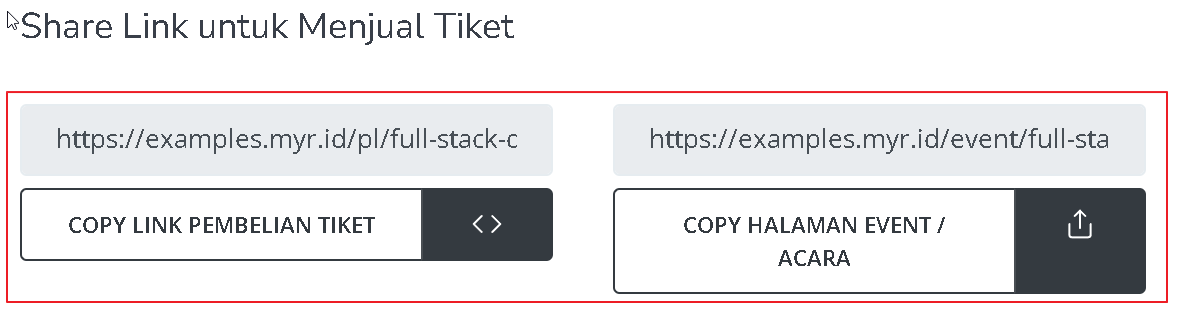 You can also access the product page by copying the **product page link**.
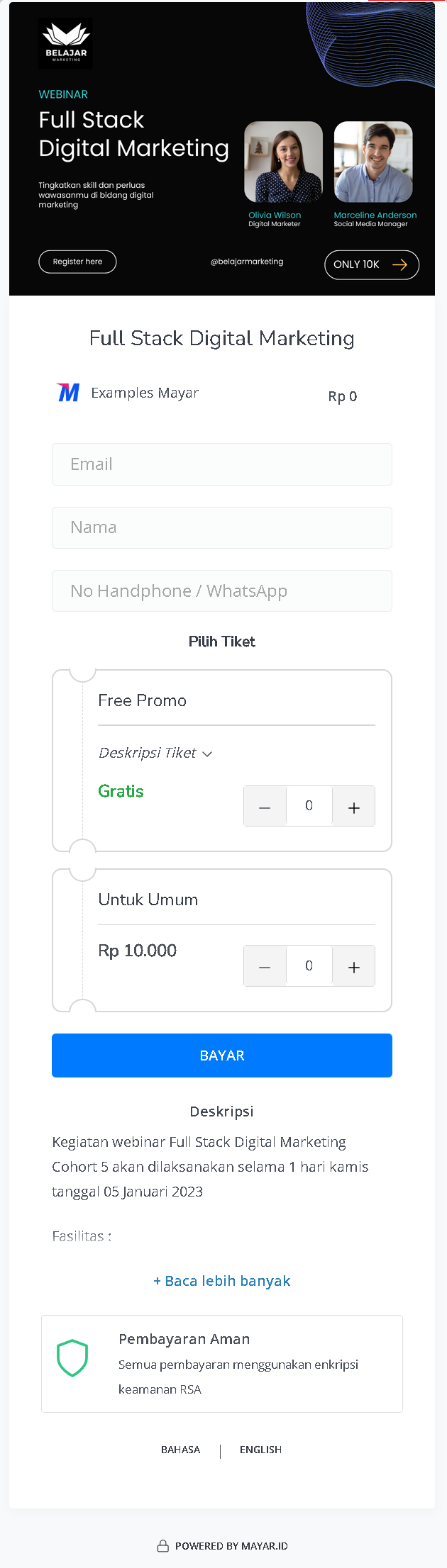
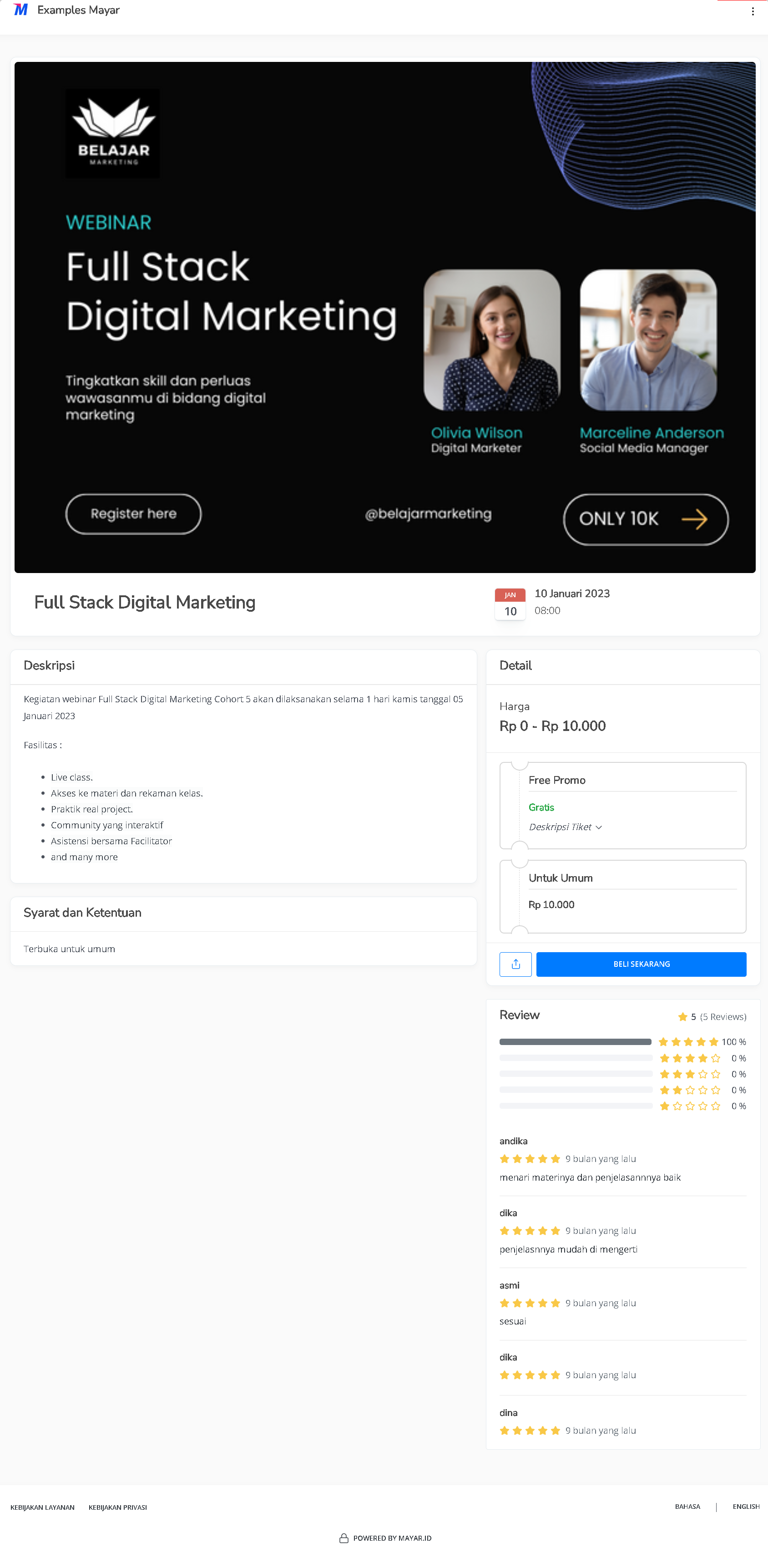 To access the checkout page, you can copy the **payment link**.