> ## Documentation Index
> Fetch the complete documentation index at: https://docs.mayar.id/llms.txt
> Use this file to discover all available pages before exploring further.
# E-Book
> Discover the exciting features of our Ebook product for a better reading experience!
### Overview
The E-Book product on Mayar offers advanced features designed to enhance your reading experience. With a user-friendly interface, you can easily browse through a wide collection of digital books. The quick search feature helps you find your favorite titles or authors in seconds. You can adjust the font size and style for comfortable reading, and use the bookmark feature to save important pages. Multi-platform support allows you to read on different devices without losing your last read position. You can also enjoy the notes and highlight features, making it easy to capture important ideas. All these features are designed to give you a more personal and enjoyable reading experience.
### Creating an Ebook Product
First, log in to your Mayar Dashboard. Make sure you are signed in to your account and on the main Dashboard page. Here, you will start the process of creating an E-Book product.
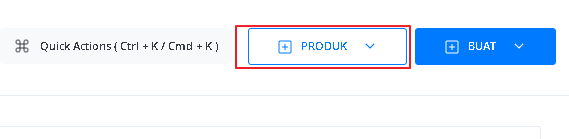
On the Dashboard page, find and click the “Product” button located at the top right corner, next to the “Create” button. This will take you to the product menu, where you can select the type of product you want to create.
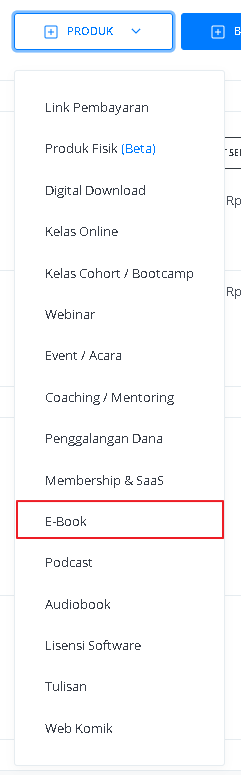
 From the product menu, choose the “Ebook” option to start creating your Ebook product. This will open a new window titled “Create Ebook”, where you’ll be asked to fill in details about your product.
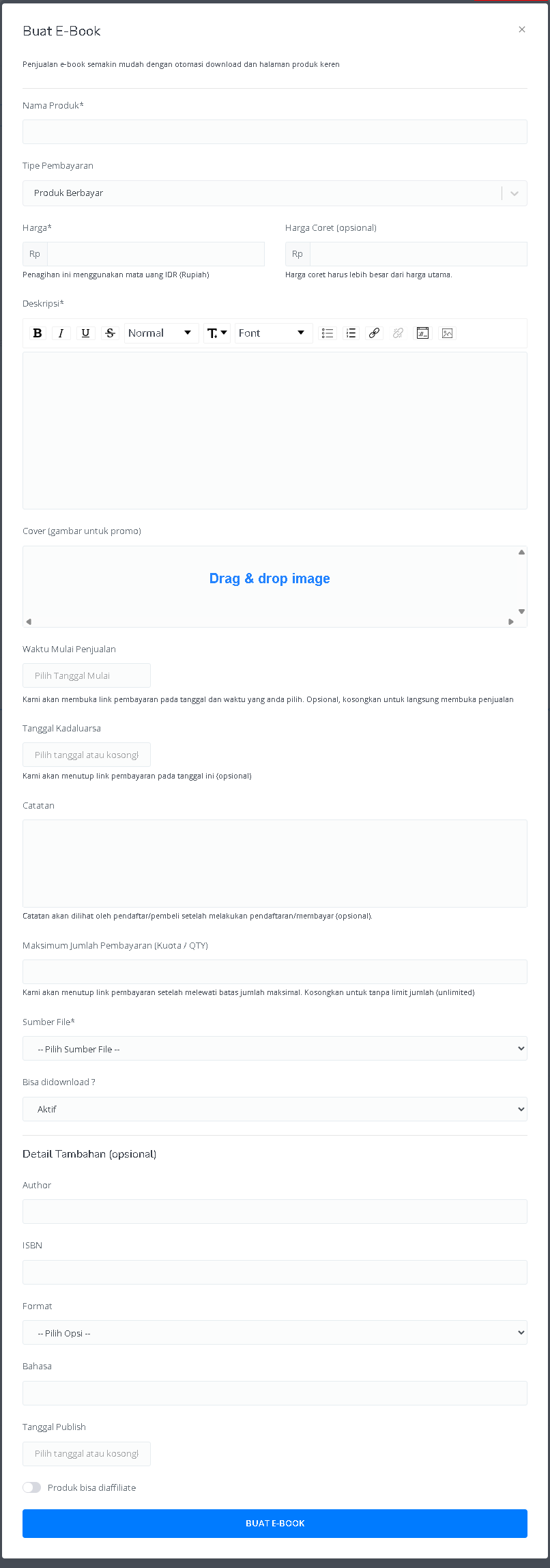
 In the “Create E-Book” window, you’ll need to fill in the product details such as:
 | **Input Form** | **Description** |
| :--------------------------------------- | :--------------------------------------------------------------------------------------------------- |
| **Product Name** | Field to enter the e-book product name. |
| **Payment Type** | Choose whether the product is paid, free, or pay what you want. |
| **Price** | Appears that if you select “paid” as the payment type, to can set the product price in IDR (Rupiah). |
| **Strike-through Price (optional)** | Appears that if you select “paid,” to set a higher crossed-out price above the main price. |
| **Description** | Text area to write the product description, with formatting options (bold, italic, underline, etc.). |
| **Cover (promo image)** | Upload the e-book cover image using drag & drop. |
| **Start Selling Date** | Select the date when the sale begins. |
| **Expiration Date** | Select the date when the sale ends. |
| **Notes** | Text area for adding notes that customers will see after completing payment. |
| **Maximum Sales Quantity (Quota / QTY)** | Field to set the maximum number of sales allowed. |
| **File Source** | Choose whether to use an existing file or upload a new one. |
| **Downloadable?** | Option to enable or disable the download feature. |
| **Author** | Field to enter the author’s name. |
| **ISBN** | Field to enter the e-book ISBN number. |
| **Format** | Choose the e-book format (PDF, EPUB, MOBI, or AZW). |
| **Language** | Field to specify the e-book language. |
| **Publish Date** | Select the date the e-book will be published. |
| **Affiliate Option** | Enable affiliate marketing for the product. |
| **“CREATE E-BOOK” Button** | Button to save and create the e-book based on the information provided. |
After filling in all the information and successfully creating the E-Book product, you will be directed to the Product Details page. Here, you can see all the information you entered, such as:
| **Input Form** | **Description** |
| :--------------------------------------- | :--------------------------------------------------------------------------------------------------- |
| **Product Name** | Field to enter the e-book product name. |
| **Payment Type** | Choose whether the product is paid, free, or pay what you want. |
| **Price** | Appears that if you select “paid” as the payment type, to can set the product price in IDR (Rupiah). |
| **Strike-through Price (optional)** | Appears that if you select “paid,” to set a higher crossed-out price above the main price. |
| **Description** | Text area to write the product description, with formatting options (bold, italic, underline, etc.). |
| **Cover (promo image)** | Upload the e-book cover image using drag & drop. |
| **Start Selling Date** | Select the date when the sale begins. |
| **Expiration Date** | Select the date when the sale ends. |
| **Notes** | Text area for adding notes that customers will see after completing payment. |
| **Maximum Sales Quantity (Quota / QTY)** | Field to set the maximum number of sales allowed. |
| **File Source** | Choose whether to use an existing file or upload a new one. |
| **Downloadable?** | Option to enable or disable the download feature. |
| **Author** | Field to enter the author’s name. |
| **ISBN** | Field to enter the e-book ISBN number. |
| **Format** | Choose the e-book format (PDF, EPUB, MOBI, or AZW). |
| **Language** | Field to specify the e-book language. |
| **Publish Date** | Select the date the e-book will be published. |
| **Affiliate Option** | Enable affiliate marketing for the product. |
| **“CREATE E-BOOK” Button** | Button to save and create the e-book based on the information provided. |
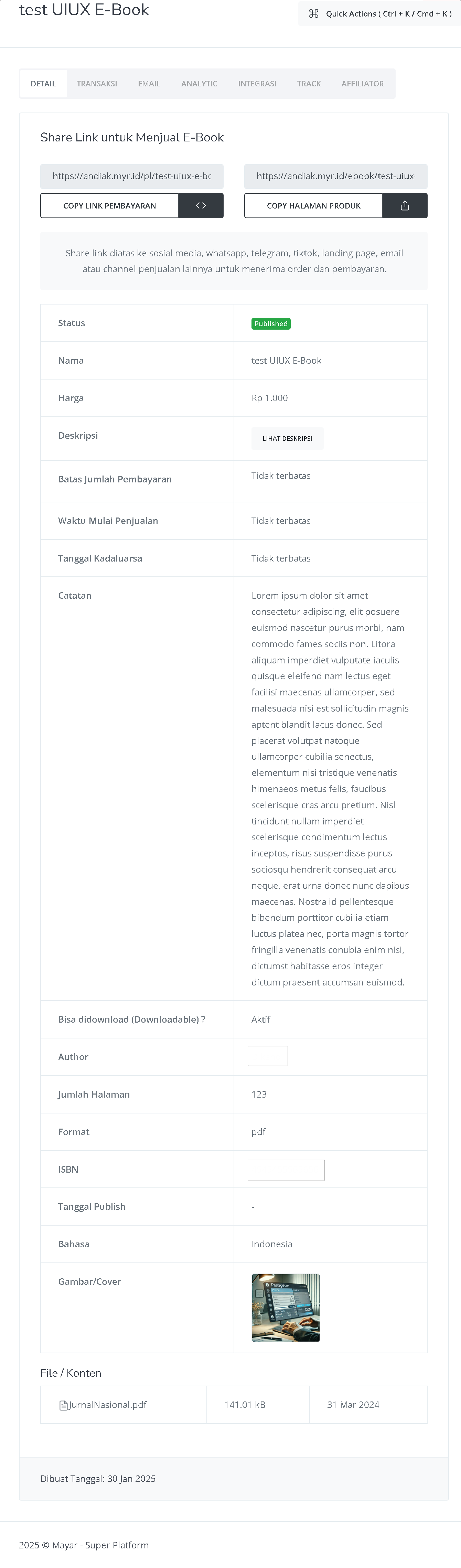
After filling in all the information and successfully creating the E-Book product, you will be directed to the Product Details page. Here, you can see all the information you entered, such as:
 | **Information** | **Description** |
| :------------------------- | :-------------------------------------------------------------------------------------- |
| **E-Book Name** | test UIUX E-Book |
| **Quick Actions** | Shortcuts to perform quick actions. |
| **Navigation Tabs** | Includes *Details, Transactions, Email, Analytics, Integration, Track,* and Affiliator. |
| **Share Link** | Two links available — one for payment and one for the product page. |
| **Status** | Shows the publication status, *“Published.”* |
| **Price** | Rp 1,000 |
| **Description** | Button to view the product description. |
| **Maximum Sales Quantity** | Unlimited |
| **Start Selling Date** | Unlimited |
| **Expiration Date** | Unlimited |
| **Notes** | Placeholder text (\*Lorem ipsum\*). |
| **Downloadable?** | Active |
| **Author** | Not displayed |
| **Number of Pages** | 123 |
| **Format** | PDF |
| **ISBN** | Not displayed |
| **Publish Date** | Not displayed |
| **Language** | Indonesian |
| **Image/Cover** | The cover image representing the e-book |
| **File/Content** | File name *“JurnalNasional.pdf”*, size *141.01 kB*, date *March 31, 2024* |
| **Created On** | *January 30, 2025* |
Congratulations, you have successfully created an E-Book product in Mayar!
### How to Access the Product Page and Checkout
You can access the product page through the link provided in the product details.
| **Information** | **Description** |
| :------------------------- | :-------------------------------------------------------------------------------------- |
| **E-Book Name** | test UIUX E-Book |
| **Quick Actions** | Shortcuts to perform quick actions. |
| **Navigation Tabs** | Includes *Details, Transactions, Email, Analytics, Integration, Track,* and Affiliator. |
| **Share Link** | Two links available — one for payment and one for the product page. |
| **Status** | Shows the publication status, *“Published.”* |
| **Price** | Rp 1,000 |
| **Description** | Button to view the product description. |
| **Maximum Sales Quantity** | Unlimited |
| **Start Selling Date** | Unlimited |
| **Expiration Date** | Unlimited |
| **Notes** | Placeholder text (\*Lorem ipsum\*). |
| **Downloadable?** | Active |
| **Author** | Not displayed |
| **Number of Pages** | 123 |
| **Format** | PDF |
| **ISBN** | Not displayed |
| **Publish Date** | Not displayed |
| **Language** | Indonesian |
| **Image/Cover** | The cover image representing the e-book |
| **File/Content** | File name *“JurnalNasional.pdf”*, size *141.01 kB*, date *March 31, 2024* |
| **Created On** | *January 30, 2025* |
Congratulations, you have successfully created an E-Book product in Mayar!
### How to Access the Product Page and Checkout
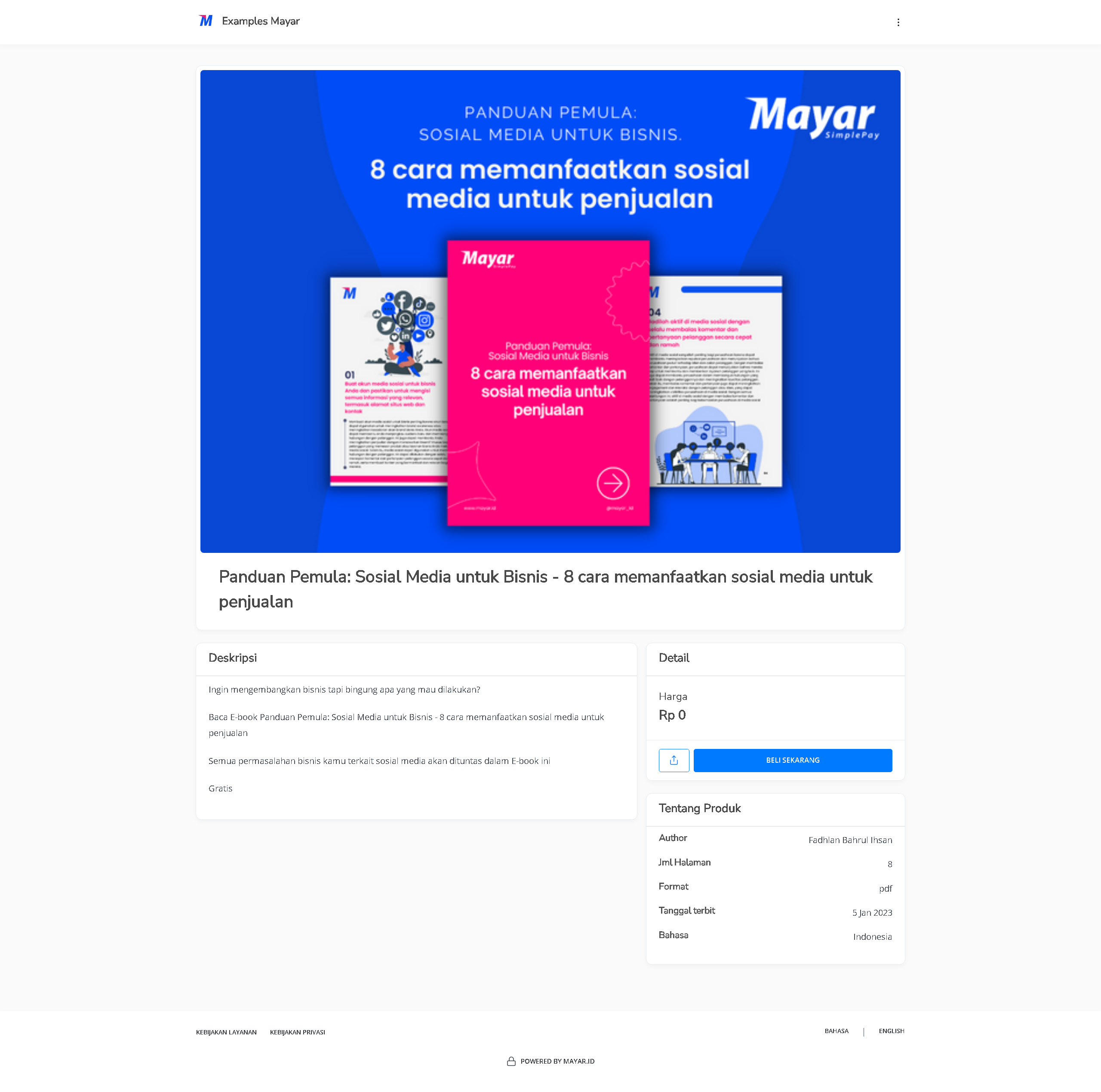
You can access the product page through the link provided in the product details.
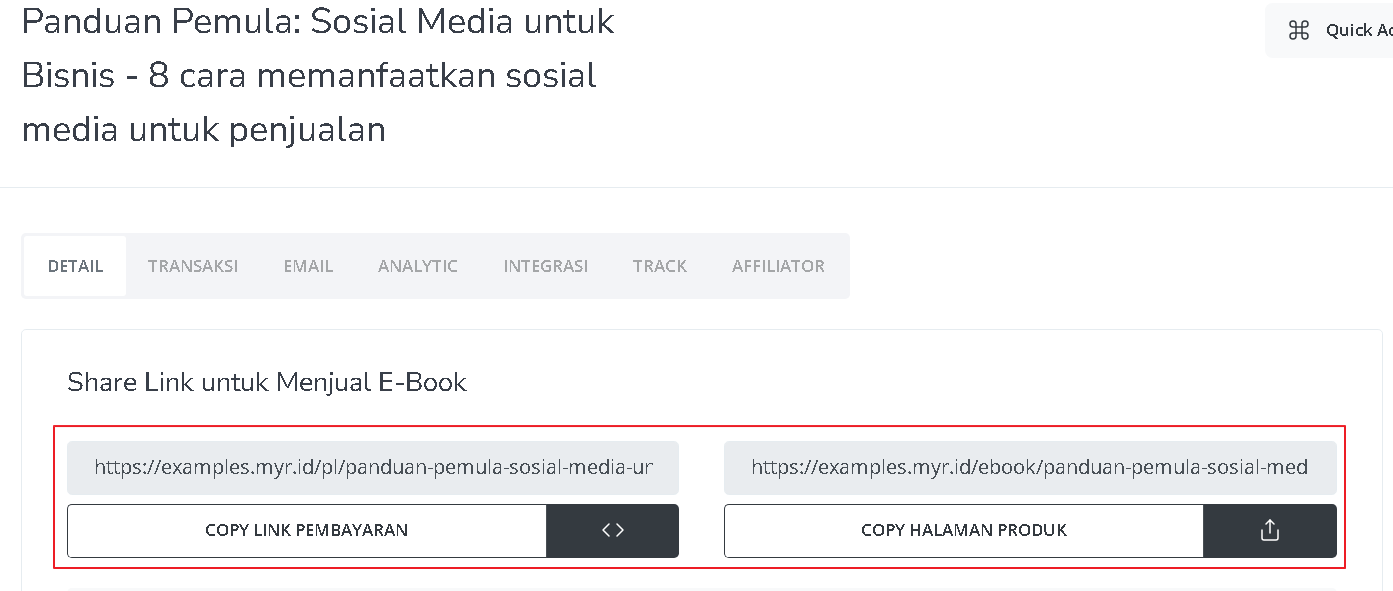 You can also access the product page by copying the product page link.
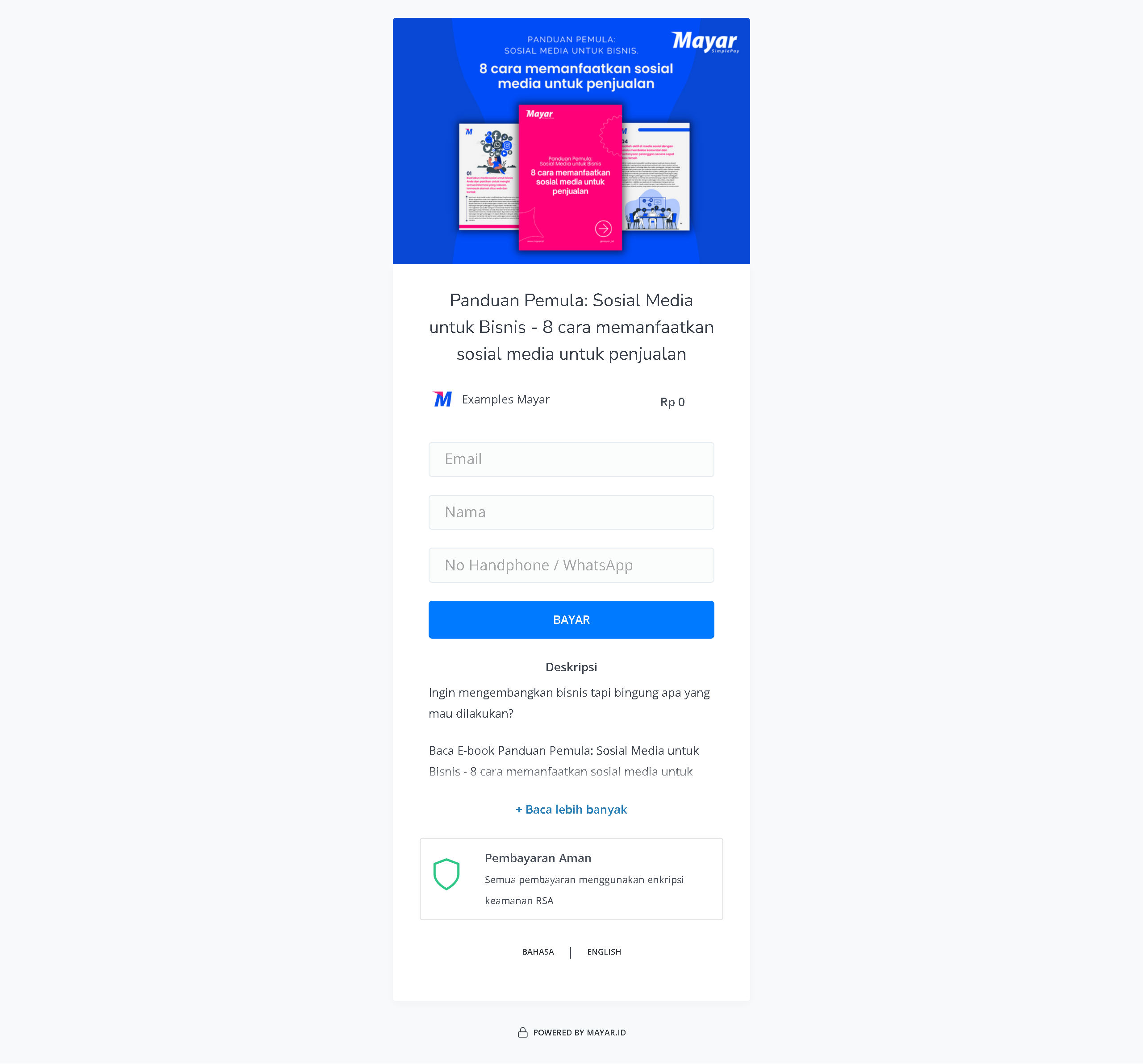
 To access the checkout page, you can copy the payment link.
 ### Accessing Your Ebook Product
After purchasing an E-Book product, you can access it in several ways. You can open it directly from the “Thank You” page that appears once your purchase is complete. You will also receive a confirmation email containing a link to access your E-Book, and you can use this link anytime through the customer portal. It’s important to keep the confirmation email so you can easily retrieve and read your E-Book whenever you want.
### Accessing Your Ebook Product
After purchasing an E-Book product, you can access it in several ways. You can open it directly from the “Thank You” page that appears once your purchase is complete. You will also receive a confirmation email containing a link to access your E-Book, and you can use this link anytime through the customer portal. It’s important to keep the confirmation email so you can easily retrieve and read your E-Book whenever you want.