> ## Documentation Index
> Fetch the complete documentation index at: https://docs.mayar.id/llms.txt
> Use this file to discover all available pages before exploring further.
# Digital Product
> Explore our latest Digital Product feature, designed to significantly enhance your ability to create, manage, and sell digital content with unparalleled ease and efficiency. This innovative feature empowers you to transform your ideas into market-ready digital products.
## Overview
Mayar Digital Product is an all-encompassing platform designed to facilitate the seamless creation, management, and sale of digital products. This comprehensive solution empowers creators and businesses to easily accept payments. By leveraging the capabilities of Mayar Digital Product, users can efficiently monetize their digital creations, reaching a global audience with minimal effort.
The process of creating and managing digital products is streamlined through the use of the Mayar Web Apps. These applications provide intuitive tools for setting up product listings, organizing content, and handling customer interactions, ensuring a smooth and professional experience for both sellers and buyers. The platform supports a variety of digital formats, allowing creators to offer products that meet diverse consumer needs and preferences.
This documentation is specifically focused on guiding users through the process of creating and customizing payment links via the Mayar Dashboard. By utilizing these tools, sellers can efficiently manage transactions, process payments, and track financial performance. The Mayar Dashboard offers extensive customization options, enabling sellers to tailor the payment process to align with their specific product offerings and business requirements. Through this comprehensive approach, Mayar Digital Product empowers creators to maximize their revenue potential while ensuring a seamless and secure purchasing experience for their customers.
### Navigate to Digital Product
Make sure you are logged into your account and on the main **Dashboard Page**. This is where you will start with the **Digital Product**.
On the Dashboard page, find and click **Digital Product** **Menu**. This will show all of the **Digital Product lists** that you have created before.
### Create Digital Product
Make sure you are logged into your Mayar account and on the main **Dashboard** page.
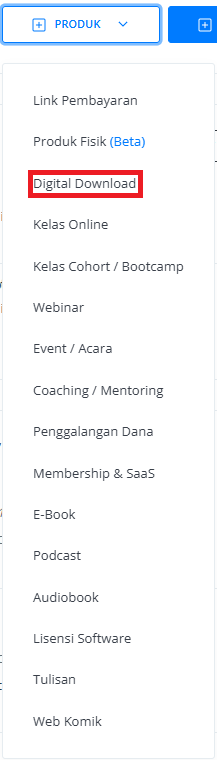
Click the “**Product**” button at the top right near the “**Create**” button. This will take you to the product menu.
Select the “**Digital Product**” option to start creating your Writing product. The “**Create Digital Product**” window will open.
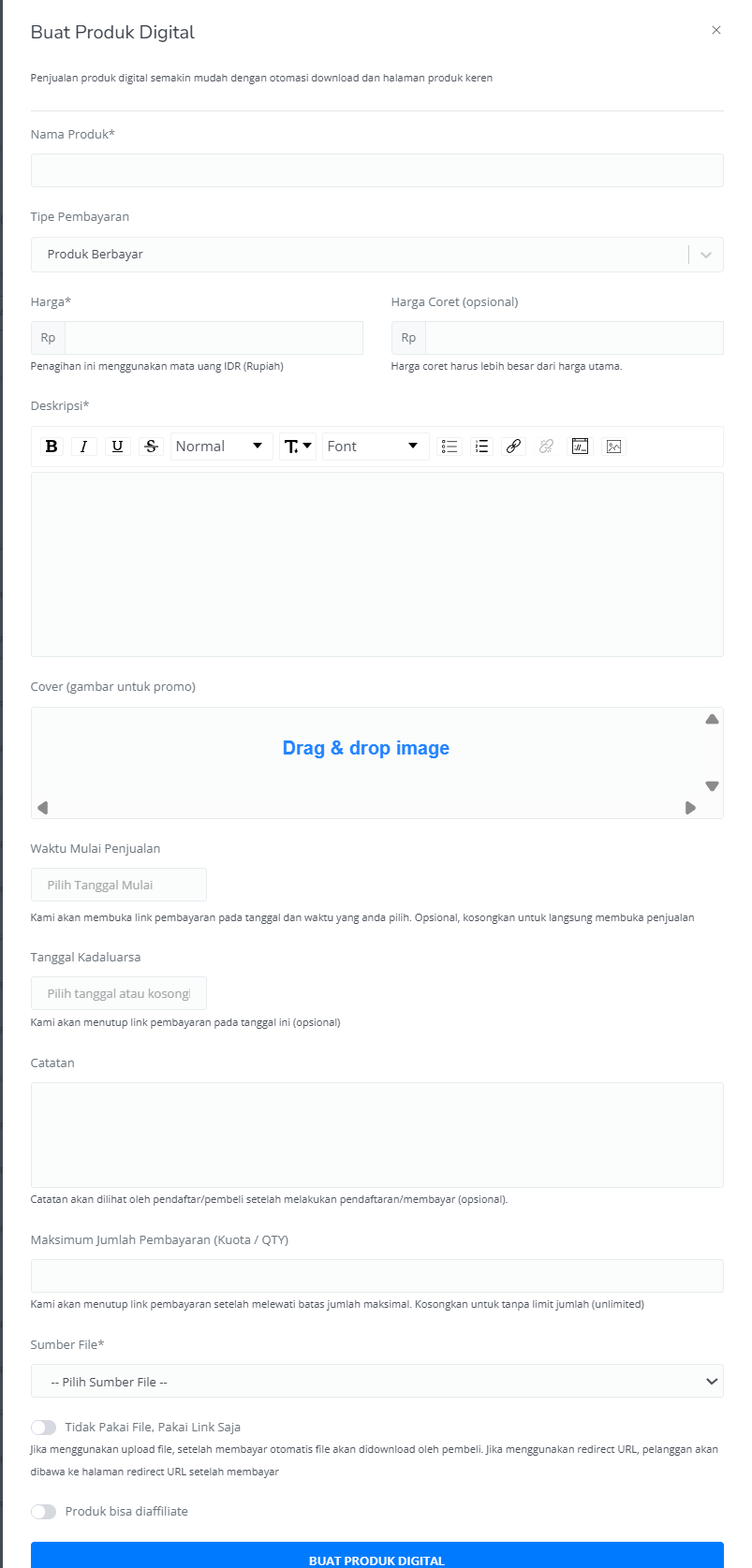
 Enter the following information:
| **Input Form** | **Description** |
| :--------------------------------- | :------------------------------------------------------------------------------------------------------- |
| Name Product | Name of Digital Product. |
| Payment Type | Set up your Payment type. |
| Price | Price of Digital Product. |
| Strikethrough price | Price of Digital Product before Discount (Optional). |
| Description | Description field for Digital Product. |
| Cover (Image for promotion) | Cover image of the Product for promotion. |
| Sales Start Time | Start time for the open Link Payment page. |
| Expired Date | Start time for the close Link Payment page (Optional). |
| Notes after Payment | Additional notes after checkout product (Optional). |
| Maximum payment amount (Quota/qty) | Set up the maximum quantity of product that can be sold (Optional). If empty, the qty will be unlimited. |
| File Source | You can add or upload a recent file. |
| Link source | You can add a link to a file. |
| The product can be affiliated | Product can be affiliated by others (Optional). |
| Button Create Link Payment | Button create Link Payment. |
Enter the following information:
| **Input Form** | **Description** |
| :--------------------------------- | :------------------------------------------------------------------------------------------------------- |
| Name Product | Name of Digital Product. |
| Payment Type | Set up your Payment type. |
| Price | Price of Digital Product. |
| Strikethrough price | Price of Digital Product before Discount (Optional). |
| Description | Description field for Digital Product. |
| Cover (Image for promotion) | Cover image of the Product for promotion. |
| Sales Start Time | Start time for the open Link Payment page. |
| Expired Date | Start time for the close Link Payment page (Optional). |
| Notes after Payment | Additional notes after checkout product (Optional). |
| Maximum payment amount (Quota/qty) | Set up the maximum quantity of product that can be sold (Optional). If empty, the qty will be unlimited. |
| File Source | You can add or upload a recent file. |
| Link source | You can add a link to a file. |
| The product can be affiliated | Product can be affiliated by others (Optional). |
| Button Create Link Payment | Button create Link Payment. |
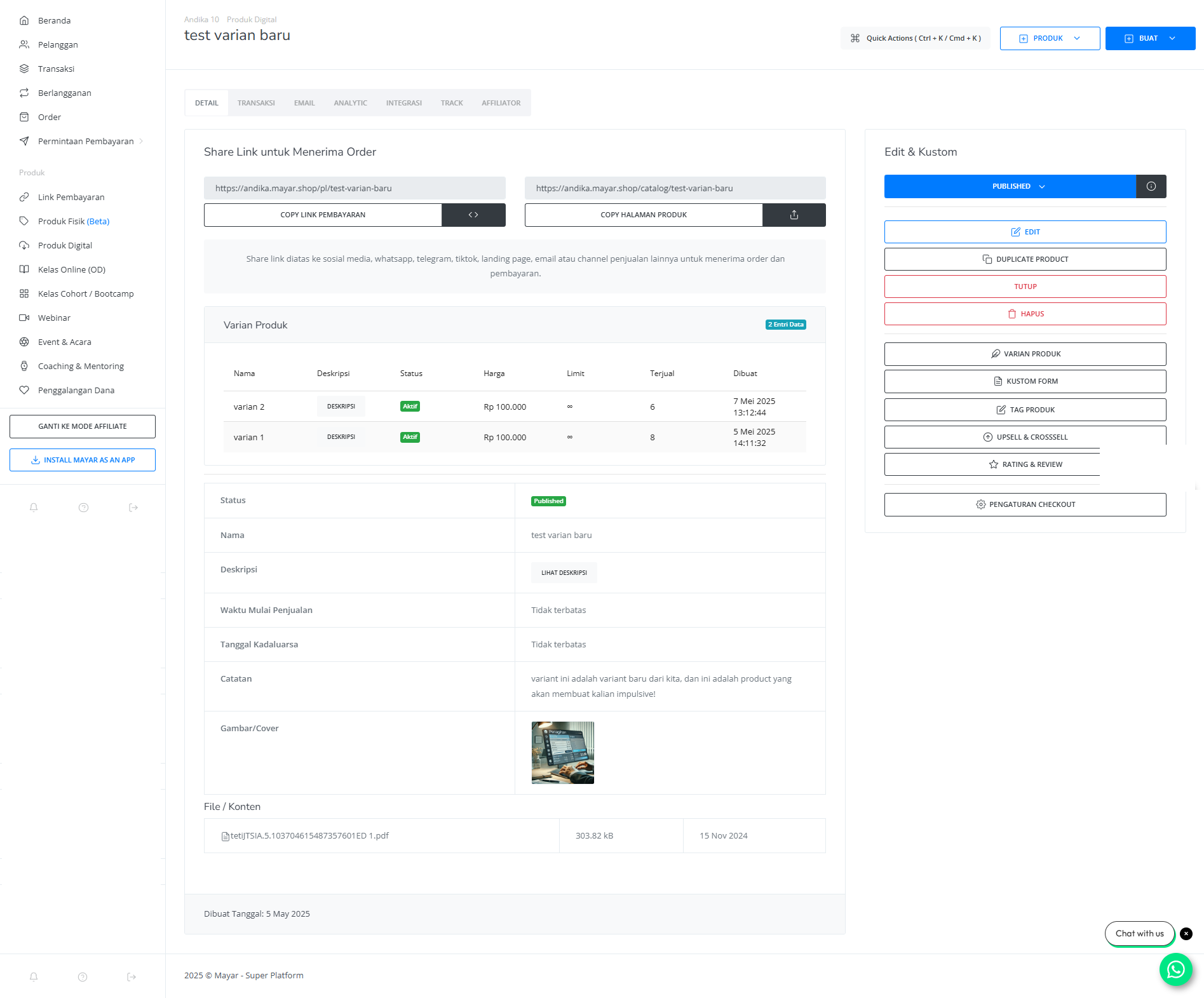
 | **Information** | **Description** |
| :--------------- | :--------------------------------------------------------- |
| Status | Status of Digital Product: checkout active or deactivated. |
| Name | Name of Digital Product. |
| Description | Description field for Digital Product. |
| Sales Start Time | Start time for the open Link Payment page. |
| Expired Date | Start time for the close Link Payment page. |
| Notes | Additional notes after checkout of the Digital Product. |
| Cover Image | Cover image of Digital Product for promotion. |
| File / Content | Content Digital Product that is available. |
| **Information** | **Description** |
| :--------------- | :--------------------------------------------------------- |
| Status | Status of Digital Product: checkout active or deactivated. |
| Name | Name of Digital Product. |
| Description | Description field for Digital Product. |
| Sales Start Time | Start time for the open Link Payment page. |
| Expired Date | Start time for the close Link Payment page. |
| Notes | Additional notes after checkout of the Digital Product. |
| Cover Image | Cover image of Digital Product for promotion. |
| File / Content | Content Digital Product that is available. |
 If everything looks good, congratulations — you have successfully created a **Digital Product** on Mayar!
### How to Access the Product Page and Checkout
You can access the product page through the link provided in the **product details**.
If everything looks good, congratulations — you have successfully created a **Digital Product** on Mayar!
### How to Access the Product Page and Checkout
You can access the product page through the link provided in the **product details**.
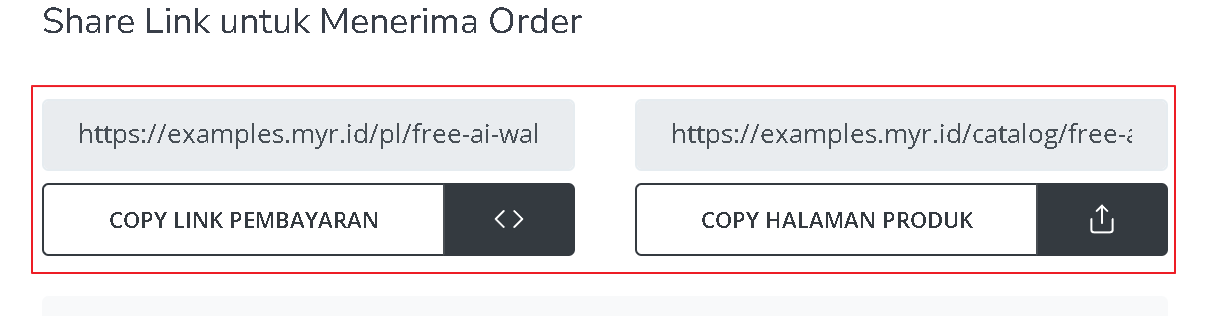 You can also access the product page by copying the **product page link**.
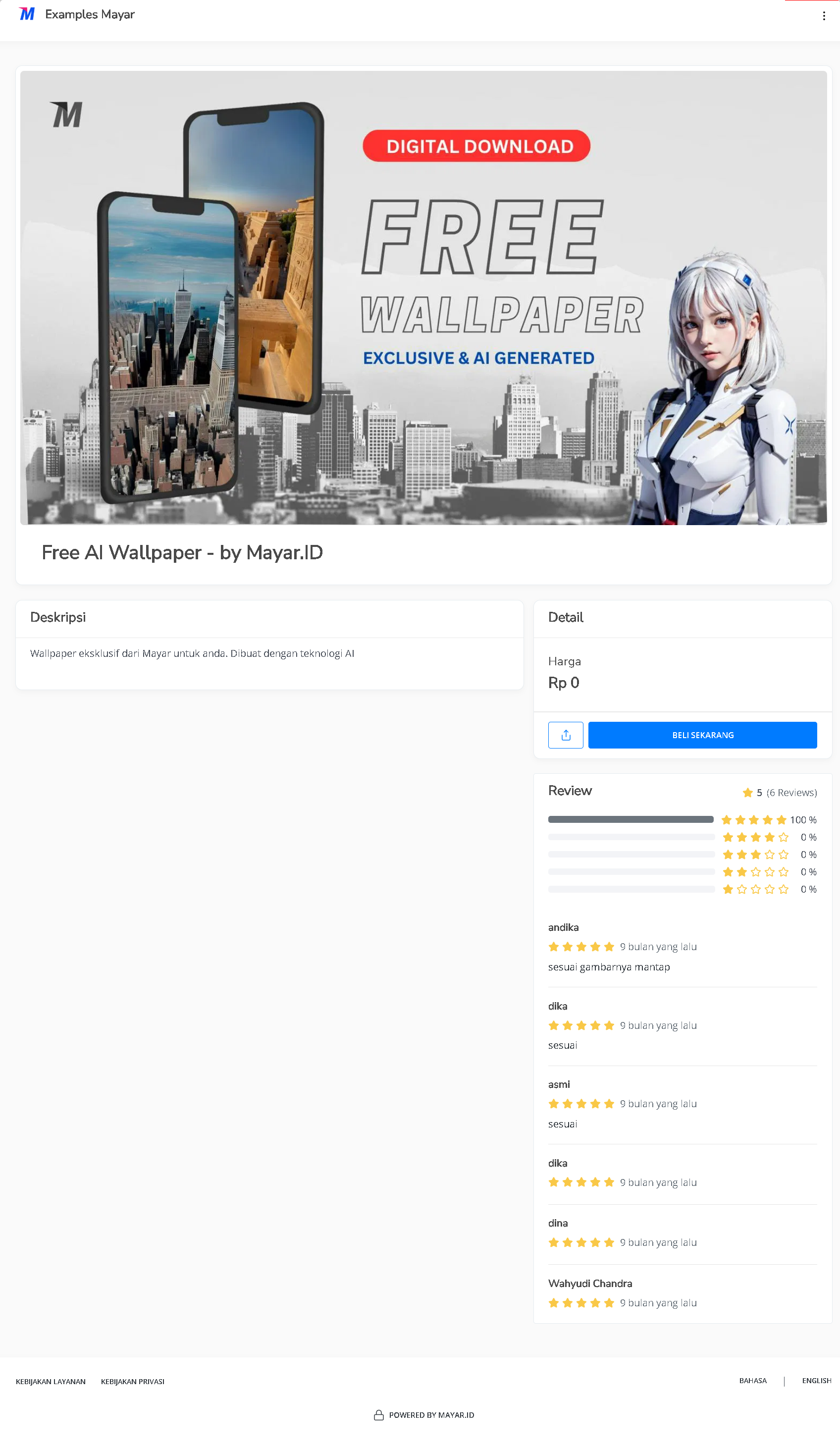 To access the checkout page, you can copy the **payment link**.