> ## Documentation Index
> Fetch the complete documentation index at: https://docs.mayar.id/llms.txt
> Use this file to discover all available pages before exploring further.
# Payment Method Settings
> Enhance your customer’s payment experience and boost conversion with various payment method
### Overview
The Payment Method Settings page on Mayar is designed to make it easy for users to manage the various payment methods available for their business. On this page, users can add, remove, or customize payment preferences such as credit cards, bank transfers, e-wallets, and more. With an intuitive interface, users can easily enable or disable specific payment methods based on their business needs. Additionally, this page offers options to configure automated payments, ensuring all transactions are smooth and efficient. With this feature, Mayar gives users full flexibility and control in optimizing the payment experience for their customers.
### Setting Payment Duration
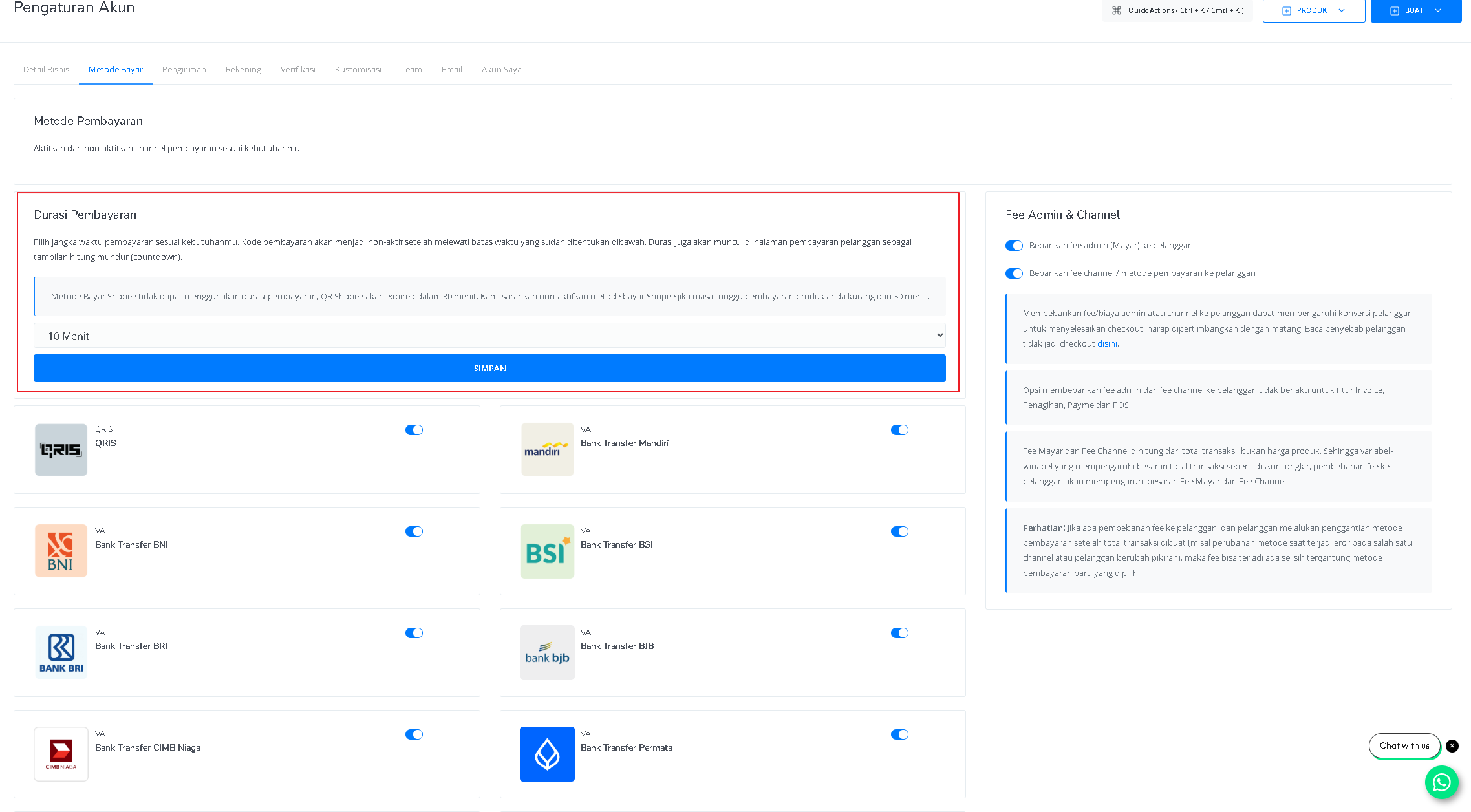
Choose a payment time limit that suits your needs. Once the time expires, the payment code will become inactive. The countdown will also be displayed on your customer’s payment page. To use this feature, go to Settings → Payment Methods tab, where you can select a duration ranging from 10 minutes to 1 month.
 ### Managing Payment Methods
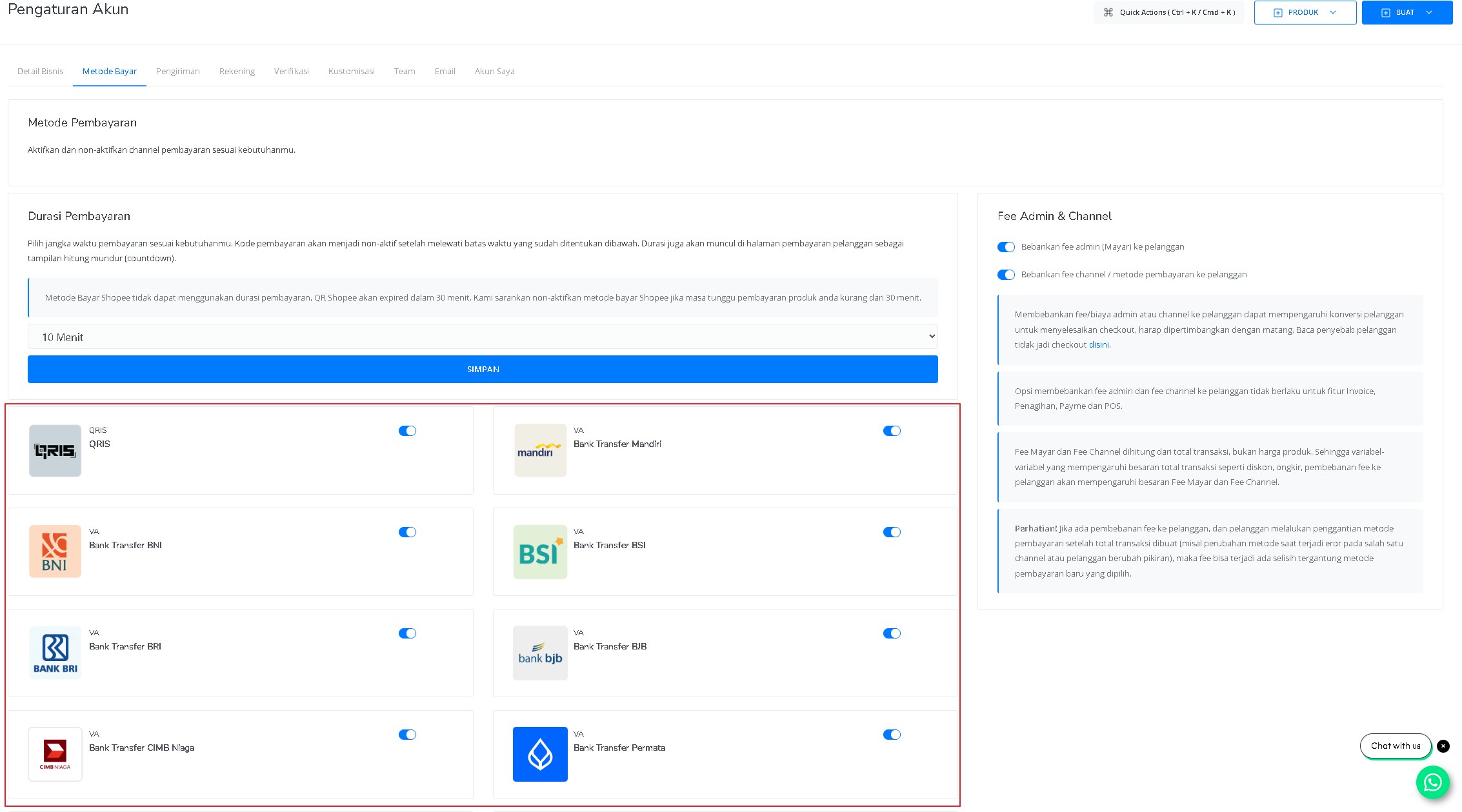
Control which payment methods you want to offer by toggling them on or off. You can choose which methods are active and which are disabled. To use this feature, go to Settings → Payment Methods tab and toggle each payment method as needed.
### Managing Payment Methods
Control which payment methods you want to offer by toggling them on or off. You can choose which methods are active and which are disabled. To use this feature, go to Settings → Payment Methods tab and toggle each payment method as needed.
 ### Charging Transaction Fees to Customers
Both the Channel Fee and Admin Fee can be charged to your customers (meaning your transaction amount will remain unchanged, and the fees will be added to your customer’s total payment). You can enable this option by going to Settings → Payment Methods tab.
### Fee Deduction Simulation
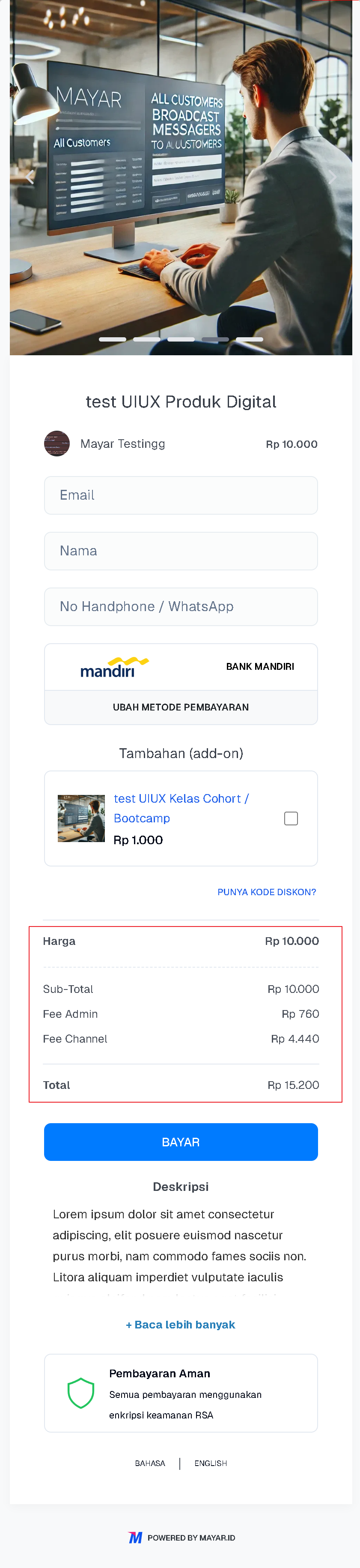
In this scenario, the customer bears all additional costs, including the Mayar admin fee and the payment channel fee. This may increase the final price paid by the customer.
### Charging Transaction Fees to Customers
Both the Channel Fee and Admin Fee can be charged to your customers (meaning your transaction amount will remain unchanged, and the fees will be added to your customer’s total payment). You can enable this option by going to Settings → Payment Methods tab.
### Fee Deduction Simulation
In this scenario, the customer bears all additional costs, including the Mayar admin fee and the payment channel fee. This may increase the final price paid by the customer.
 Here, only the Mayar admin fee is charged to the customer. The payment channel fee is covered by the service provider, making the customer’s cost lighter compared to Scenario 1.
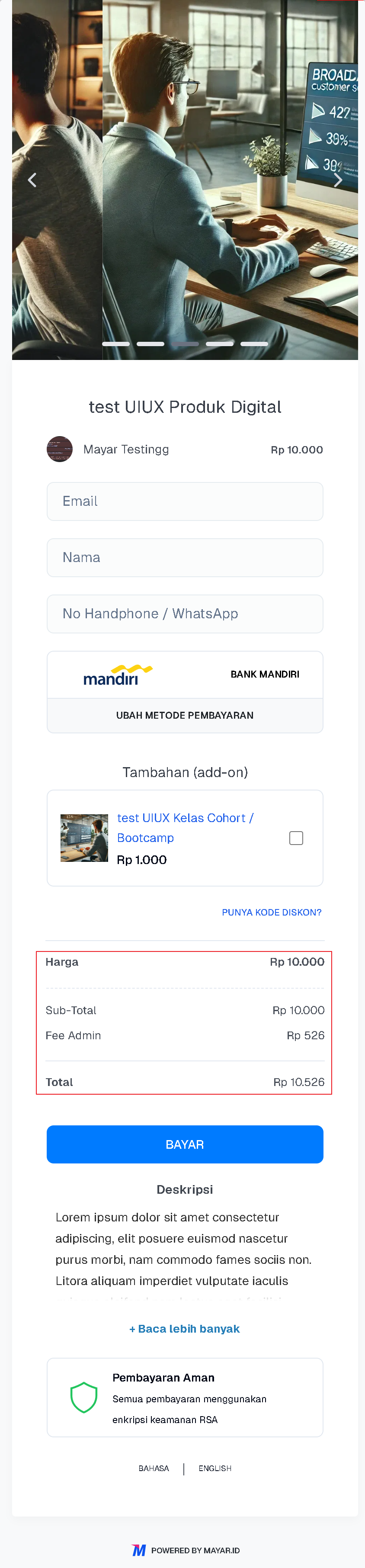 In this case, the payment channel fee is charged to the customer, while the Mayar admin fee is covered by the service provider. This creates a balance between the costs shared by customers and the provider.
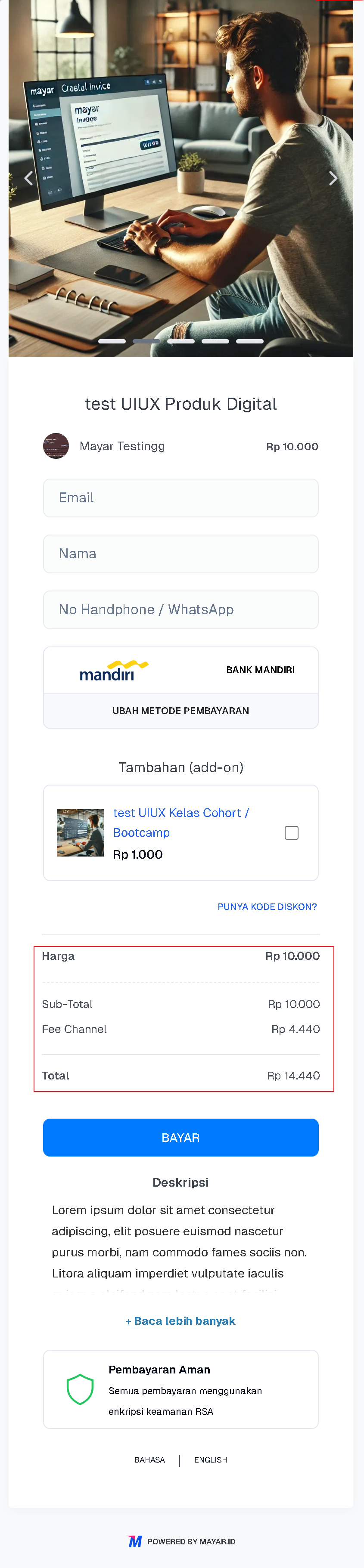 In this scenario, the service provider covers all additional costs, including both the admin fee and channel fee. Customers enjoy a lower price, but the provider’s profit margin may decrease.