> ## Documentation Index
> Fetch the complete documentation index at: https://docs.mayar.id/llms.txt
> Use this file to discover all available pages before exploring further.
# Discount & Coupon
> Boost your business growth by using the discount feature on Mayar to attract and retain more customers!
### Overview
The discount feature on Mayar allows sellers to offer price reductions on their products or services, helping them attract more customers and increase sales. With this feature, sellers can easily set a percentage or fixed amount discount on specific items or entire product categories. Discounts can be set for a specific time period, giving you flexibility to run seasonal promotions or special event sales. Additionally, sellers can target specific customer segments with exclusive discount codes, helping build customer loyalty and encouraging repeat purchases. This feature is designed to help sellers stay competitive in the market, increase product visibility, and drive higher sales volume.
### How to Create a Discount?
Follow these simple steps to create a discount in Mayar:
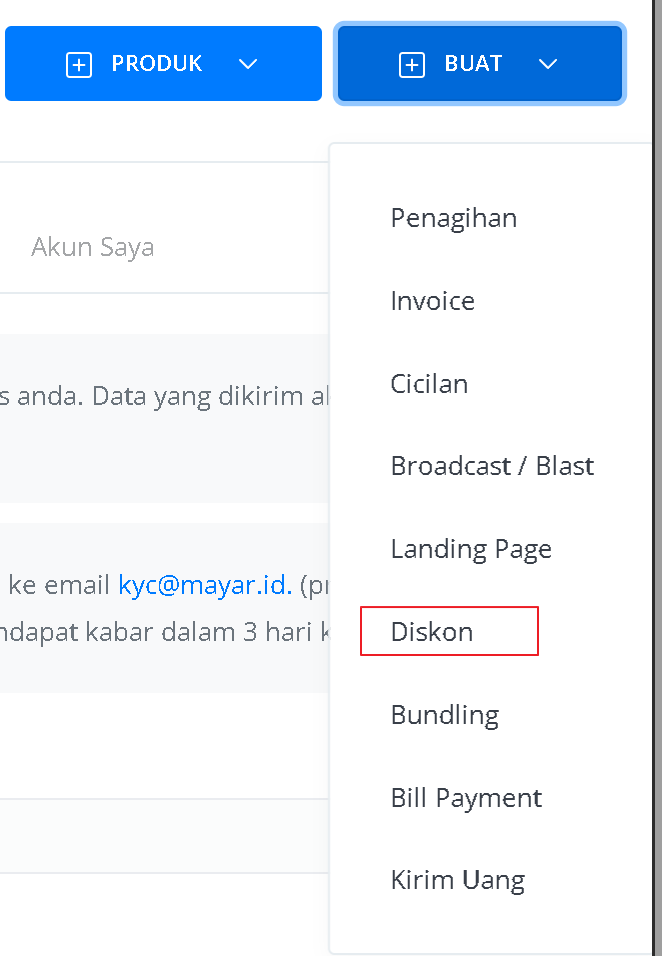
First, click on the "CREATE" dropdown menu located in the top-right corner, next to the "Products" menu.
 Then, select "Discount" from the dropdown options.
 You will see the "Create Discount" form. Fill in the required details, including:
 | **Input Form** | **Description** |
| :---------------------- | :--------------------------------------------------------------------------------------------- |
| **Discount Name** | Enter the name of the discount. |
| **Applicable Products** | Select which products the discount will apply to. |
| **Discount Type** | Choose whether it’s a percentage or a fixed amount. |
| **Discount Value** | Specify the amount or percentage of the discount. |
| **Minimum Purchase** | Set the minimum order value required to apply the discount. |
| **Coupon Type** | Choose whether the coupon can be used multiple times or just once. |
| **Eligible Customers** | Select who can use the discount, such as all customers, new customers, or returning customers. |
| **Coupon Code** | You can create your own code or use the system to generate one. |
| **Usage Limit** | Set how many times the coupon can be used. |
| **Expiration Date** | Define the expiry date of the discount. |
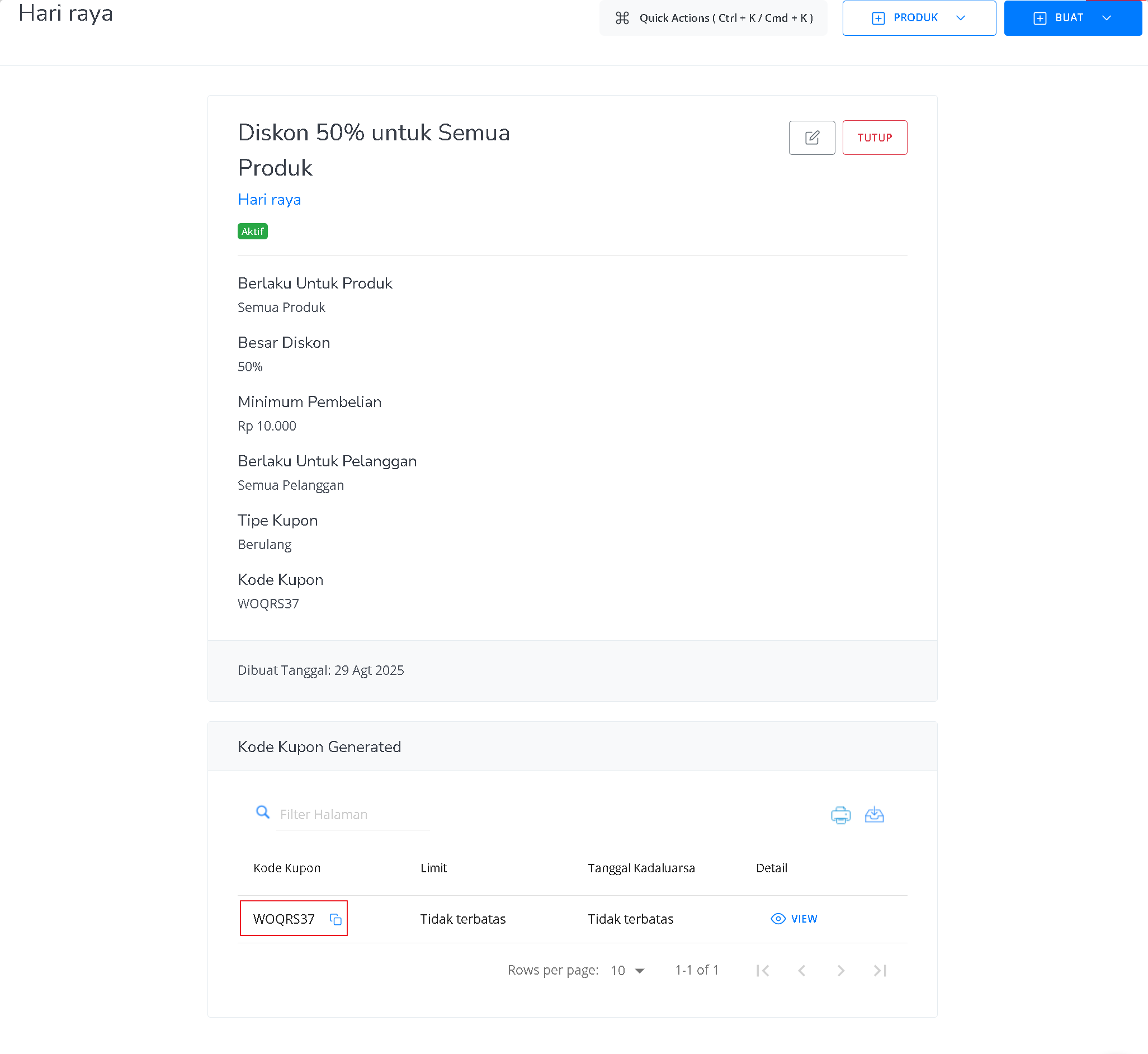
Once you complete the form, you’ll be redirected to the Discount Details page. Here, you’ll see the complete discount information, for example:
| **Input Form** | **Description** |
| :---------------------- | :--------------------------------------------------------------------------------------------- |
| **Discount Name** | Enter the name of the discount. |
| **Applicable Products** | Select which products the discount will apply to. |
| **Discount Type** | Choose whether it’s a percentage or a fixed amount. |
| **Discount Value** | Specify the amount or percentage of the discount. |
| **Minimum Purchase** | Set the minimum order value required to apply the discount. |
| **Coupon Type** | Choose whether the coupon can be used multiple times or just once. |
| **Eligible Customers** | Select who can use the discount, such as all customers, new customers, or returning customers. |
| **Coupon Code** | You can create your own code or use the system to generate one. |
| **Usage Limit** | Set how many times the coupon can be used. |
| **Expiration Date** | Define the expiry date of the discount. |
Once you complete the form, you’ll be redirected to the Discount Details page. Here, you’ll see the complete discount information, for example:
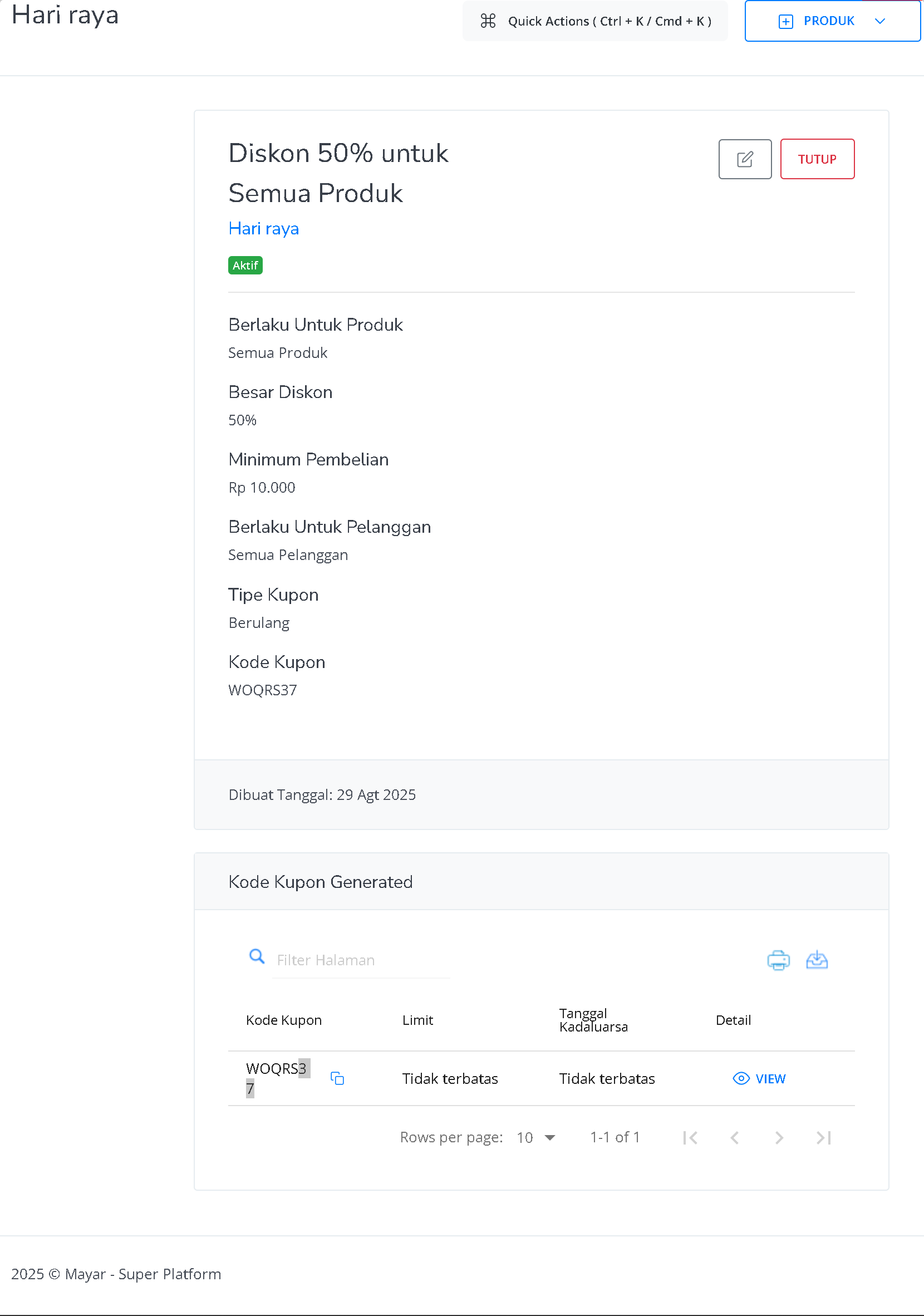 At the bottom of the page, you’ll also find Generated Coupon Codes, which include:
| **Information** | **Description** |
| :------------------ | :--------------------------------- |
| **Coupon Code** | WOQRS37 |
| **Limit** | No usage limit |
| **Expiration Date** | No expiry (valid forever) |
| **Details** | Option to view more coupon details |
On the Coupon Details page, you can also see:
At the bottom of the page, you’ll also find Generated Coupon Codes, which include:
| **Information** | **Description** |
| :------------------ | :--------------------------------- |
| **Coupon Code** | WOQRS37 |
| **Limit** | No usage limit |
| **Expiration Date** | No expiry (valid forever) |
| **Details** | Option to view more coupon details |
On the Coupon Details page, you can also see:
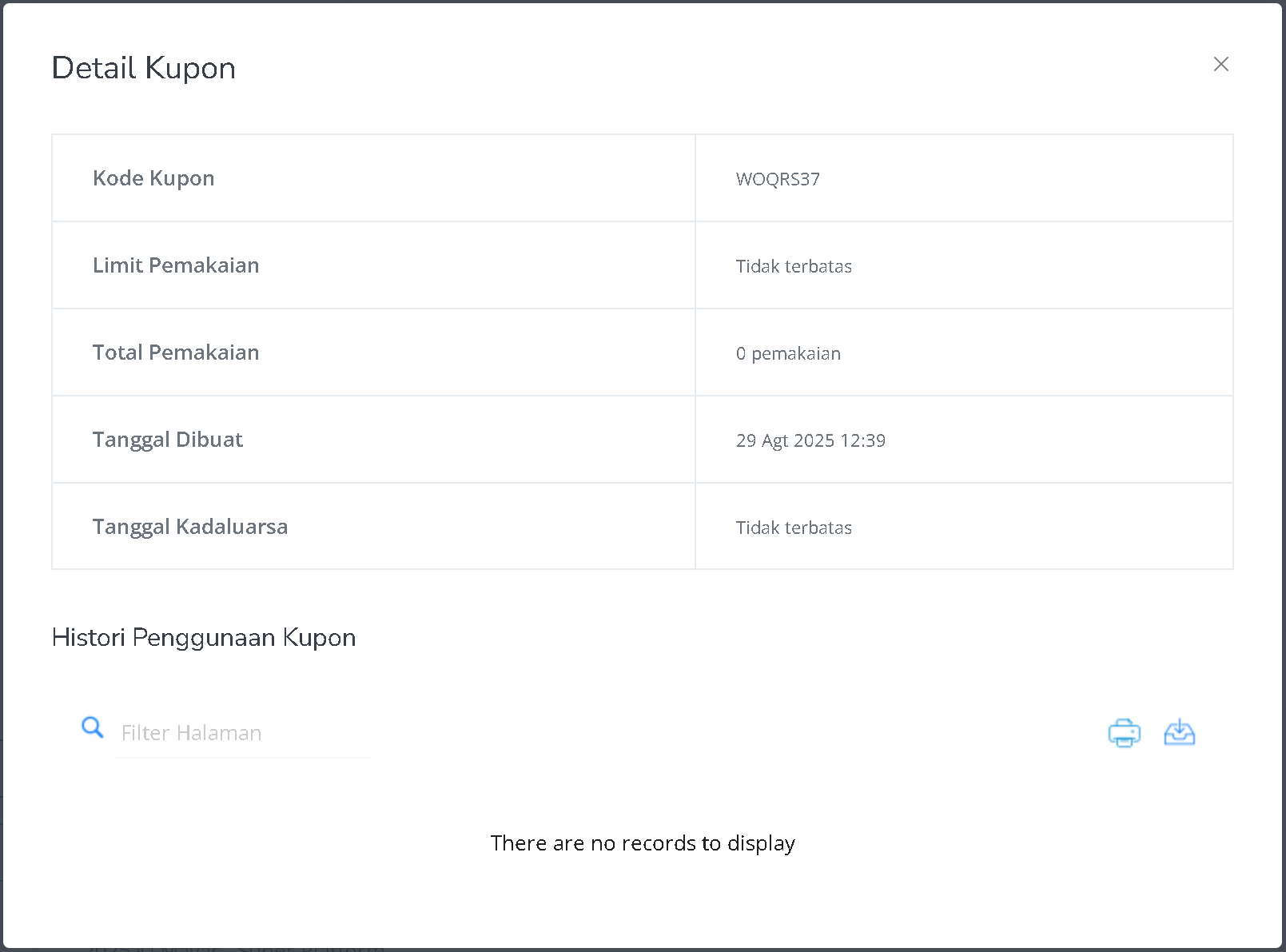 | **Information** | **Description** |
| :------------------ | :------------------------ |
| **Coupon Code** | WOQRS37 |
| **Usage Limit** | None (unlimited) |
| **Total Usage** | Currently 0 |
| **Created On** | August 29, 2025, at 12:39 |
| **Expiration Date** | None (valid forever) |
Once all steps are completed, your discount is ready to use. Congratulations, you’ve successfully created a Discount Code in Mayar!
### How to Use Auto-Apply Discount Codes during Checkout
The Auto-Apply Discount Code feature in Mayar allows discounts to be applied automatically at checkout, without customers needing to enter a code manually. This makes shopping easier, improves customer experience, and reduces errors when entering codes. Eligible discounts will automatically apply to relevant products during checkout. Here’s how to set it up:
Either use an existing coupon or create a new one to auto-apply.
Get the coupon code from your discount details page.
| **Information** | **Description** |
| :------------------ | :------------------------ |
| **Coupon Code** | WOQRS37 |
| **Usage Limit** | None (unlimited) |
| **Total Usage** | Currently 0 |
| **Created On** | August 29, 2025, at 12:39 |
| **Expiration Date** | None (valid forever) |
Once all steps are completed, your discount is ready to use. Congratulations, you’ve successfully created a Discount Code in Mayar!
### How to Use Auto-Apply Discount Codes during Checkout
The Auto-Apply Discount Code feature in Mayar allows discounts to be applied automatically at checkout, without customers needing to enter a code manually. This makes shopping easier, improves customer experience, and reduces errors when entering codes. Eligible discounts will automatically apply to relevant products during checkout. Here’s how to set it up:
Either use an existing coupon or create a new one to auto-apply.
Get the coupon code from your discount details page.
 Add `?coupon=COUPONCODE` at the end of your product checkout URL. Replace `COUPONCODE` with the actual code.
Give this modified URL to your customers. Example: `https://andiak.myr.id/pl/test-uiux-produk-digital?coupon=WOQRS37`
Add `?coupon=COUPONCODE` at the end of your product checkout URL. Replace `COUPONCODE` with the actual code.
Give this modified URL to your customers. Example: `https://andiak.myr.id/pl/test-uiux-produk-digital?coupon=WOQRS37`
 When customers visit the URL, the discount will be applied automatically—no need to type in the code. Congrats! You’ve successfully used the Auto-Apply Discount feature in Mayar.
 ### Using a Discount Coupon at Checkout
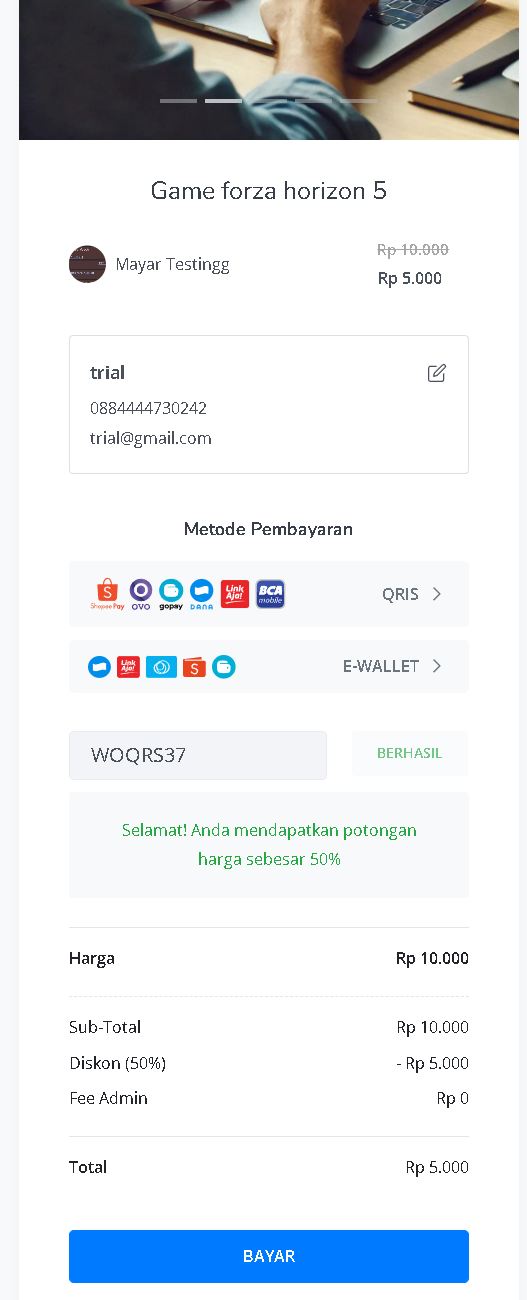
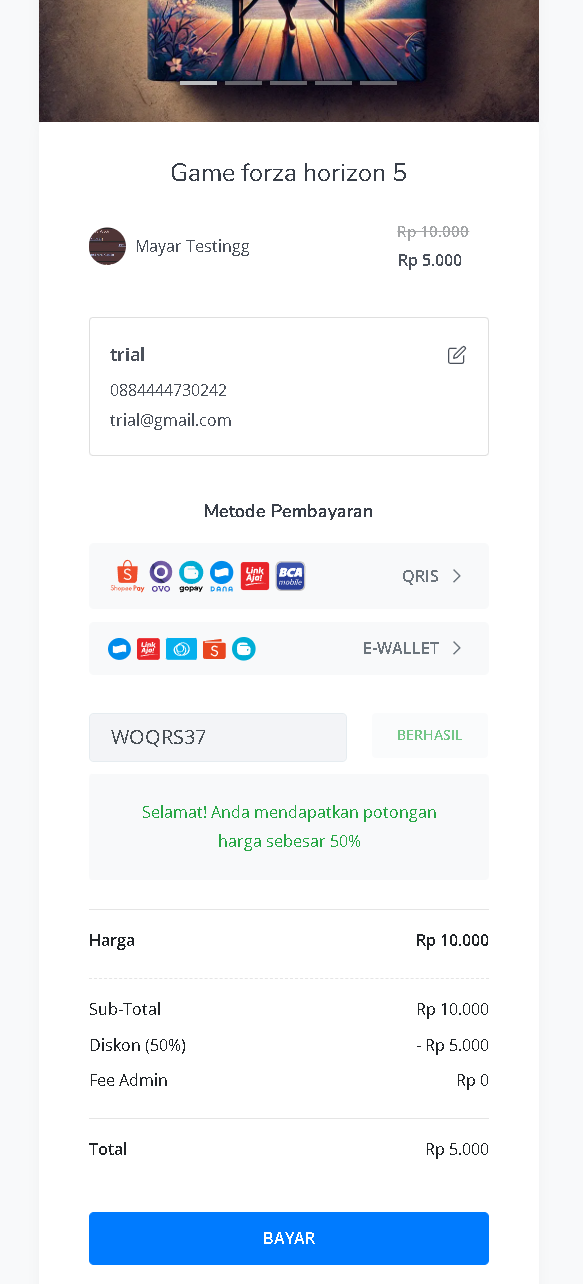
On the Mayar checkout page, customers can easily apply discount coupons. For example, if the customer enters the coupon code “WOQRS37”, the system shows a “SUCCESS” status, meaning the discount has been applied.
\* Original Price: Rp 10,000
\* Discount: 50%
\* Final Price: Rp 5,000
The order summary clearly shows the applied discount, ensuring transparency and a smooth checkout experience for customers.
### Using a Discount Coupon at Checkout
On the Mayar checkout page, customers can easily apply discount coupons. For example, if the customer enters the coupon code “WOQRS37”, the system shows a “SUCCESS” status, meaning the discount has been applied.
\* Original Price: Rp 10,000
\* Discount: 50%
\* Final Price: Rp 5,000
The order summary clearly shows the applied discount, ensuring transparency and a smooth checkout experience for customers.