> ## Documentation Index
> Fetch the complete documentation index at: https://docs.mayar.id/llms.txt
> Use this file to discover all available pages before exploring further.
# Customer Portal
> Customer portal is a gateway for your customers to access all products and services they bought from you.
### Overview
The Customer Portal Page in Mayar allows customers to access and manage the products they’ve purchased. Through this portal, customers can view their purchased product list, check product details, and track shipping status if applicable. It also provides access to product support, such as user guides or after-sales services, making it easy for customers to get assistance with their products. With these features, the Customer Portal Page not only helps manage transactions but also ensures customers have full control over their purchased products.
### How to Access the Customer Portal Page
Here’s how you can access the Customer Portal Page:
You can access the Customer Portal Page in two ways. The first is through the purchase receipt email—simply open the email and click on the "Customer Portal" link at the bottom. The second way is through the Mayar Dashboard—after logging in, you will find the portal link located below your PayMe Link. Alternatively, you can also access the portal directly using the following URL format: `https://your-subdomain.myr.id/portal`.
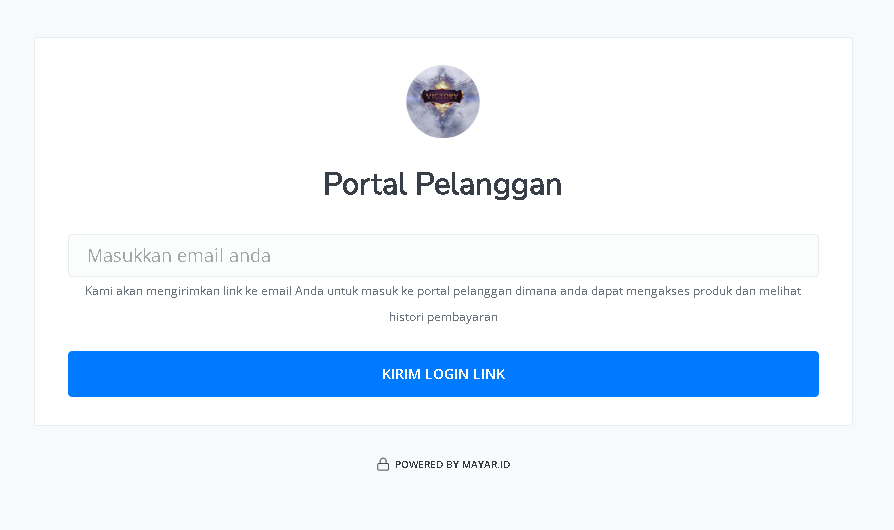
Once you open the portal, you’ll be directed to the login page. Enter your email and click “Send Login Link.”
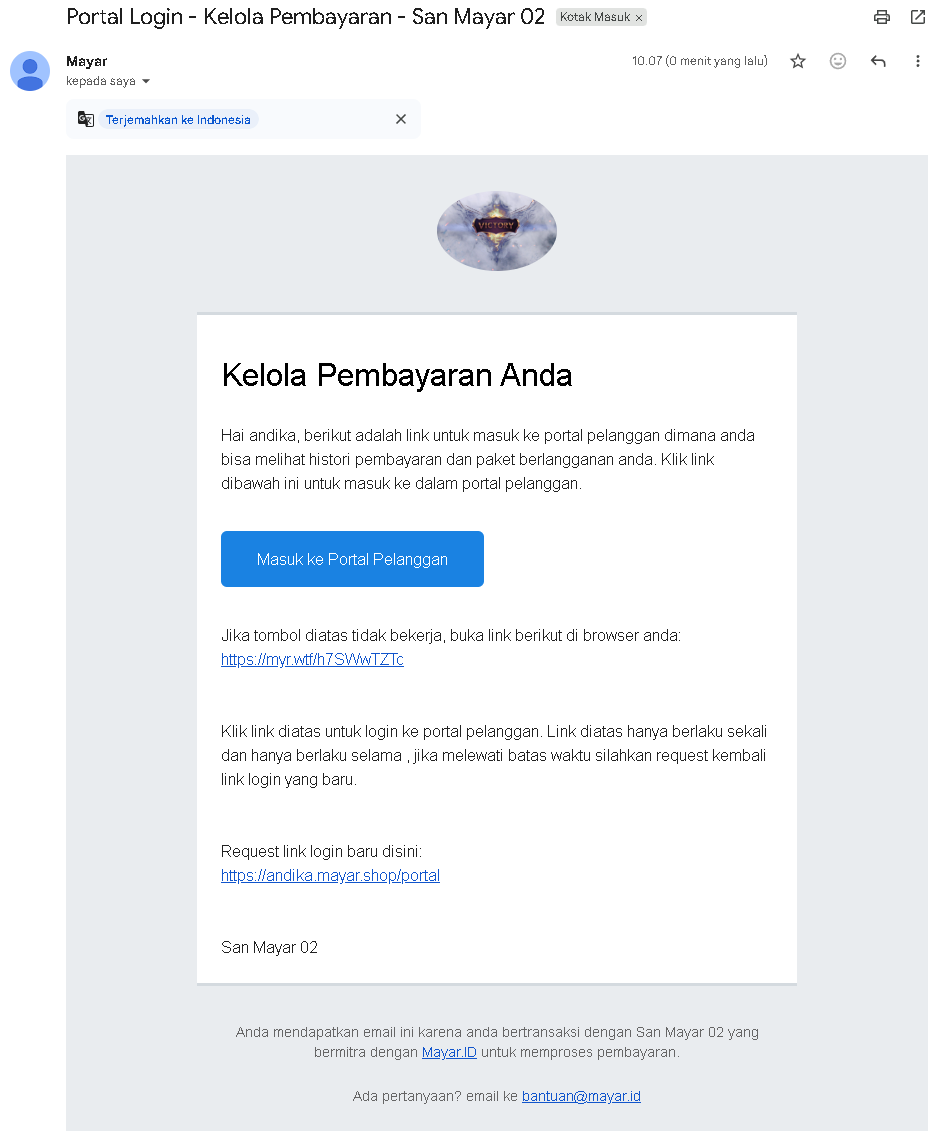
 You’ll receive an email titled “Portal Login.” Click “Access Customer Portal” to proceed.
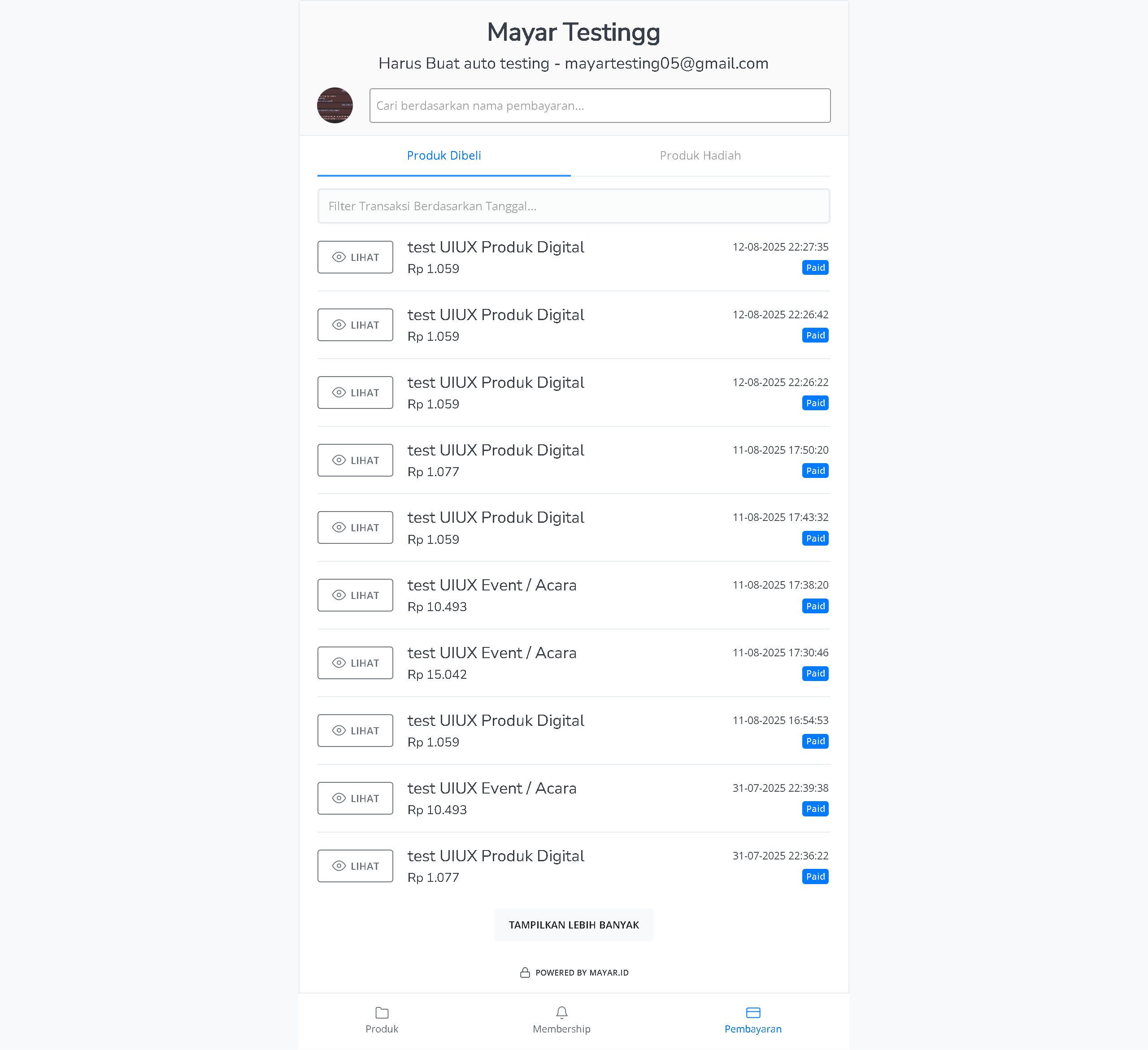
 After logging in, you can view your transaction history and purchased products in Mayar. Congratulations—you’ve successfully accessed the Customer Portal Page!
 ### Inside the Customer Portal
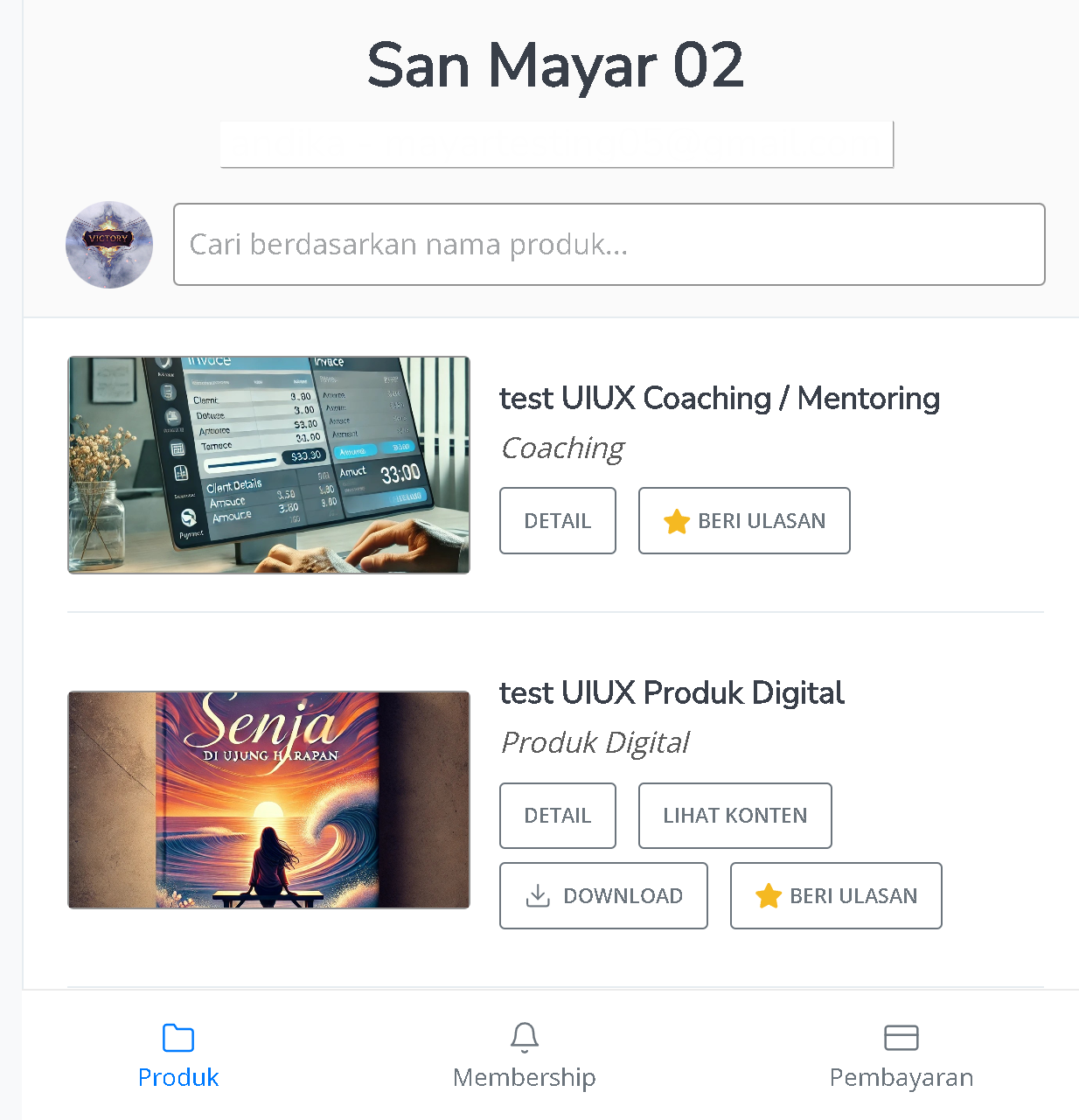
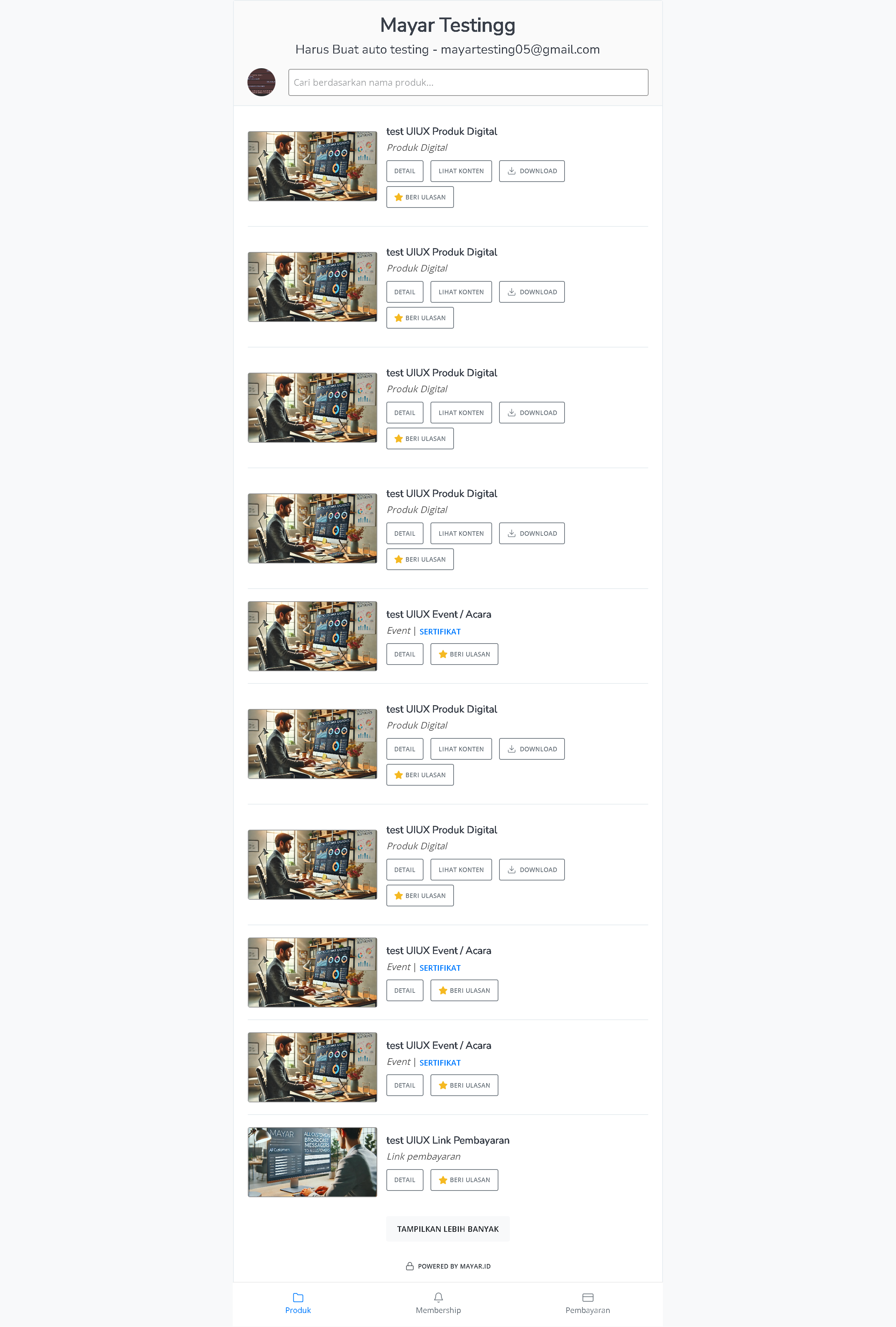
In the Customer Portal, the Products page shows a list of previously purchased products. Each product includes options to view details, access content, download files, leave reviews, and access payment invoices, making it easier for users to interact with the products they own or are interested in. A search feature by product name is also available.
### Inside the Customer Portal
In the Customer Portal, the Products page shows a list of previously purchased products. Each product includes options to view details, access content, download files, leave reviews, and access payment invoices, making it easier for users to interact with the products they own or are interested in. A search feature by product name is also available.
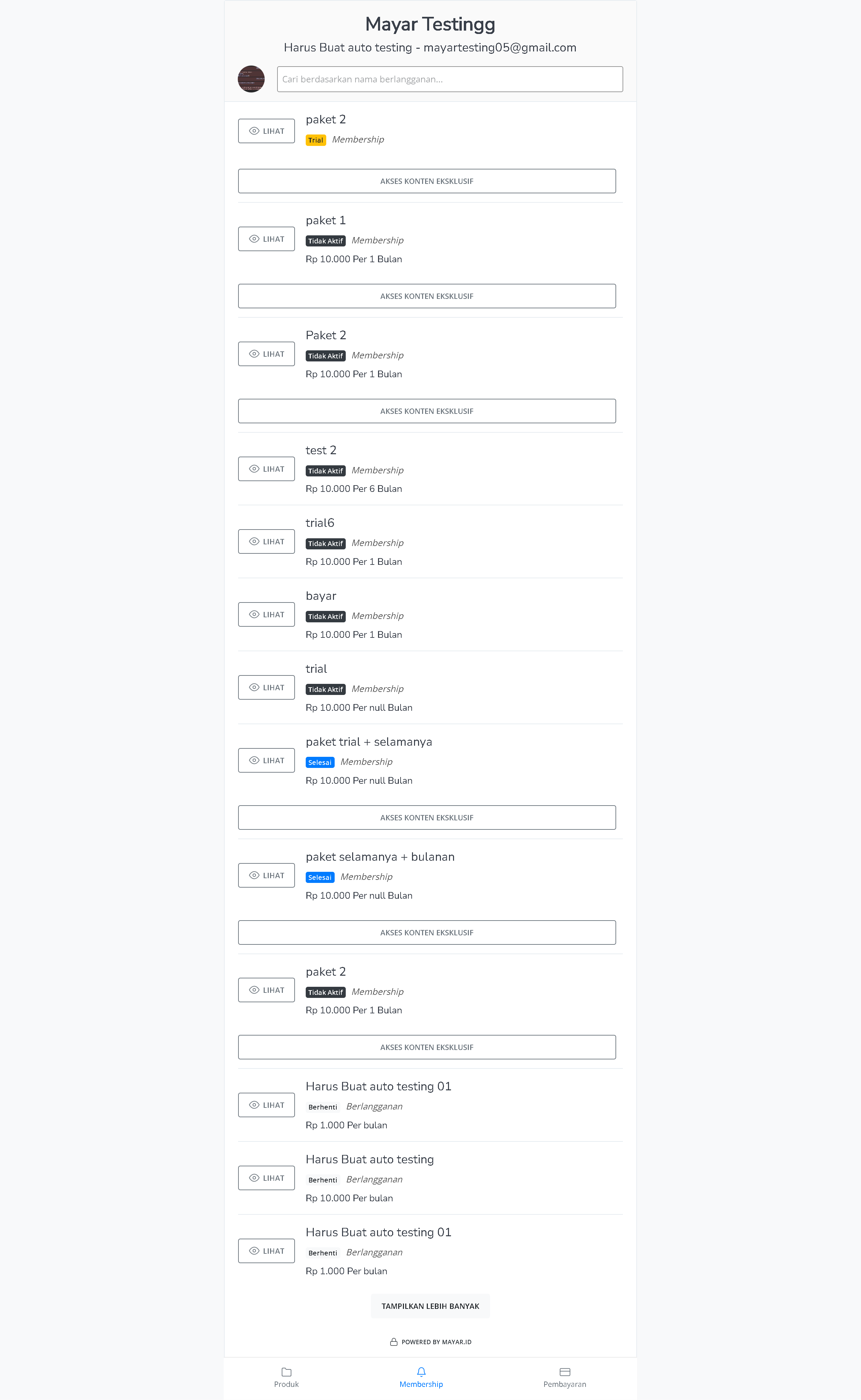
 The Membership page displays all subscription plans the user has purchased. Here, users can check the status of their subscriptions, view package details, and access invoices and payments. There is also an option to unlock exclusive content tied to each plan, giving users flexibility in managing and accessing their memberships. A search feature by subscription name is included as well.
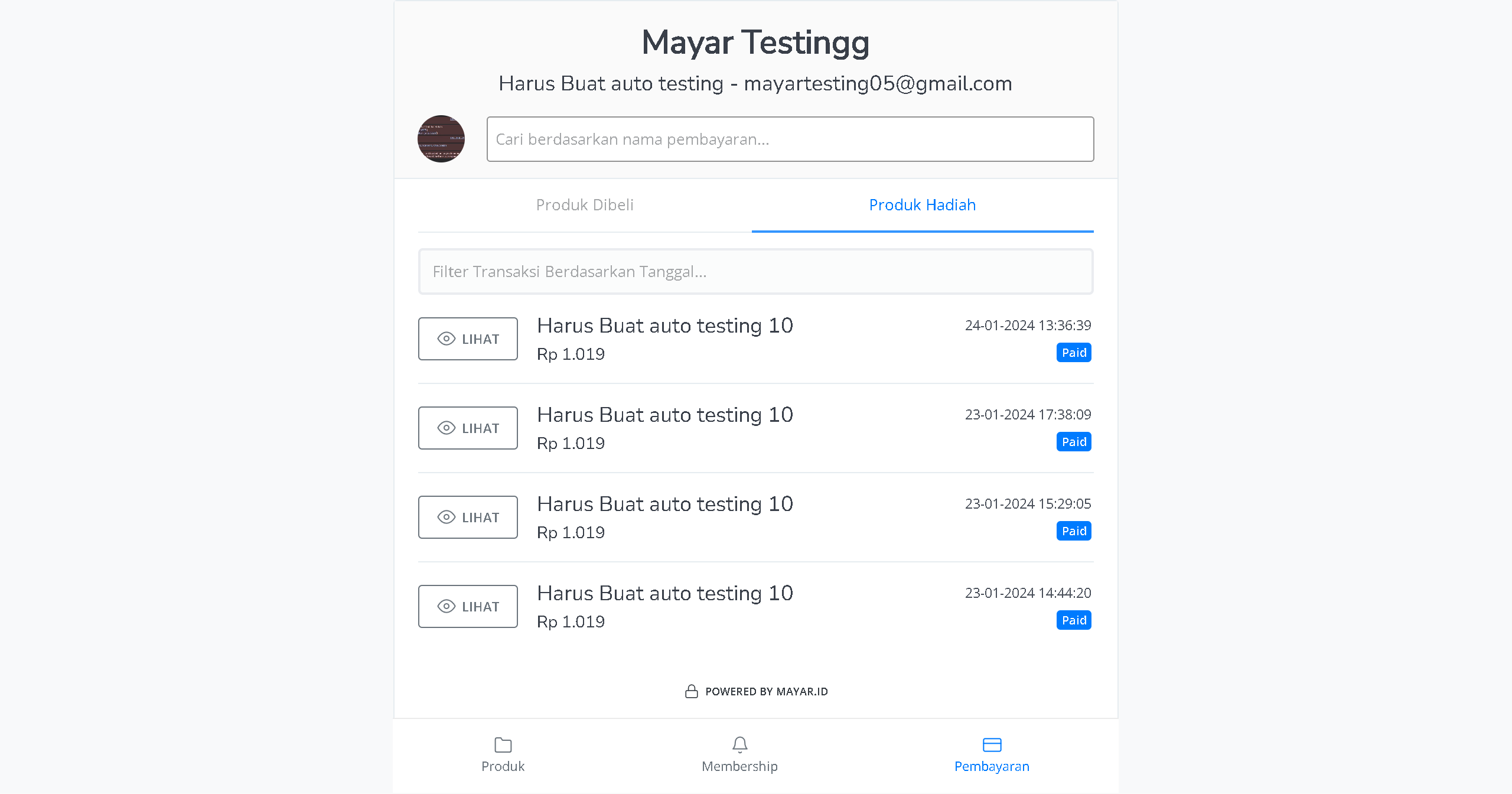
 The Payments page shows the user’s transaction history, including purchased products and gifted items. Each entry includes details such as price, date, and payment status. This helps users track their purchases and confirm that all payments have been completed correctly. Users can also access invoices for more detailed data or view full transaction details. To simplify navigation, there are filters for searching transactions by date range or payment name.