> ## Documentation Index
> Fetch the complete documentation index at: https://docs.mayar.id/llms.txt
> Use this file to discover all available pages before exploring further.
# Affiliate
> Create affiliate and referral program for your products, manage thousands resellers effortlessly with automated trackiing and automated commission payment.
### Overview
The Affiliate feature on Mayar allows users to earn additional income by promoting the services or products offered on the platform. Users who join the affiliate program will receive a unique link that can be shared with others. Every time someone makes a transaction through that link, the affiliate user will earn a commission based on a predetermined percentage. This program is designed to incentivize users to expand Mayar’s reach and increase the number of transactions on the platform. As a result, the affiliate feature benefits not only the participating users but also helps Mayar grow its visibility and customer base.
### How to Add and Manage Affiliators
Make sure you are logged into your account and on the main Dashboard page. This is where you’ll start the process of adding an affiliate.
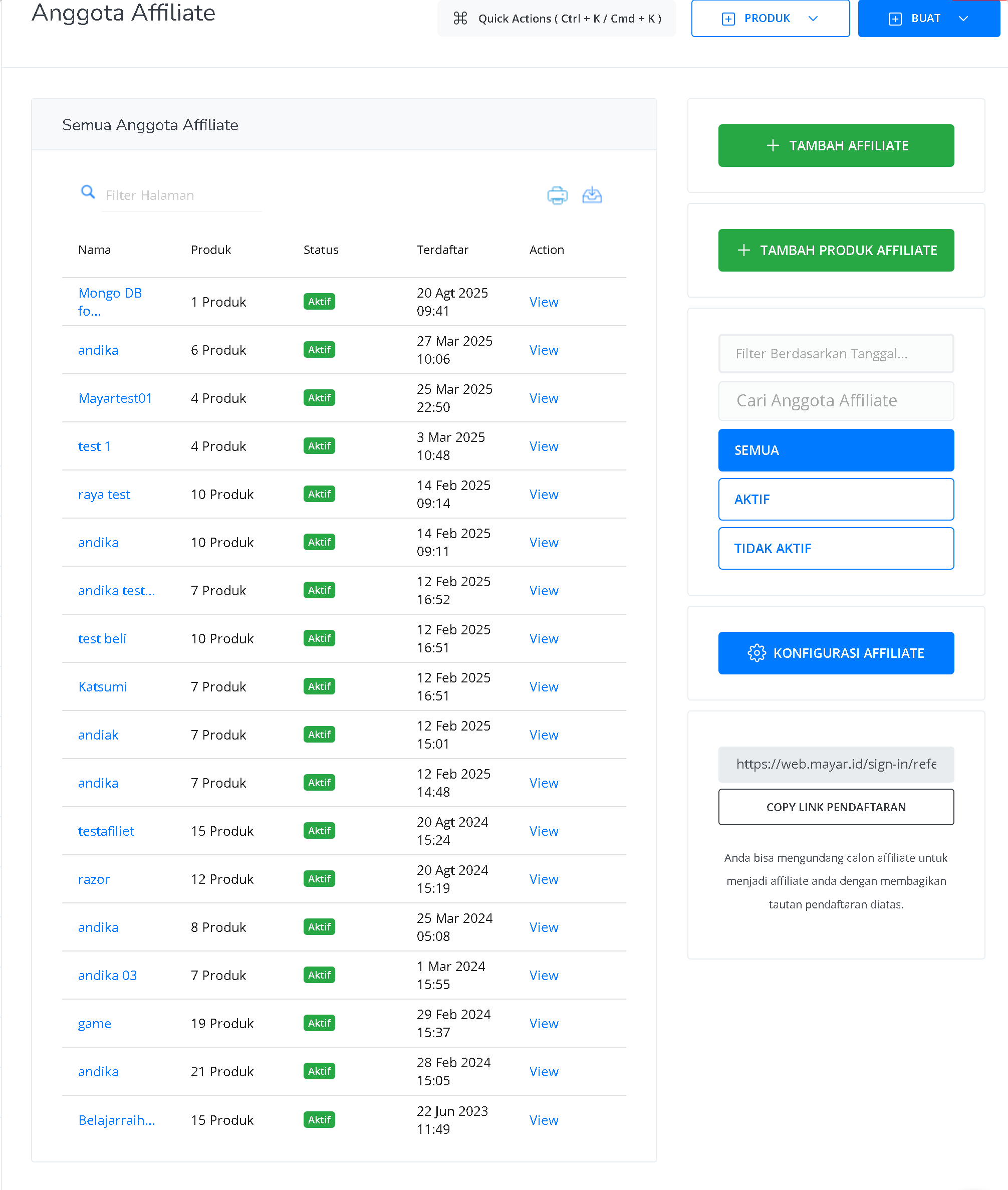
On the right sidebar of the Dashboard, find and click the “Affiliate” option. This will take you to the Affiliate Members page.
On this page, click the “Add Affiliate” button to start adding a new affiliate, or you can share the affiliate registration page to your community.
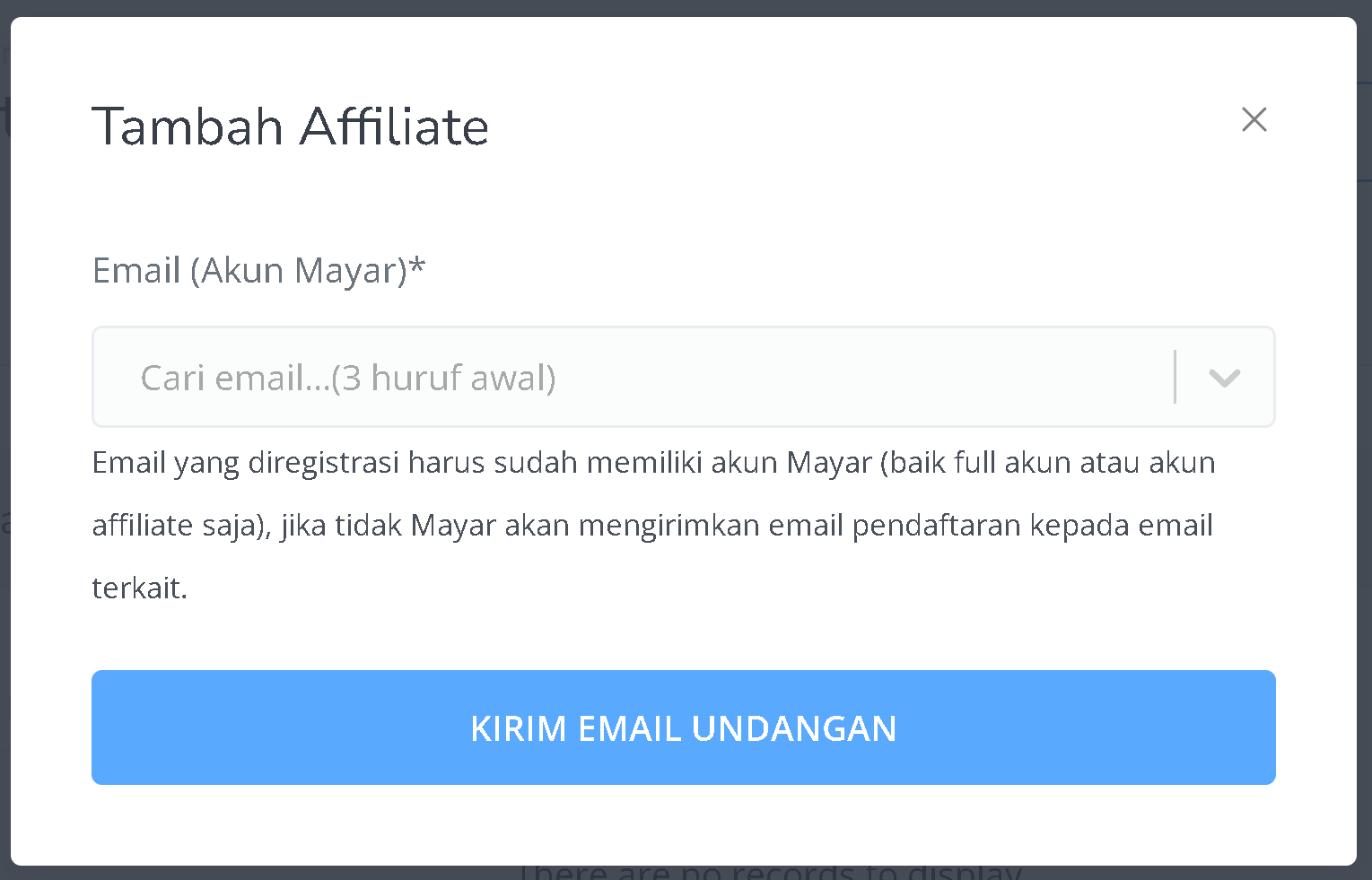
 A “Add Affiliate” modal will appear. Enter the email of the person you want to add. Then, select the product to affiliate, fill in the destination URL (optional), and add notes if needed.
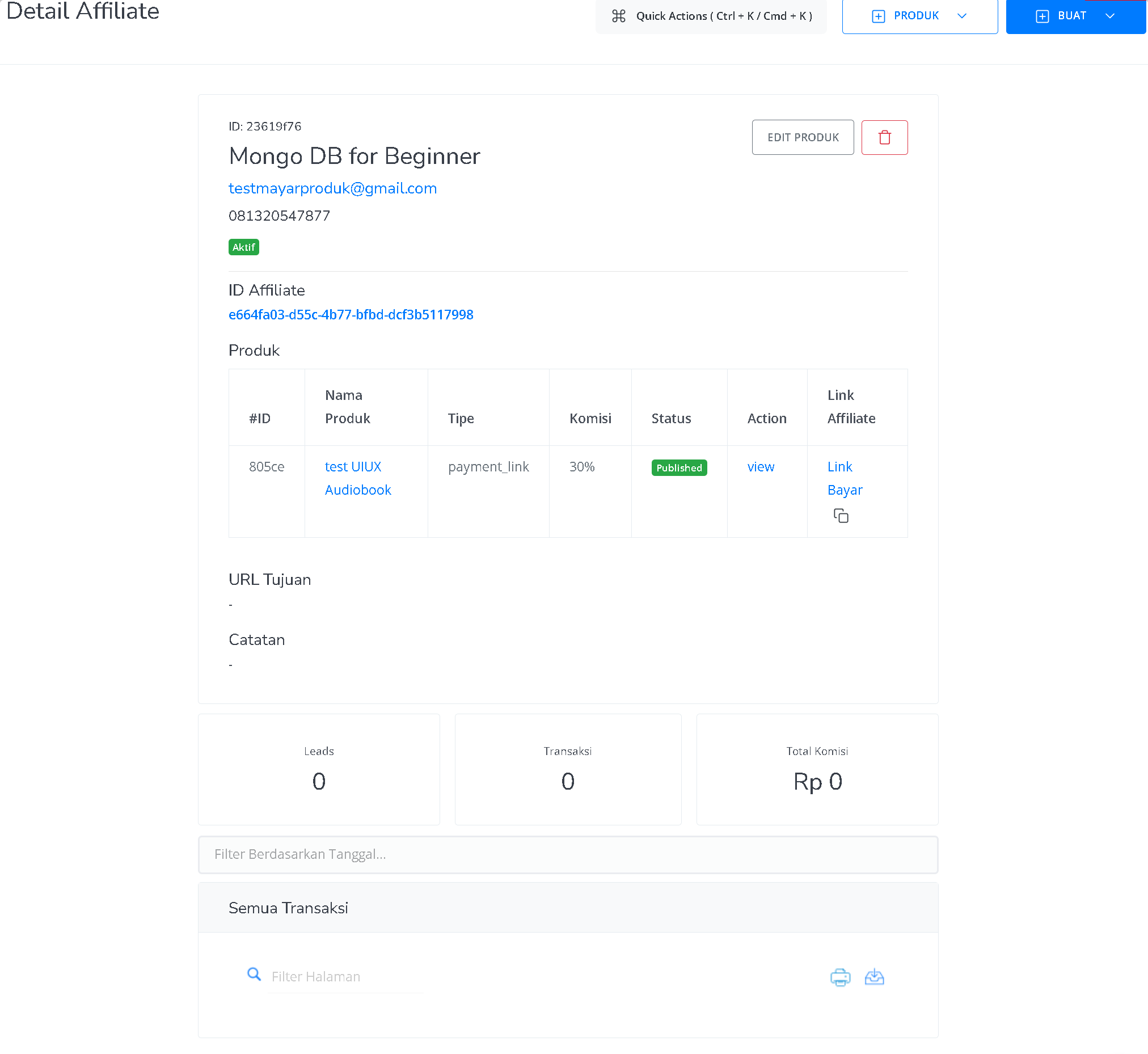
 After filling in and saving the information, you will be redirected to the Affiliate Detail page, where you can track the status of the affiliate you’ve invited to join.
 ### How to Add Affiliate Product
Make sure you are logged into your account and on the main Dashboard page. This is where you’ll start using the Add Affiliate Product feature.
On the right sidebar of the Dashboard, click “Affiliate.” This will take you to the Affiliate Members page.
On this page, click “Add Affiliate Product” to add a new product.
A “Add Affiliate Product” window will appear. Enter the product information and choose whether to add it for all affiliates or selected affiliates only.
### How to Add Affiliate Product
Make sure you are logged into your account and on the main Dashboard page. This is where you’ll start using the Add Affiliate Product feature.
On the right sidebar of the Dashboard, click “Affiliate.” This will take you to the Affiliate Members page.
On this page, click “Add Affiliate Product” to add a new product.
A “Add Affiliate Product” window will appear. Enter the product information and choose whether to add it for all affiliates or selected affiliates only.
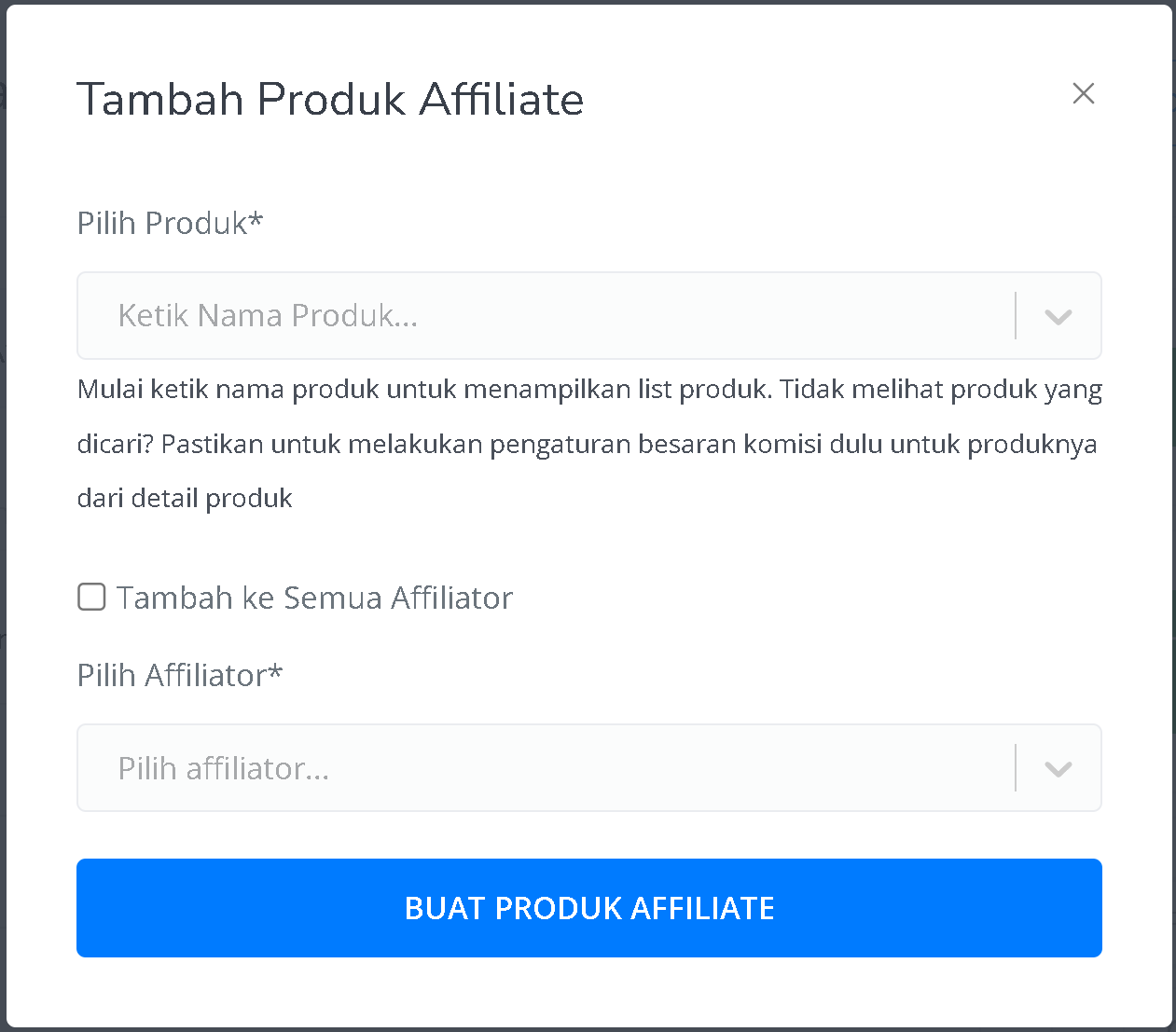 Once the information is filled in and saved, you’ll be redirected back to the Affiliate Members page. From there, you can access the details of the affiliates who now have the product assigned.
### How to Access and Promote Affiliate Products (as an Affiliator)?
You can access the affiliate page in two ways — directly from the Dashboard if you already have an account, or through the invitation link sent to your email.
Once logged in, you can access the affiliate products page. Here, you’ll find information such as all products affiliated with the Merchant, the number of leads, transactions, total commissions, and all affiliate payments.
Once the information is filled in and saved, you’ll be redirected back to the Affiliate Members page. From there, you can access the details of the affiliates who now have the product assigned.
### How to Access and Promote Affiliate Products (as an Affiliator)?
You can access the affiliate page in two ways — directly from the Dashboard if you already have an account, or through the invitation link sent to your email.
Once logged in, you can access the affiliate products page. Here, you’ll find information such as all products affiliated with the Merchant, the number of leads, transactions, total commissions, and all affiliate payments.
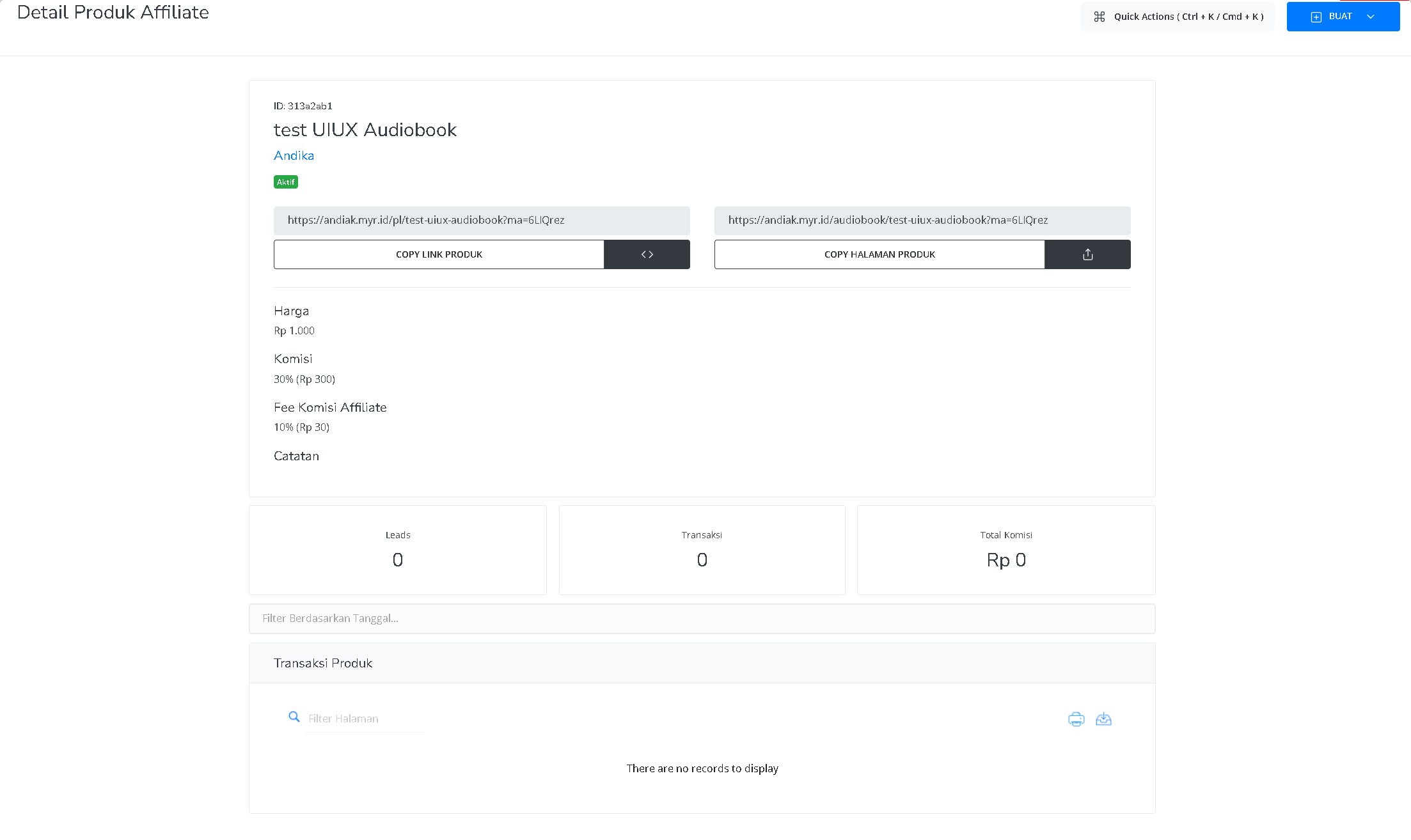
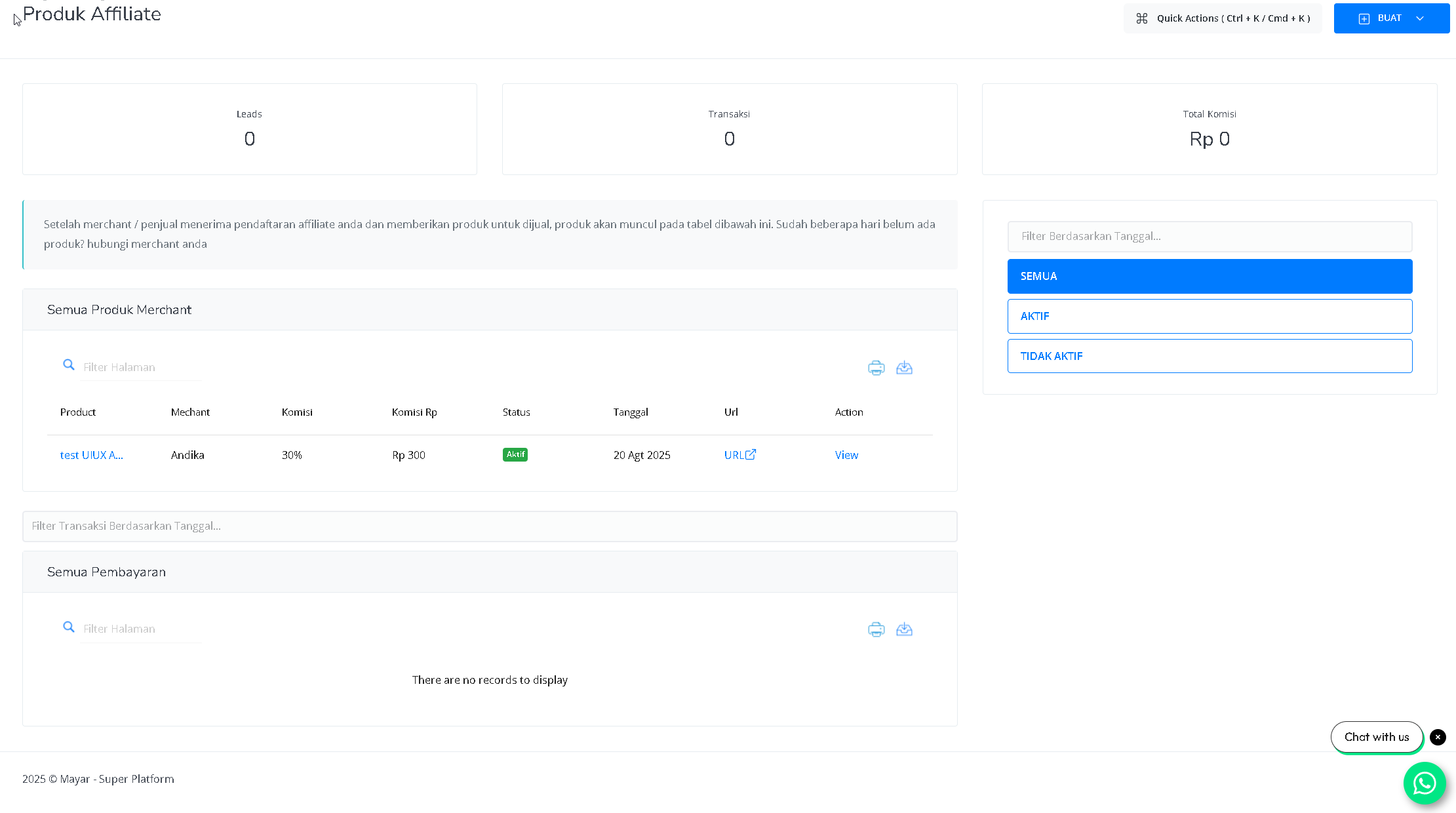 Use your unique affiliate link to promote the products. You can share it on social media, blogs, or other platforms.
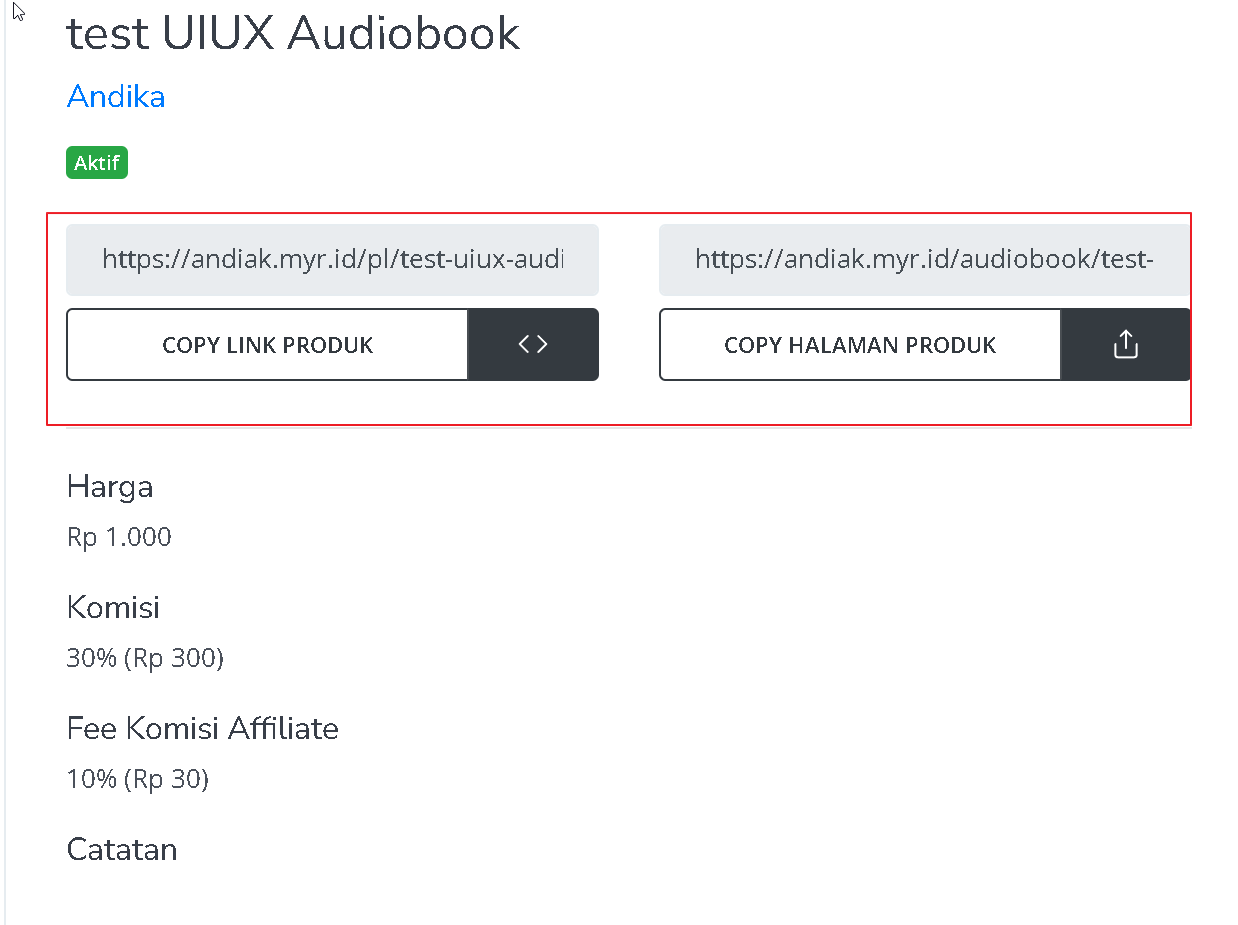 After promoting, you can monitor progress from the affiliated product details. You’ll see data such as the number of leads, transactions, total commissions, and all transactions related to that product.